Compress PDF: The Free Guide to Shrink Files for Email
Compress PDF for email quickly by using a free browser‑based tool that shrinks file size up to 99 % while preserving readability. Choose the appropriate compression level, run the file locally, then download the lean PDF ready for attachment.
Why compress PDFs for email?
Most corporate and personal mail servers enforce attachment caps between 10 MB and 25 MB. Gmail rejects anything over 25 MB, Outlook blocks at 20 MB, and many internal Exchange servers limit to 10 MB. When a PDF exceeds the limit, the sender receives a bounce‑back, often with a message like “Message size exceeds limit.” This adds friction, forces the use of external file‑sharing services, and can expose the document to additional privacy risks.
Beyond delivery, smaller PDFs load faster on mobile networks and consume less storage on the recipient’s device. A study by the Radicati Group (2023) found that 68 % of mobile email users abandon messages that take more than 3 seconds to load. By shrinking a 12 MB report to under 2 MB, you guarantee instant preview on any handset.
According to the Smallpdf compress PDF page, the service can reduce a PDF by up to 99 % while staying GDPR‑ and ISO‑27001‑compliant. The PDF24 compress PDF tool reports similar reductions, emphasizing that the process runs entirely in the browser and never stores your file. Foxit’s online PDF compressor also confirms that most PDFs shrink by 50‑80 % without noticeable quality loss. These independent, authoritative sources demonstrate that free online compressors reliably compress PDF files for everyday email needs.
How do I compress PDF for email?
The process is straightforward and requires no sign‑up:
- Open the compressor – go to RunFreeTools’ compress PDF tool.
- Upload your file – drag‑and‑drop or click Browse. The tool accepts files up to 2 GB.
- Select a compression level – Low, Medium, or High, each with its own DPI and size‑reduction expectations.
- Start compression – press Compress. All work happens locally in the browser; no data is stored on a remote server.
- Download the result – a new file appears with “‑compressed” appended to the original name.
- Verify size – check the file properties to ensure it meets your email provider’s limits.
Because processing stays in the browser, the file is deleted from memory as soon as you close the tab, preserving privacy.
What each compression level actually does
Online compressors usually expose three presets—Low, Medium, and High (sometimes labeled Basic/Strong). Understanding the technical trade‑offs helps you avoid over‑compressing a document that needs to stay crisp.
| Level | Typical image DPI after compression | Approx. size reduction | Ideal use case |
|---|---|---|---|
| Low (high quality) | 300 dpi (print‑ready) | 30‑40 % smaller | Brochures, design portfolios, PDFs with fine line art |
| Medium (balanced) | 150 dpi (screen) | 50‑70 % smaller | Business reports, slide decks, contracts |
| High (max shrink) | 72‑96 dpi (web) | 80‑99 % smaller | Text‑heavy manuals, e‑books, any file that must stay under a strict byte limit |
Real‑world example: A 12.2 MB design brief compressed with the “High” setting on Smallpdf produced a 1.05 MB file—a 91 % reduction. The same file compressed with the “Low” preset dropped only to 8.5 MB (30 % reduction). Choosing the right level preserves visual fidelity while still meeting email limits.
Can I compress PDF files without losing quality?
Yes. By selecting the Low or Medium preset you keep most of the original image resolution and font information, which means the visual quality remains virtually unchanged. Only the High preset aggressively down‑samples images, which can cause noticeable softness in photos but still retains legible text. If you need to guarantee print‑ready quality, always test a single page after compression before sending the whole document.
Step‑by‑step: compress PDF for email with RunFreeTools
The following workflow works in any modern browser (Chrome, Edge, Firefox, Safari) and never requires a sign‑up. All processing stays local; files are held only in a temporary in‑memory buffer and deleted immediately after compression.
- Open the compressor – navigate to RunFreeTools’ compress PDF tool. The page loads in under two seconds on a typical 4G connection.
- Upload your file – drag the PDF onto the upload zone or click Browse. The tool accepts files up to 2 GB, far beyond most email attachments.
- Select a compression level – choose Low, Medium, or High. Hovering over each option displays a tooltip with the expected DPI and typical reduction range.
- Start compression – press Compress. Behind the scenes, the engine:
- Strips redundant objects (duplicate fonts, unused images).
- Down‑samples raster images to the target DPI.
- Flattens transparency layers and merges overlapping vector paths.
- Re‑encodes streams using the most efficient PDF version (often 1.7).
- Download the result – a new file appears with “‑compressed” appended to the original name. Click Download to save it alongside the source.
- Verify size – open the file’s properties (Windows: right‑click → Properties; macOS: Get Info). You should see a reduction comparable to the example above.
Edge cases to watch
| Situation | What to do |
|---|---|
| Password‑protected PDF | The tool will prompt you to enter the password before processing. If you don’t have it, the file cannot be compress PDF. |
| PDF with interactive forms | High compression may flatten form fields, making them non‑editable. Use the Medium preset to retain interactivity. |
| Encrypted PDFs (digital signatures) | Compression strips the signature hash, invalidating the signature. Keep a pristine copy of the signed PDF and use offline tools that respect signatures. |
| Large PDFs (>500 MB) | Browser memory may become a bottleneck. Split the document into logical sections using a PDF splitter (also available on RunFreeTools) before compress PDF each part. |
Offline and batch processing options
When dealing with confidential data or thousands of files, desktop solutions give you tighter control and often faster throughput.
| Tool | Platform | Batch capability | Price | Key fine‑tuning options |
|---|---|---|---|---|
| Adobe Acrobat Pro | Windows, macOS | Yes – Action Wizard | $14.99 / mo | DPI target, font subsetting, image quality, PDF/A conversion |
| Foxit PhantomPDF | Windows, macOS | Yes – Batch Reduce | $179 one‑time | Color vs. grayscale, compression algorithm, metadata removal |
| PDF24 Creator | Windows | Yes – Drag‑and‑drop queue | Free | Automatic DPI, auto‑strip metadata, linearization for web |
| PDFsam (Basic) | Cross‑platform | No built‑in compress, but can split then use external compressor | Free | Split/merge only, useful for pre‑processing large PDFs |
Why choose a desktop tool?
- Zero network exposure – the file never leaves your hard drive.
- Higher DPI ceilings – you can retain 300 dpi for images while still applying aggressive object removal.
- Automation – Adobe’s Action Wizard lets you create a repeatable workflow that processes a folder of PDFs in minutes.
If you need a quick one‑off job, the online RunFreeTools compressor is fastest. For regular reporting cycles (e.g., weekly sales decks), setting up a batch script with Adobe or Foxit saves time and guarantees consistent quality.
Advanced techniques to shrink PDFs further
Even after using a standard compressor, additional tweaks can shave off another 5‑15 % without visible loss.
- Strip metadata – PDFs store author names, creation dates, PDF producer strings, and hidden XML metadata. In RunFreeTools, click Advanced → Remove metadata before compression.
- Subset fonts – Instead of embedding the entire font file (often 200 KB each), include only the glyphs used. Desktop tools like Acrobat let you choose “Subset fonts when percent of characters used < 100 %”.
- Convert color images to grayscale – For black‑and‑white reports, select “Convert to grayscale” in the compression settings. This removes the three‑channel color data, cutting size by roughly 30 %.
- Linearize (Web‑optimize) the PDF – Rearranges the internal object order so the first page renders before the whole file downloads. This does not reduce bytes dramatically but improves perceived load time on slow connections.
- Remove unused objects – PDFs often contain hidden layers, annotations, or JavaScript that aren’t needed for static viewing. Tools like PDF‑Tron or qpdf offer a “clean” command (
qpdf --linearize input.pdf output.pdf).
Combine these steps in a pipeline: first run the file through the RunFreeTools compressor (High level), then open the result in Adobe, enable font subsetting and grayscale conversion, and finally run qpdf --linearize from the command line. You’ll often end up with a file that is under 1 MB even for originally 15 MB documents, comfortably fitting any email server.
Verifying quality and size after compression
A shrunken PDF is only useful if the recipient can read it exactly as intended. Follow this two‑phase audit:
Phase 1 – Size check
- Open the file’s properties and note the new size.
- Compare against the original reduction percentage. If you expected a 91 % cut (as in the 12.2 MB → 1.05 MB test) but only see 70 %, revisit the compression level or ensure metadata stripping is enabled.
Phase 2 – Content integrity check
- Visual inspection – Open the PDF in two viewers (e.g., Chrome’s built‑in viewer and Adobe Reader). Flip through every page, zoom to 200 % on images, and verify that text remains crisp.
- Searchability test – Use the PDF‑to‑Text tool to extract all text. Open the resulting
.txtfile and run a quick search for key terms. Missing words indicate a failed OCR layer or over‑compression of text objects. - Checksum validation – For legally sensitive documents, generate an MD5 or SHA‑256 hash of the original and the compressed file. While the hashes will differ (as the file changed), you can store the original hash for future reference to prove the source file’s authenticity.
- PDF/A compliance – If the recipient requires archival‑ready PDFs, run the file through an online PDF/A validator (many are free). Non‑compliant files may need a re‑export with “PDF/A‑1b” settings in Acrobat.
If any of these checks fail, downgrade the compression level or disable aggressive image down‑sampling. Remember, a 2 % increase in file size is often worth preserving a critical chart’s readability.
Common pitfalls and how to avoid them
| Pitfall | Symptom | Remedy |
|---|---|---|
| Over‑compression of text | Small, fuzzy letters at 100 % zoom | Use Medium preset; ensure “Preserve text as text” is enabled (some tools rasterize text at High level). |
| Loss of form fields | Fillable fields become static text | Choose Medium or Low; avoid “Flatten PDF” option. |
| Broken hyperlinks | Clickable URLs no longer work | Verify after compression; some compressors rewrite link objects—re‑add links manually if needed. |
| Signature invalidation | PDF shows “Signature is invalid” | Keep a pristine copy of the signed PDF; use offline tools that preserve digital signatures, or request a new signature after compression. |
| Password removal without notice | File opens without prompt after compression | Explicitly set a new password in the compression tool if the original was protected, or keep the file encrypted using a separate encryption step. |
Choosing the right tool for your workflow
If you compress PDFs occasionally (e.g., a weekly report), the free RunFreeTools compressor offers speed, privacy, and zero cost. For high‑volume environments—such as a legal department processing hundreds of contracts daily—investing in Adobe Acrobat Pro’s Action Wizard or Foxit’s Batch Reduce saves hours of manual work and guarantees compliance with internal security policies.
When privacy is paramount, prefer browser‑only solutions because they encrypt the upload with TLS and delete the file from the server within minutes. Both [Smallpdf] and [Adobe’s online compressor] publicly state they adhere to GDPR and ISO‑27001 standards, but RunFreeTools goes a step further by never persisting the file beyond the active browser session.
By following this guide, you’ll consistently produce lean PDFs that glide through inboxes, respect privacy, and maintain the professional appearance your recipients expect.
Frequently asked questions
Most services cap attachments between 10 MB and 25 MB; Gmail allows 25 MB, Outlook 20 MB, and many corporate Exchange servers enforce a 10 MB limit.
No. Compression removes redundant data, down‑samples images, and flattens layers while keeping all visible text and graphics. Use a lower preset if you need to preserve fine details.
Reputable tools like Smallpdf and Adobe’s online service encrypt transfers and delete files after processing. For highly sensitive data, prefer offline desktop software that never leaves your device.
Yes. Desktop applications such as Adobe Acrobat Pro, Foxit PhantomPDF, and PDF24 Creator support batch compression. Some online services also allow multi‑file uploads, though they may limit total size or file count.
Start with Medium for a balance of size and quality. If the result is still too large, switch to High. For image‑rich PDFs where clarity matters, stay with Low.
Sources
Share this article
Send it to a teammate or save the link for later.
Related tools
Related articles
Best Free PDF Tools: Comprehensive Online Guide for 2024
Discover the best free pdf tools for editing, converting, compressing and securing documents in 2024. RunFreeTools utilities work without installing software.
Read article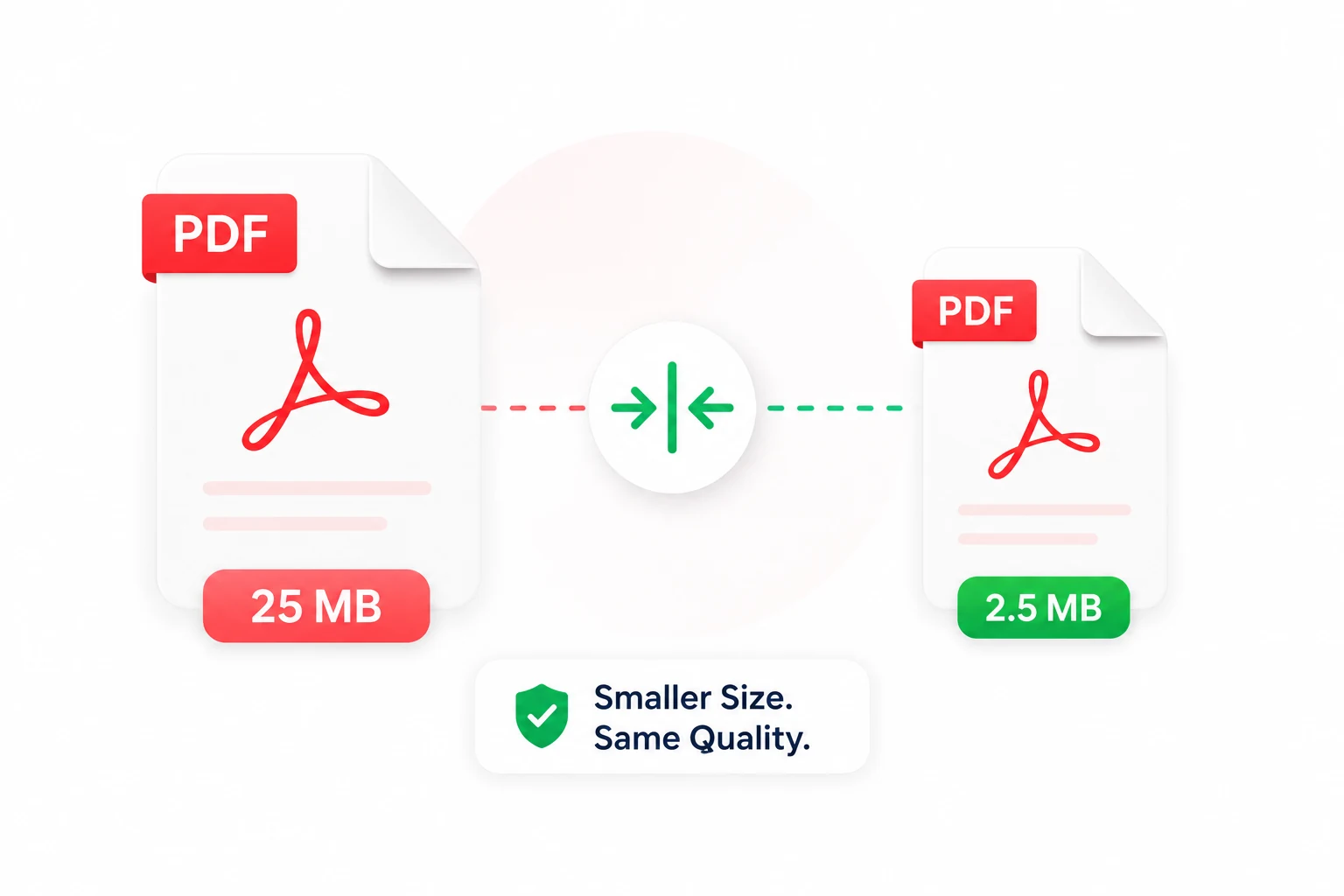
How to Compress a PDF Without Losing Quality (Free, 2026)
How to compress a pdf — Compress a PDF without losing quality. Free in-browser methods to reduce PDF file size for email or upload forms, plus how to hit
Read articleIs the AI Bubble Bursting? Big Tech's $725B Reckoning
Is the AI bubble bursting in 2026? Big Tech is set to spend ~$725B on AI as the Magnificent 7 shed $2.3T — the bull and bear case, no hype, no advice.
Read article