Convert Files Online Free: The Complete 2026 Guide
You can convert files online free in seconds, without installing a single program or handing your documents to a stranger's server. Whether you need to turn a PDF into an editable Word file, swap a PNG for a smaller WebP, pull audio out of a video, or fix iPhone photos that won't open on Windows, a good free file converter handles it from your browser. The catch is knowing which tool to reach for and which output format actually serves your goal.
This guide is organized by file type — documents, images, video and audio — so you can jump straight to what you need. Along the way you'll learn how to choose the right format (JPG vs PNG vs WebP, MP4, DOCX, MP3), why many of these tools keep your files completely private, and the quick steps that work for almost any conversion. If you only came to fix one PDF, start with our PDF to Word converter and skim the rest later.
Why convert files online free instead of installing software
The old way to convert a file meant downloading a desktop app, clicking through an installer, and often dodging a paywall or a watermark at the end. Converting files online free skips all of that. There's nothing to install, nothing to update, and it works the same on Windows, Mac, ChromeOS, Linux and most phones — the browser does the work.
The bigger upgrade is privacy. Many browser-based converters process your file entirely on your own device using modern web technology, which means the file never gets uploaded to a server at all. That matters for anything sensitive: contracts, ID scans, financial statements, unreleased video. When a tool runs locally, your document doesn't leave your laptop, so there's no copy sitting on someone else's hard drive. Tools that work this way — like Image Converter and Video Converter — are the ones to prefer when the content is private. The rule of thumb: the less a converter needs to "send" your file anywhere, the safer it is.
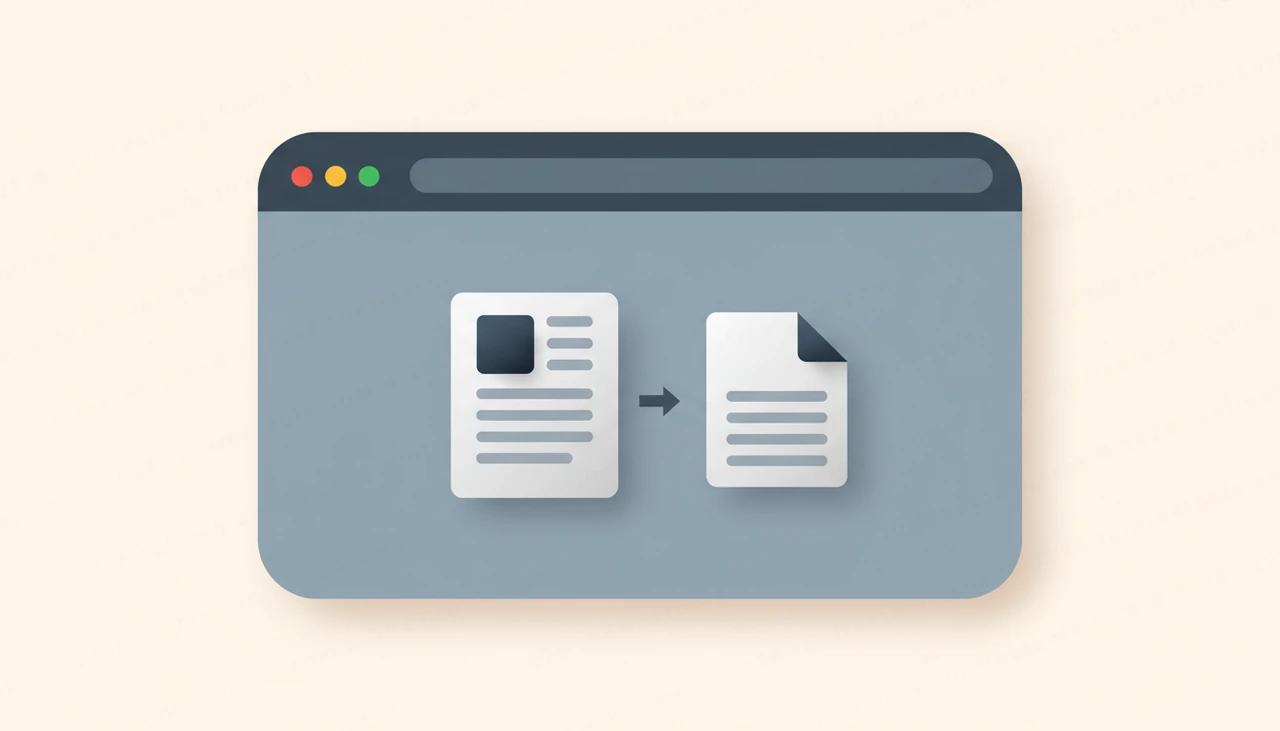
Convert document files: PDF to Word, image and text
Documents are the most common thing people need to convert, and PDFs are usually at the center of it. A PDF is great for sharing because it looks identical everywhere — but that's also why it's frustrating to edit. The fix depends on what you want to do next.
- To edit the wording, use PDF to Word. It rebuilds the text into an editable .docx you can open in Word, Google Docs or Pages — no retyping.
- To drop pages into a slide deck, email or website, use PDF to Image and export each page as a clean PNG or JPG.
- To copy text out fast — even from a scanned PDF — use PDF to Text, which can read image-only scans with built-in OCR.
- Going the other way, Image to PDF bundles photos, receipts or screenshots into one tidy PDF you can send as a single file.
A quick tip on format choice: keep the PDF as your master copy for sharing and printing, and convert to DOCX only while you're actively editing. When you're done, export back to PDF so the layout stays locked. For a deeper walkthrough, see our guide on how to convert PDF to Word free.
Convert image files: choosing JPG, PNG or WebP
Image conversion trips people up because the "best" format depends entirely on the picture. Use Image Converter to switch between them, and pick using this cheat sheet:
- JPG — photographs and anything with smooth color gradients. Small files, no transparency. The safe default for camera photos.
- PNG — logos, icons, screenshots and graphics with sharp edges or transparent backgrounds. Larger, but crisp and lossless.
- WebP — the modern all-rounder for the web. It compresses smaller than both JPG and PNG at similar quality, which speeds up websites. Convert to WebP when you're publishing online and to JPG or PNG when you need maximum compatibility with older apps.
Two image jobs deserve their own tools. iPhone photos save as HEIC, which Windows and many websites refuse to open — HEIC to JPG fixes that instantly. And when you need the words out of an image — a screenshot, a whiteboard photo, a scanned page — Image to Text uses OCR to extract editable text. For more on picking formats, read how to convert image formats.
Convert video files: MP4, GIF and extracting audio
Video files are big, and the wrong format means a clip that won't play or won't upload. A free file converter handles the common cases without ever touching a server. Reach for Video Converter to move between MP4, WebM, MOV and MKV.
When in doubt, convert to MP4 (H.264). It's the universal format — it plays on virtually every phone, browser, editor and social platform, and it's what you want for uploads to YouTube, Instagram or a website. Use WebM only when you specifically need a smaller file for a web page, and MOV mainly inside the Apple ecosystem.
Two related conversions come up constantly. To turn a short clip into a shareable loop for chat or a blog, Video to GIF lets you trim the section and set the frame rate. And to grab just the sound — a lecture, a song, a podcast clip — Video to MP3 extracts the audio track as an MP3 you can play anywhere. Because these run in your browser, even a private recording stays on your device.
Convert audio files: MP3, WAV and the lossless options
Audio conversion is mostly about balancing file size against quality. Use Audio Converter to move between MP3, WAV, M4A, OGG and FLAC, and let the goal decide:
- MP3 — the universal choice. Small files that play everywhere, perfect for music, voice notes, podcasts and anything you'll share or stream.
- WAV — uncompressed and lossless, but large. Use it when you're handing audio to an editor or need pristine quality with no compression artifacts.
- M4A — Apple's efficient format; good quality at small sizes, ideal inside the Apple world.
- FLAC — lossless and compressed, so it's the audiophile pick when you want full quality without the bloat of WAV.
The practical workflow: keep a lossless WAV or FLAC as your archive copy if quality matters, and convert to MP3 for everyday sharing where small size and compatibility win. If you've got a video instead of an audio file, remember you can pull the sound out first with Video to MP3, then convert it further if you need a different format.
How to convert any file online: the quick steps
Almost every browser-based converter follows the same three-step pattern, so once you've done one, you've done them all:
- Open the tool and add your file. Drag it onto the page or click to browse. With a local converter, this loads the file into your browser, not onto a server.
- Choose your output format and settings. Pick the format from the cheat sheets above, and adjust quality, resolution or bitrate if the tool offers it. Higher quality means a bigger file — match it to where the file is going.
- Convert and download. Click convert, wait a moment, and save the result to your device. That's it — no account, no email, no watermark on the good tools.
A few habits make this smoother. Keep your original file until you've confirmed the converted version looks right. Match the format to the destination — MP4 for uploads, JPG for photos, MP3 for sharing, DOCX only while editing. And for anything sensitive, choose a converter that processes in your browser so the file never leaves your hands. With those rules, you can convert files online free for just about any task in under a minute.
Frequently asked questions
Is it safe to convert files online for free?
It can be very safe — it depends on the tool. Converters that process files directly in your browser never upload your document to a server, so your file stays on your device. For anything sensitive, choose a tool that says it works locally or in-browser, like our image, video and audio converters.
Do I need to install software or sign up to convert files?
No. A browser-based converter needs no installation and works the same on Windows, Mac, Chromebook, Linux and most phones. The best free tools also skip the sign-up, the email capture and the watermark — you just add your file, pick a format and download.
What format should I convert my file to?
Match the format to where the file is going. Use PDF for sharing documents and DOCX only while editing them; JPG for photos and PNG for graphics with transparency; MP4 for video uploads; and MP3 for audio you'll share. Use lossless WAV, FLAC or WebP when quality or web speed is the priority.
Can I convert PDF, image, video and audio files with one tool?
There isn't a single button for everything, but you can do all of it free in one place. Use the PDF tools for documents, the Image Converter for photos and graphics, the Video Converter for clips, and the Audio Converter for sound — each handles its file type without any software install.
Will converting a file reduce its quality?
It depends on the format. Lossless conversions (PNG, WAV, FLAC, or PDF to Word for text) preserve quality. Lossy formats like JPG and MP3 trade a little quality for much smaller files, which is usually invisible for everyday use. Keep your original until you've checked the result.
Share this article
Send it to a teammate or save the link for later.
