Convert HEIC to JPG Free: iPhone, Windows and Mac Guide

RunFreeTools TeamJun 18, 202611 min read
Convert HEIC to JPG Free: iPhone, Windows and Mac Guide

The fast answer: how to convert HEIC to JPG free

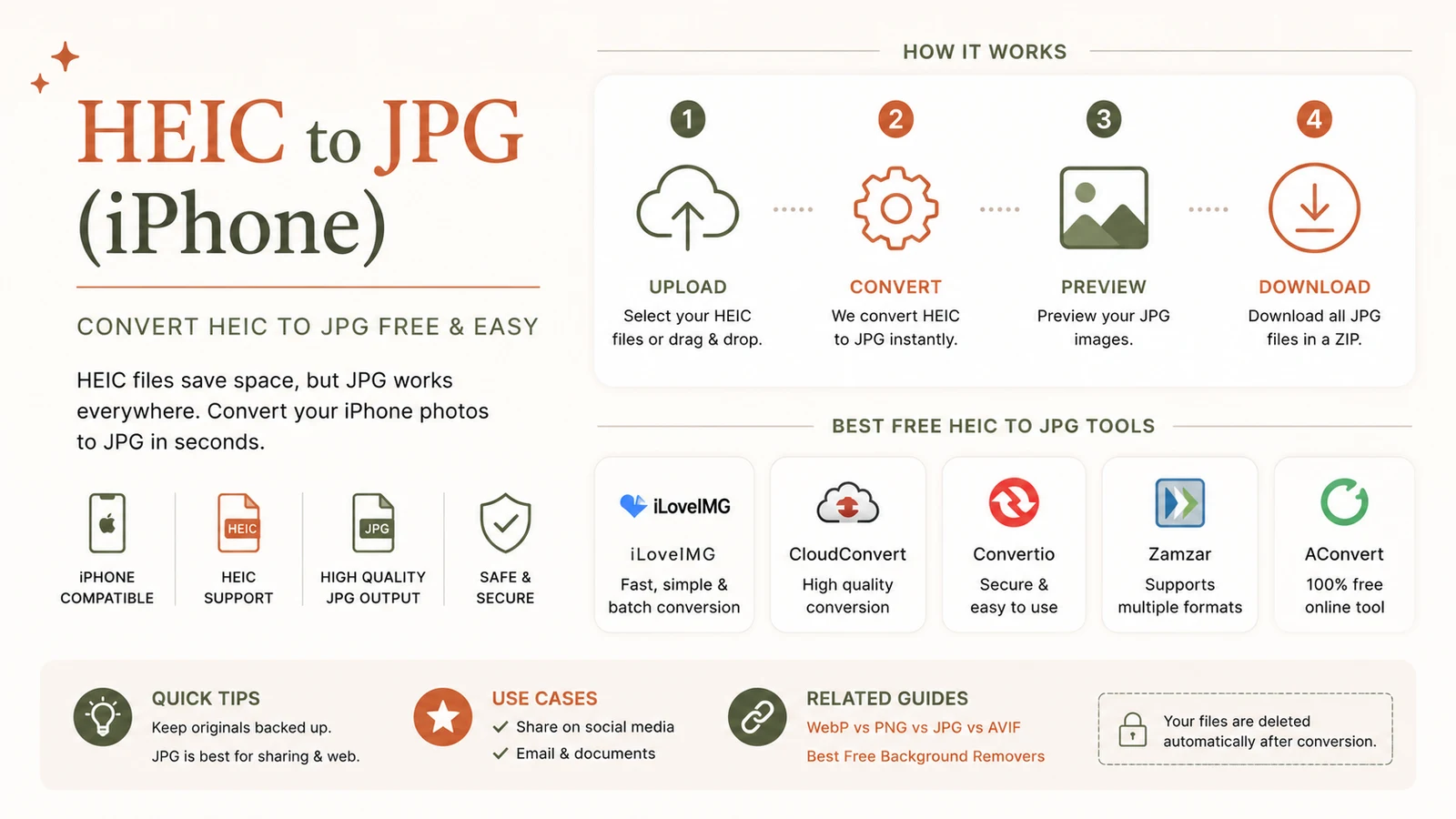
A HEIC file is the photo format your iPhone uses by default. It looks identical to a JPEG but takes up about half the space. The catch is that lots of Windows apps, web upload forms, and Android phones can't open it. The quickest free fix is a browser-based HEIC to JPG converter that runs on your own device — drop the file in, download a JPG, and nothing ever leaves your computer. On iPhone you can also switch the camera to shoot JPG from the start.

That's the short version. Below is the full, no-jargon guide: what a HEIC file actually is, why you keep running into it, and the exact steps to convert HEIC to JPG on iPhone, Windows 11, and Mac — plus how to do it in bulk and how to stop your iPhone from making HEIC files at all.

What is a HEIC file, and why does Apple use it?

HEIC stands for High Efficiency Image Container. It's Apple's name for an image saved in the HEIF (High Efficiency Image Format) standard, and it has been the default camera format on iPhone and iPad since iOS 11 launched in 2017. macOS picked up support the same year with High Sierra.

The reason Apple switched is simple: space. HEIC uses HEVC (H.265) compression — the same family of math that compresses 4K video — to store a photo in roughly half the size of an equivalent JPEG, with no visible drop in quality. On a phone full of thousands of photos and in iCloud, that adds up to a lot of saved storage. HEIC also carries extras a JPEG can't, like depth maps for Portrait mode, Live Photo data, and wider color.

So on paper, HEIC is the better file. The problem is everything that isn't made by Apple.

Why people need JPG instead

JPG (also written JPEG) has been the universal image format for nearly thirty years. Practically every device, browser, printer, and app understands it. HEIC is newer and far less widely supported, which is exactly why you end up needing to convert. The usual sticking points:

  • Windows. Older Windows machines show HEIC as a blank icon and refuse to open it without an extra codec from Microsoft.
  • Web upload forms. Job portals, government sites, insurance claims, and marketplace listings often reject HEIC and demand a JPG or PNG.
  • Sharing to Android or non-Apple devices. Send a HEIC to a friend on Android and they may get a file their gallery can't display.
  • Older software. Many photo editors, document tools, and content systems still can't import HEIC.

None of this means HEIC is broken — it just means JPG is the safe lingua franca when a file has to leave the Apple world. Here's how to make that conversion on every platform.

The quick comparison: every method at a glance

Platform Method Free? Keeps quality?
iPhone / iPad Drop into Files app, or AirDrop to a Mac (auto-converts) Yes Yes — visually identical
Windows 11 Photos app or Paint, then Save as JPEG Yes Yes — high quality
Mac Preview, then File then Export as JPEG Yes Yes — adjustable quality
Online (any device) In-browser converter, runs locally Yes Yes — quality 92, no upload

Every option in that table is genuinely free. The in-browser route is the only one that works the same way on every device without installing anything, which is why it's the simplest path if you bounce between a phone and a PC.

How to convert HEIC to JPG on iPhone

You actually have two separate goals on iPhone: converting photos you already shot, and stopping new ones from being HEIC. Let's handle converting first.

Option 1: Use the Files app (no apps to install)

This is the built-in trick most people miss:

  1. Open the Photos app and find the HEIC photo.
  2. Tap the share icon, then choose Save to Files.
  3. Pick a folder and save it.

When iOS copies a photo into Files this way, it commonly writes it out as a JPEG, giving you a shareable file without any third-party app. From Files you can then attach it to an email, upload it to a website, or move it anywhere.

Option 2: AirDrop to a Mac (automatic conversion)

If you also use a Mac, AirDrop can do the work. According to Apple, when you share photos to a device or app that doesn't support HEIC, the media "might automatically be shared in a more compatible format, such as JPEG." In practice, sharing or saving in many apps hands you a JPEG on the other end. If you specifically want guaranteed JPEGs, the most reliable approach is to set your camera to JPG (see below) or convert on the receiving computer.

Option 3: Email it to yourself

Mail often converts attachments to JPEG on the way out. Attach the HEIC photo to an email, send it to your own address, and download the attachment — frequently a ready-to-use JPG. It's low-tech but works in a pinch with no setup.

Option 4: Convert in your browser — no app, fully private

If you want a JPG without rummaging through share menus, open the free HEIC to JPG converter right in Safari on your iPhone. Tap to add the photo, and the conversion happens on the phone itself — your image is never uploaded to a server. Then download the JPG. This is also the cleanest option when you have a batch of photos to do at once, and it's the same tool whether you're on iOS, Windows, or a Mac.

How to convert HEIC to JPG on Windows 11

Windows is where most HEIC frustration starts, but Windows 11 can handle the conversion for free once it can read the file.

Step 1: Make sure Windows can open HEIC

To see HEIC thumbnails and previews, Windows needs Microsoft's HEIF Image Extensions from the Microsoft Store, which in turn relies on the HEVC codec. On many Windows 11 machines this is already in place; if your HEIC files show as blank icons, install HEIF Image Extensions first. Note that this extension only lets you view HEIC — it doesn't convert anything on its own.

Step 2: Convert with the Photos app

Once HEIC opens:

  1. Double-click the HEIC file to open it in the Photos app.
  2. Click the three-dot menu in the top toolbar.
  3. Choose Save as.
  4. In the dialog, set Save as type to JPG (JPEG), name the file, and click Save.

Step 3: Or use Paint

If your Windows 11 is fully updated, Paint can open HEIC directly thanks to native support Microsoft added in a 2024 update:

  1. Right-click the HEIC file and Open with → Paint.
  2. Go to File → Save as → JPEG picture.
  3. Choose a location and save.

Step 4: Or skip the codec entirely with a browser tool

The catch with the methods above is the codec dependency — on a locked-down work PC you may not be able to install Store extensions at all. A browser-based converter sidesteps that completely: it decodes the HEIC inside the page using WebAssembly, so you don't need any Windows codec, any admin rights, or any download. Open the page, drop your files, and save JPGs. Because the work happens locally, your photos aren't sent to anyone's server — a real consideration for ID scans, medical images, or anything you'd rather not hand to a random cloud service. We dig into that trade-off in are online tools safe?

How to convert HEIC to JPG on Mac

macOS has read HEIC natively for years, so conversion is built right in — no downloads needed.

Single image with Preview

  1. Double-click the HEIC file to open it in Preview.
  2. Go to File → Export.
  3. In the Format dropdown, choose JPEG.
  4. Drag the Quality slider (keep it high for everyday use), name the file, and click Save.

That's it — a clean JPG sitting next to your original, with the quality level under your control.

Using the Photos app

If the image lives in your Photos library, select it and choose File → Export → Export [N] Photos, set the format to JPEG, pick a quality and an sRGB color profile, and export. Photos keeps the EXIF metadata (date, location) by default. There's an even quicker shortcut: select photos in the library and simply drag them to your desktop — macOS converts them to JPG automatically as they land.

How to convert HEIC to JPG in bulk

Converting one photo is easy. Converting a whole vacation's worth is where method matters.

  • On Mac (Preview): Select every HEIC in Finder, right-click and Open With → Preview. In Preview's sidebar choose Edit → Select All, then File → Export Selected Images, and save them all as JPEG in one pass.
  • On Windows: The built-in Photos and Paint apps convert one file at a time, so for folders use a batch-capable converter or a browser tool that accepts multiple files.
  • Anywhere (browser): The in-browser HEIC to JPG converter lets you drop a stack of files, converts them all locally, and lets you download them together. Since nothing uploads, a hundred photos convert as quickly as your device can chew through them, with no per-file upload wait and no privacy hand-off.

If you're cleaning up photos to email or post, it's worth pairing conversion with the image compressor to shrink the resulting JPGs, since — as we'll see next — JPGs come out noticeably larger than the HEICs they replaced.

Will converting HEIC to JPG lose quality?

Short answer: technically yes, practically no — but the file gets bigger.

Both HEIC and JPG are lossy formats, meaning each one throws away some data to save space. Converting from one to the other decodes the HEIC and re-encodes it as a JPEG, so the image is compressed a second time. At a low JPEG quality setting this can introduce visible artifacts, but at quality 92 or above the difference is invisible to the human eye. Good converters, including the in-browser one here, default to that high-quality range so your JPGs look identical to the originals.

The change you will notice is file size. Because JPEG's compression is roughly half as efficient as HEIC's HEVC, the JPG is typically two to three times larger than the HEIC it came from. A 2 MB HEIC might land around 4–5 MB as a high-quality JPG. That's expected — it's not lower quality, it's just a less efficient format doing the same job. If size matters for uploads or email, run the output through the image compressor, and use the image resizer if you also need smaller dimensions.

If you genuinely need a perfectly lossless copy — for archiving or print masters — export to PNG or TIFF instead, since those don't recompress. For everyday sharing, a high-quality JPG is the right call.

How to stop your iPhone from making HEIC in the first place

The cleanest long-term fix is to not create HEIC files at all. If you regularly upload photos to Windows or the web, switch your iPhone camera to capture JPG directly:

  1. Open Settings.
  2. Tap Camera.
  3. Tap Formats.
  4. Choose Most Compatible.

From that moment on, the camera saves new photos as JPEG (and video as H.264) instead of HEIC. Three things to keep in mind:

  • It only affects new photos — anything already in your library stays HEIC, so you'll still convert those once.
  • New JPEG photos take up more storage than HEIC would, which is the cost of compatibility.
  • Apple has a habit of quietly flipping this back to High Efficiency after some major iOS updates, so if you notice HEIC files creeping back, check this setting again.

For most people, the smart play is a hybrid: leave the camera on High Efficiency to save space day to day, and convert to JPG only when a specific file needs to go somewhere that demands it. That keeps your storage lean while still getting you a JPG the moment you need one.

Which method should you actually use?

It comes down to where you are and what you've got:

  • On an iPhone, one or two photos: drop them into the Files app or AirDrop to a Mac.
  • On a Mac: Preview's Export is the fastest, and dragging to the desktop is faster still.
  • On Windows with the codec installed: the Photos app's Save as works well.
  • On a locked-down PC, a phone and laptop mix, a big batch, or anything sensitive: use the in-browser HEIC to JPG converter. It needs no install, works identically everywhere, handles folders at once, and keeps every photo on your own device.

If you find yourself wrangling other formats too, the same site has a general image converter for PNG, WebP, and friends, plus guides on removing image backgrounds for free and compressing PDFs without losing quality. HEIC is only confusing until you know the trick — and now you've got one for every device you own.

Try the tool from this post

HEIC to JPG

Convert iPhone HEIC photos to JPG or PNG.

Open HEIC to JPG

Frequently asked questions

HEIC (High Efficiency Image Container) is Apple's default photo format since iOS 11. It uses HEVC compression to store the same-looking photo in roughly half the file size of a JPEG. The trade-off is compatibility: many Windows apps, websites, and non-Apple devices can't open HEIC directly.

On iPhone, drop the photo into Files or AirDrop it to a Mac. On Windows 11, open it in the Photos app or Paint and use Save as JPEG. On Mac, use Preview's File then Export. The fastest cross-device option is a free in-browser converter that runs locally and never uploads your photos.

Slightly, because both formats are lossy and the image is re-encoded. In practice the loss is invisible at JPEG quality 92 or higher, which most good converters use. The bigger change is file size: the JPG is often two to three times larger than the original HEIC, not lower quality.

Windows 11 needs Microsoft's HEIF Image Extensions (and the HEVC codec) from the Microsoft Store to show HEIC previews. Once installed, the Photos app and updated Paint can open HEIC and export it to JPEG. A browser-based converter skips the codec install entirely.

Go to Settings, then Camera, then Formats, and choose Most Compatible. From then on the camera captures JPEG instead of HEIC. Existing HEIC photos aren't changed, and note that iOS sometimes resets this to High Efficiency after a major update, so check it again later.

Yes. On Mac, select all the files, open them in Preview, and use File then Export Selected Images. On Windows, a batch-capable converter app or a browser tool handles folders at once. Most privacy-first in-browser converters let you drop dozens of HEICs and download them together.

Share this article

Send it to a teammate or save the link for later.

Related tools

Related articles
A mailbox receiving new tools, guides and feature updates

New tools, straight to your inbox

A short note whenever we ship a new free tool or guide. No spam, unsubscribe in one click.

  • No spam
  • Unsubscribe anytime
  • Your email is safe
11min left