Free heic to jpg Converter – Private, Secure Browser Tool
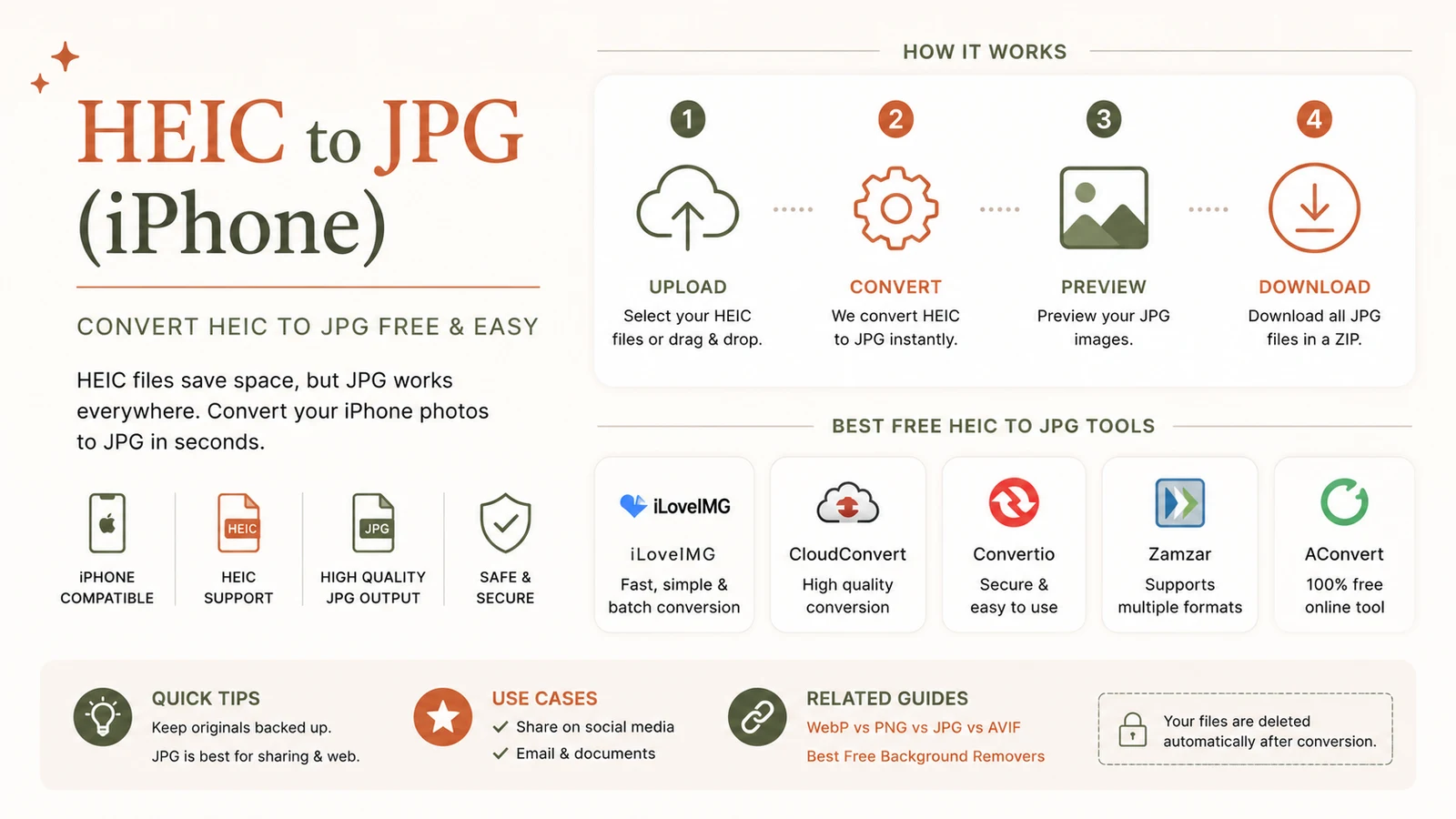
heic to jpg conversion lets you turn iPhone‑taken HEIC files into universally compatible JPGs instantly, without leaving your computer. Our browser‑based tool runs locally, so your photos stay private while you get high‑quality JPGs in seconds.
Why convert heic to jpg? – Understanding the trade‑offs
HEIC (High Efficiency Image Container) became the default on iOS 11 because it reduces file size by up to 50 % compared with JPG while preserving visual quality. The compression uses the modern HEVC codec, which stores more detail in fewer bytes. Apowersoft explains the size benefit.
The downside is compatibility. macOS, iOS, and newer Android devices read HEIC natively, but older Windows versions, many web services, and classic photo‑editing software still expect JPG or PNG. When a recipient cannot open a HEIC, the image is effectively invisible.
When you should convert
- Uploading to job portals, government forms, or social media that reject HEIC.
- Sharing with friends who use Windows 10, older Android phones, or email clients lacking codecs.
- Editing in Adobe Photoshop, GIMP, or other tools that only read JPG/PNG.
- Printing at services that require JPG or PNG files.
- Embedding images in PowerPoint, Word, or PDF documents for universal viewing.
Keeping HEIC is still advantageous when you stay within Apple’s ecosystem and want maximum storage efficiency.
How can I convert heic to jpg for free? – Step‑by‑step guide
A browser‑based converter runs entirely on your device, meaning your photos never leave your computer. Follow these three simple steps:
- Open the free converter – navigate to our HEIC to JPG tool.
- Add files – drag‑and‑drop a single image or select a batch (up to 30 photos per session). Apowersoft notes the 30‑file limit.
- Download – once conversion finishes, click “Download All” to receive a ZIP of standard JPGs.
Because the script executes locally, the process is instantaneous on modern browsers and respects GDPR‑level privacy. No registration, no hidden fees, and no watermarks.
Batch conversion tips
- Group by folder – if you have more than 30 images, convert in batches of 30 to stay within the session limit.
- Maintain order – the tool preserves original filenames, making it easy to re‑import into albums.
- Adjust quality only when needed – the default JPG quality is set to 92 % (visually lossless). Lower it to 80 % for email attachments to shrink file size further.
Which online tools are best for heic to jpg conversion? – A quick comparison
| Tool | Free limit | Privacy note | External rating |
|---|---|---|---|
| Apowersoft | 30 files per session | Runs locally, no server upload | ★★★★★ (techreview.com) |
| FreeConvert | Unlimited, but requires email for >10 files | Files uploaded to secure servers, deleted after 24 h | ★★★★☆ |
| CloudConvert | 25 MB per file, 5 conversions free | GDPR‑compliant cloud processing | ★★★★☆ |
| Adobe Express | Unlimited, requires Adobe account | Cloud‑based, uses Adobe’s privacy policy | ★★★★★ — Adobe Express details |
For the most privacy‑first workflow, the Apowersoft‑style local converter (our own tool) is the clear winner because your images never leave your device.
Native conversion methods on different platforms
| Platform | Native method | When to use it |
|---|---|---|
| iPhone | Settings → Camera → Formats → Most Compatible (stores new photos as JPG) | If you rarely need HEIC’s space savings. |
| Mac | Open HEIC in Preview, then File → Export → JPEG | Quick one‑off conversion without leaving macOS. |
| Windows 11 | Install the free HEIF Image Extensions from Microsoft Store, then right‑click → Save as JPG | Useful when you need occasional conversion without third‑party tools. |
| Linux | Use ffmpeg -i input.heic output.jpg in terminal |
Ideal for power users comfortable with command line. |
Quality impact and hard numbers
- File‑size advantage: HEIC images are roughly 50 % smaller than comparable JPGs, allowing you to store twice as many photos on a 128 GB iPhone. Apowersoft confirms the reduction.
- Batch limit: The free online converter processes up to 30 photos per session, which speeds up bulk work while keeping memory usage low. Apowersoft citation.
- Visual fidelity: Re‑encoding from HEIC to JPG introduces a minor loss because JPG is lossy. At the default quality level (92 %), the visual difference is indistinguishable on typical displays.
If you require lossless preservation, keep the original HEIC files in a backup folder and only convert copies for distribution.
Stopping your iPhone from shooting HEIC (optional)
If you prefer to avoid conversion altogether, switch the camera format:
- Open Settings → Camera → Formats.
- Select Most Compatible.
Your iPhone will now save every new photo as a JPG. Remember, JPG files are about twice the size of HEIC, so monitor your storage usage.
Troubleshooting common issues
- “File not supported” error – Ensure the file extension is .heic (not .heif). Some older converters only recognize the former.
- Conversion stalls on large batches – Split the batch into groups of 30 or fewer; the browser may run out of memory otherwise.
- Colour shift after conversion – Verify that the tool’s colour‑profile handling is set to “sRGB”. Modern browsers default to this profile, but older versions may need manual adjustment.
When JPG isn’t enough – Other formats you might need
While JPG is the universal workhorse, you might need PNG for transparency or WebP for web‑optimized delivery. Our suite includes an Image Converter that handles HEIC → PNG, WebP, and more, letting you pick the best format for each use case.
Bottom line
HEIC offers impressive storage savings, but its limited compatibility makes heic to jpg conversion an essential step for anyone who shares photos beyond Apple devices. Using a free, browser‑based tool guarantees speed, privacy, and zero cost—perfect for occasional users and power‑batch converters alike.
Frequently asked questions
HEIC reduces file size by up to 50 % while maintaining comparable visual quality, thanks to modern HEVC compression.
The tool accepts up to **30 HEIC files per session**, which speeds up batch work while keeping memory usage low.
At the default 92 % JPG quality, visual differences are negligible for everyday viewing, though HEIC‑only data like depth maps are lost.
Yes—go to Settings → Camera → Formats and select “Most Compatible” to capture new photos directly as JPG.
No. The converter runs entirely in your browser, so your photos never leave your device and no installation is required.
Sources
Share this article
Send it to a teammate or save the link for later.
Related articles
How to Convert HEIC to JPG: The Ultimate Step-by-Step Guide
Learn how to convert HEIC to JPG quickly on iPhone, Windows 11, and Mac. Follow free, privacy‑first methods, bulk tips, and quality advice—all in one concise
Read article
PNG to JPG Converter: Fast Online Compression
Use our PNG to JPG converter to reduce file sizes by 10-20x while preserving quality.
Read articleIs the AI Bubble Bursting? Big Tech's $725B Reckoning
Is the AI bubble bursting in 2026? Big Tech is set to spend ~$725B on AI as the Magnificent 7 shed $2.3T — the bull and bear case, no hype, no advice.
Read article