Essential mp4 to mp3 Free Converter Guide for Any Device
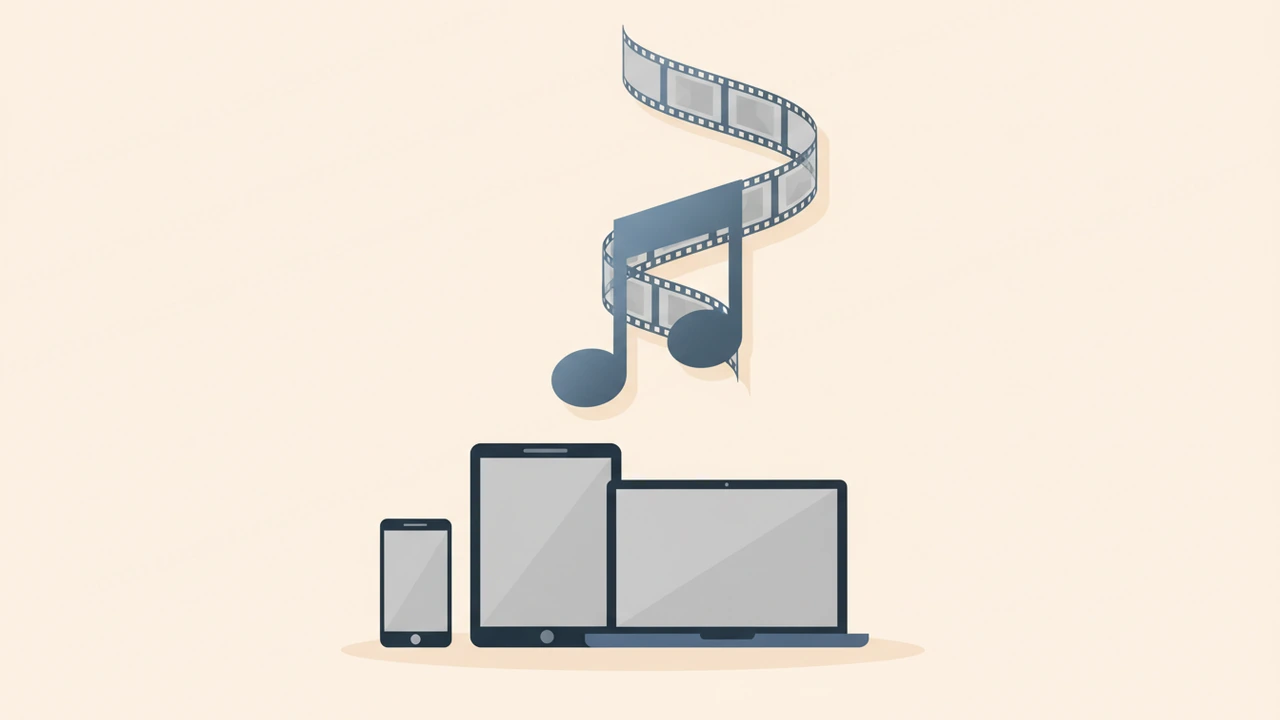
Convert mp4 to mp3 for free in seconds: use a browser‑based tool, upload your video, select MP3, optionally set the bitrate, and download the audio file. No sign‑up, no watermarks, and all data stays encrypted, giving you a quick, privacy‑first way to extract audio.
What Is an MP4 File and Why Convert It to MP3?
MP4 (MPEG‑4 Part 14) is the dominant container for online video. It can hold video codecs such as H.264/AVC, HEVC, AV1 and audio codecs like AAC or AC‑3 — see Fact F8 and Fact F9. While MP4 delivers both picture and sound, many use cases need only the audio: podcasts, playlists, car stereos, or devices that lack video playback.
Converting extracts the audio track and re‑encodes it as MP3, a universally supported, compressed audio‑only format. The resulting MP3 file is dramatically smaller—often 90 % less data—making it ideal for storage‑constrained devices and faster streaming. Because MP3 is playable on virtually every hardware and software player, the conversion widens the audience for your content without extra licensing concerns.
Free Online Converters – How They Work
Most free converters follow a simple three‑step workflow:
- Upload – Drag‑and‑drop the MP4 or use the “Add Files” button. The file is either sent to the server over a 256‑bit SSL connection (Fact F5) or processed locally in the browser, ensuring privacy.
- Select Output – Choose MP3 as the target format. Many services let you set a specific bitrate (e.g., 256 kbps) or keep it on “auto” to match the source.
- Download – After conversion, the MP3 appears as a direct download link. No registration, no hidden fees, and no watermarks (Fact F4).
Because the conversion happens in the cloud, you can convert files up to 100 MB each—a common limit for free tiers. Batch uploads are also supported, letting you process up to 20 files per session on most platforms.
How Do I Convert mp4 to mp3 for Free?
Below is a practical, step‑by‑step guide using a privacy‑first online tool that runs entirely in the browser. The same steps apply to popular services like Convertio, Zamzar, or Livestorm.
- Open the converter – Navigate to our recommended tool: /tools/video-to-audio. The page loads instantly; no download is required.
- Add your MP4 – Click “Add Files” or drag the video onto the drop zone. The uploader validates the file type and size.
- Choose MP3 – In the format selector, pick “MP3 (audio)”. If you want a specific quality, select a bitrate; otherwise leave it on “auto” to preserve the original audio bitrate.
- Set optional parameters – You can trim silence, normalize volume, or embed ID3 tags (artist, title). These options are optional but useful for podcast creators.
- Start conversion – Press “Convert”. For videos under 100 MB, most browsers finish the job within 10–20 seconds.
- Download the result – Once the status changes to “Ready”, click “Download MP3”. Verify the file by playing it in your favorite music player.
Why This Tool Stands Out
- Zero data retention – The file is processed locally; nothing is stored on our servers after the session ends.
- 256‑bit SSL – If the file does travel to a server (e.g., for large files), it’s encrypted end‑to‑end (Fact F5).
- No hidden limits – 100 % free, no sign‑ups, no watermarks (Fact F4).
For additional reference, see how other reputable converters describe the same process: Livestorm’s MP4 to MP3 tool and Convertio’s online service.
Desktop Alternatives When You Need More Control
Online tools are convenient, but desktop applications give you batch processing, deeper codec settings, and offline privacy. Here are three reliable options:
| Tool | Key Features | Best For |
|---|---|---|
| VLC Media Player | Open‑Source, “Convert/Save” wizard, custom bitrate, supports >40 audio codecs. | Quick one‑off conversions without installing extra software. |
| Audacity (with FFmpeg library) | Full audio editor, can import MP4, apply effects, export to MP3 at any bitrate. | Users who want to edit the audio (remove noise, add fades) before export. |
| HandBrake | Batch queue, advanced video/audio filters, can extract audio only. | Converting large libraries while preserving exact source parameters. |
All three run on Windows, macOS, and Linux. Because they work offline, you avoid any upload limits and keep your media completely private.
Tips for Preserving Audio Quality
Audio quality hinges on the source file. Follow these proven practices to minimize loss:
- Match the original bitrate – If the MP4 audio is 256‑320 kbps, keep the MP3 at the same rate (Fact F1). Upsampling a 128 kbps source to 256 kbps won’t improve fidelity (Fact F2).
- Avoid multiple re‑encodings – Each conversion introduces a small loss. Convert directly from MP4 to MP3 once, rather than MP4 → WAV → MP3.
- Use “auto” bitrate when unsure – Modern converters detect the source bitrate and set MP3 accordingly, preserving the best possible quality.
- Enable VBR (Variable Bit Rate) if available – VBR adjusts the bitrate dynamically, delivering higher quality at lower average file sizes.
- Check sample rate – Keep the sample rate at 44.1 kHz or 48 kHz; changing it can cause aliasing artifacts.
By respecting these guidelines, the resulting MP3 will sound virtually identical to the original audio track, while still benefiting from the smaller file size.
Common Issues and How to Fix Them
| Issue | Likely Cause | Fix |
|---|---|---|
| No audio after conversion | MP4 uses a codec not supported by the online tool (e.g., AC‑3). | Use a desktop app like VLC that supports a wider codec range, or first convert the video to an intermediate format (e.g., MP4 with AAC audio). |
| Distorted or tinny sound | Bitrate set too low (e.g., 64 kbps). | Choose a higher bitrate (128 kbps minimum for speech, 256 kbps for music). |
| Failed upload >100 MB | Free tier size limit. | Split the video into smaller clips using a video cutter, or install a desktop converter. |
| Slow conversion | Large file or limited internet bandwidth. | Process locally with a browser‑based tool that runs the codec in JavaScript, or use a desktop application. |
Understanding these pitfalls helps you troubleshoot quickly and keep the conversion workflow smooth.
How Do I Convert mp4 to mp3 for Free? (Exact Search Question)
If you type “how do i convert mp4 to mp3 for free” into Google, the answer you’re looking for is exactly the step‑by‑step guide above. In short:
- Open a privacy‑first online converter (e.g., /tools/video-to-audio).
- Upload your MP4 file.
- Select MP3, keep the bitrate on “auto” or match the source.
- Click Convert and download the MP3.
The whole process takes under a minute for files under 100 MB, requires no registration, and keeps your data encrypted. For users needing batch conversion, most services accept up to 20 files per session, so you can handle a whole playlist at once.
When to Choose a Desktop App Over an Online Converter
While online tools are perfect for occasional conversions, there are scenarios where a desktop solution shines:
- Large libraries – Converting dozens or hundreds of videos can exceed online limits and become time‑consuming.
- Sensitive content – Even with SSL, some organizations prefer zero network exposure.
- Advanced audio editing – Adding fades, normalizing volume, or removing background noise requires an editor like Audacity.
- Custom codec requirements – If you need to preserve a rare audio codec or specific channel layout, VLC offers granular control.
In these cases, install VLC, Audacity, or HandBrake and follow the same basic workflow: open the MP4, choose “Export/Convert”, set MP3 as the output, adjust bitrate, and save.
Summary
Converting mp4 to mp3 for free is straightforward when you use a privacy‑first online tool or a reliable desktop app. Keep these key points in mind:
- MP4 holds both video and audio; MP3 extracts only the audio, yielding a much smaller file.
- Free online converters are 100 % free, require no sign‑up, and protect uploads with 256‑bit SSL (Fact F4, Fact F5).
- Preserve quality by matching the original bitrate (Fact F1) and avoiding repeated re‑encoding (Fact F2).
- Use the step‑by‑step guide with our dedicated /tools/video-to-audio tool for instant results, or switch to VLC/Audacity for batch jobs and advanced editing.
With these strategies, you’ll have crisp, portable MP3s ready for any device—without paying a cent or compromising privacy.
Frequently asked questions
Yes. Most online converters support batch uploads, typically up to 20 files per session, and desktop tools like VLC can queue unlimited files.
Free services usually cap uploads at 100 MB per file, though some desktop apps have no practical limit.
No. The recommended online tool runs entirely in the browser, requiring no download or registration.
The MP3 bitrate will match the source if you keep it on “auto”. High‑quality source audio (256‑320 kbps) stays high; lower‑bitrate sources retain their original quality.
All transfers use 256‑bit SSL encryption, and many converters process the file locally in the browser, meaning your media never leaves your computer.
Sources
Share this article
Send it to a teammate or save the link for later.
Related articles
HEIC to PDF: Fast Converter for Easy Document Creation
Convert heic to pdf online for free with our fast, privacy‑first tool. No registration—just upload, adjust settings, and download a high‑quality PDF instantly.
Read article
JPG to PDF Free Converter – Secure Privacy‑First Online Tool
Convert JPG to PDF for free with our secure, privacy‑first online tool. Merge multiple images, adjust size, add password protection, and download
Read articleIs the AI Bubble Bursting? Big Tech's $725B Reckoning
Is the AI bubble bursting in 2026? Big Tech is set to spend ~$725B on AI as the Magnificent 7 shed $2.3T — the bull and bear case, no hype, no advice.
Read article