JPG to PDF Free Converter – Secure Privacy‑First Online Tool

JPG to PDF conversion lets you turn one or many photos into a single, portable document in seconds, making sharing and archiving effortless. Whether you need a quick receipt list or a polished photo album, a browser‑based tool can handle the job without installing anything.
What is JPG and why convert to PDF?
JPG (Joint Photographic Experts Group) remains the most common raster image format because it balances compression with visual quality. PDF (Portable Document Format) is a universal container that preserves layout, fonts, and images across any operating system. Converting jpg to pdf offers several practical benefits:
- Visual fidelity – PDFs embed the original image data, so the picture looks the same on every device.
- Single‑file sharing – A PDF replaces dozens of separate JPG files, simplifying email attachments and cloud uploads.
- Searchability & accessibility – PDFs can include hidden text layers, alt‑text, and metadata, helping screen‑readers and search engines.
According to the PDF Association, more than 77 % of organizations rely on PDF as their primary archival format, underscoring the need for fast, reliable conversion toolsadobe.com.
How do I convert JPG to PDF for free online?
RunFreeTools provides a free, privacy‑first converter that runs entirely in your browser. Because all processing happens client‑side, your images never leave your computer.
- Open the Image to PDF page.
- Drag‑and‑drop or click Add Files to select the JPGs you want to merge.
- Use the preview pane to reorder the pages, choose page size (A4, Letter, etc.), orientation, and margins.
- Click Convert and wait a few seconds for the PDF to be generated.
- Press Download PDF to save the file locally.
The tool supports up to 100 JPGs per batch and a total upload size of 200 MB.
Step‑by‑step guide with optional pre‑processing
1. Prepare your images
Large, high‑resolution JPGs can bloat the final PDF. Run the Image Compressor first; Adobe’s benchmarks show this can cut PDF size by up to 40 %adobe.com.
2. Upload and arrange
After opening the converter, add your files. Thumbnails appear in a vertical list—drag them to reorder or use the arrow buttons for fine‑tuned positioning.
3. Configure output settings
| Setting | Options | Recommendation |
|---|---|---|
| Page size | A4, Letter, Custom | Choose the size that matches your intended use (A4 for printing, Letter for US documents). |
| Orientation | Portrait, Landscape | Landscape works well for wide images like screenshots. |
| Margins | 0 mm – 20 mm | Zero margins give edge‑to‑edge photos; 5 mm is a safe default for text‑heavy PDFs. |
| Image quality | High, Medium, Low | High preserves detail; use Medium if you need a smaller file. |
4. Convert and download
Press Convert. For files under 50 MB, conversion typically finishes in under 5 seconds. Once the progress bar disappears, click Download PDF.
5. Post‑conversion enhancements (optional)
- Compress the PDF – Use the Compress PDF tool to shrink the file further, often achieving an additional 30 % reduction without noticeable loss
adobe.com.
- Add password protection – After download, run the PDF through RunFreeTools’ password‑protect feature to apply 128‑bit AES encryption.
- Apply PDF/A compliance – For long‑term archiving, convert the PDF to PDF/A (ISO 19005‑1) using the dedicated PDF/A tool, ensuring future readability
iso.org.
Advanced options and troubleshooting
If you encounter issues, try the following checklist:
- File too large – Reduce image resolution or compress with the Image Compressor before uploading.
- Pages out of order – Re‑open the converter and double‑check the thumbnail sequence.
- Missing images in output – Ensure each JPG is fully loaded; a partially uploaded file can be skipped silently.
- Unexpected PDF size – Verify you selected the appropriate image quality setting; “High” creates larger PDFs.
Common error messages
- “Unsupported file type” – Only JPG, PNG, BMP, and GIF are accepted. Convert other formats to JPG first.
- “Upload limit exceeded” – Split large batches into groups of ≤100 files or ≤200 MB total.
Best practices for optimal PDF size and quality
- Resize images before conversion – Aim for a resolution of 150–300 dpi for printed PDFs; 72 dpi is sufficient for on‑screen viewing.
- Use lossless compression only when necessary – JPEG’s lossy compression already reduces size; applying additional lossless compression can sometimes increase the file.
- Avoid unnecessary metadata – Strip EXIF data from photos if privacy is a concern; many cameras embed large metadata blocks that inflate PDF size.
- Batch convert similar‑size images – Group photos with comparable dimensions to keep the PDF’s page layout consistent and avoid extra white space.
Security, compliance, and accessibility
- Encryption – RunFreeTools’ password‑protect feature uses 128‑bit AES, meeting most corporate security policies.
- PDF/A – The PDF/A conversion ensures the document complies with ISO 19005‑1, a requirement for many government archives.
- Accessibility – After creating the PDF, you can add alt‑text to each page using the PDF editor, improving screen‑reader compatibility.
Desktop vs. online conversion: When to choose each
| Feature | Online (RunFreeTools) | Desktop (e.g., Adobe Acrobat) |
|---|---|---|
| Installation | None | Requires download and license |
| Privacy | Client‑side only; no upload | May store files locally or in the cloud |
| Batch size | Up to 100 files, 200 MB | Typically unlimited, limited by hardware |
| Advanced editing | Basic (order, size, password) | Full editing suite (OCR, forms, signatures) |
| Cost | Free | Often subscription‑based |
For occasional users, the online tool offers speed and privacy. Power users who need advanced OCR, form fields, or batch automation may prefer a desktop suite.
Conclusion
Turning jpg to pdf online is fast, secure, and completely free with RunFreeTools. By following the steps above—and applying the best‑practice tips—you can produce compact, searchable, and encrypted PDFs ready for sharing, archiving, or further editing. Leverage the optional compression and security tools to keep your documents lightweight and protected, all without ever leaving your browser.
Frequently asked questions
Yes. Open the Image to PDF tool, upload the JPG, leave the default options, and click Convert. The resulting PDF will contain just that one image.
The free online converter supports up to 100 JPGs per batch, with a total file size limit of 200 MB.
Choose the **High** image quality setting before converting. Avoid pre‑compressing the JPGs if you need the sharpest possible output.
Absolutely. After downloading the PDF, run it through RunFreeTools’ password‑protect feature to add 128‑bit AES encryption and a custom password.
Use the **PDF to Image** tool on RunFreeTools to split each page back into high‑resolution JPG files.
Share this article
Send it to a teammate or save the link for later.
Related tools
Related articles
HEIC to PDF: Fast Converter for Easy Document Creation
Convert heic to pdf online for free with our fast, privacy‑first tool. No registration—just upload, adjust settings, and download a high‑quality PDF instantly.
Read article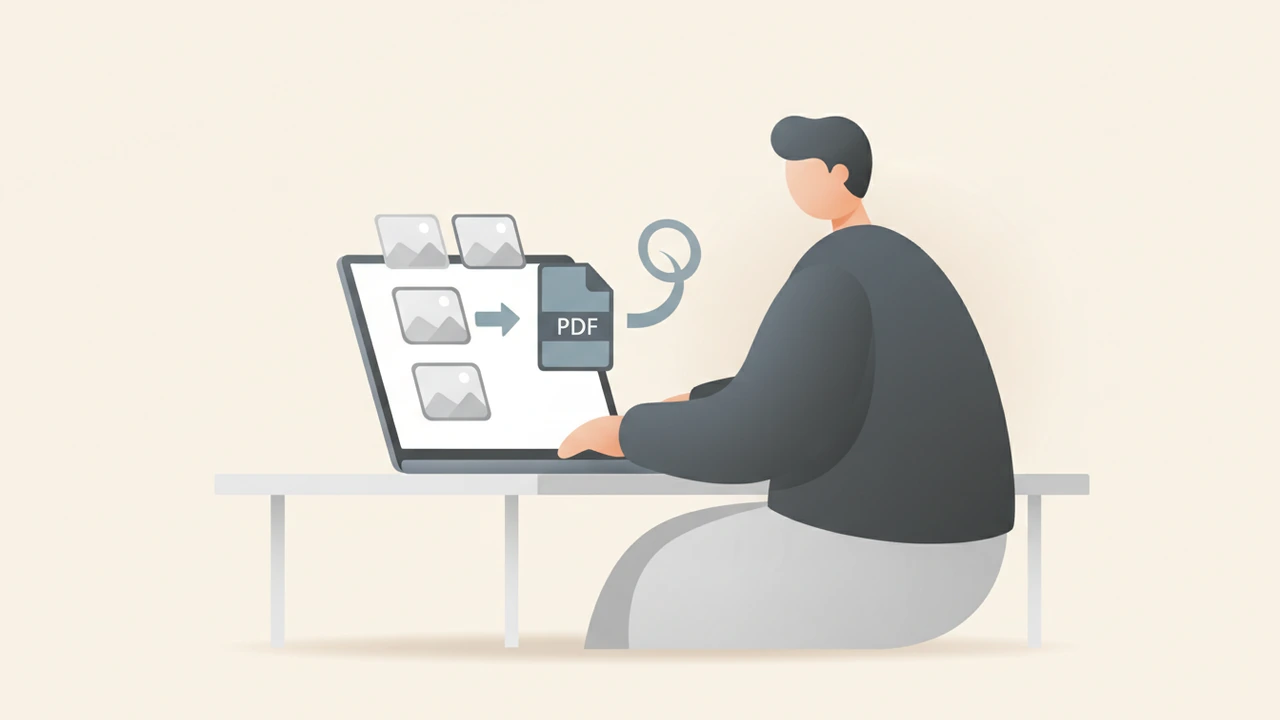
JPG to PDF converter Free Tool for Instant Image-to-PDF
JPG to PDF converter — Convert JPG to PDF online with our free, browser‑based tool.
Read article
Free Online File Converter: The Fast Way to Transform Files
Use a free online file converter to change PDFs, images, audio, or video in your browser. Secure SSL encryption and automatic file deletion keep data private.
Read article