Are online file converters safe? The Ultimate Privacy Guide
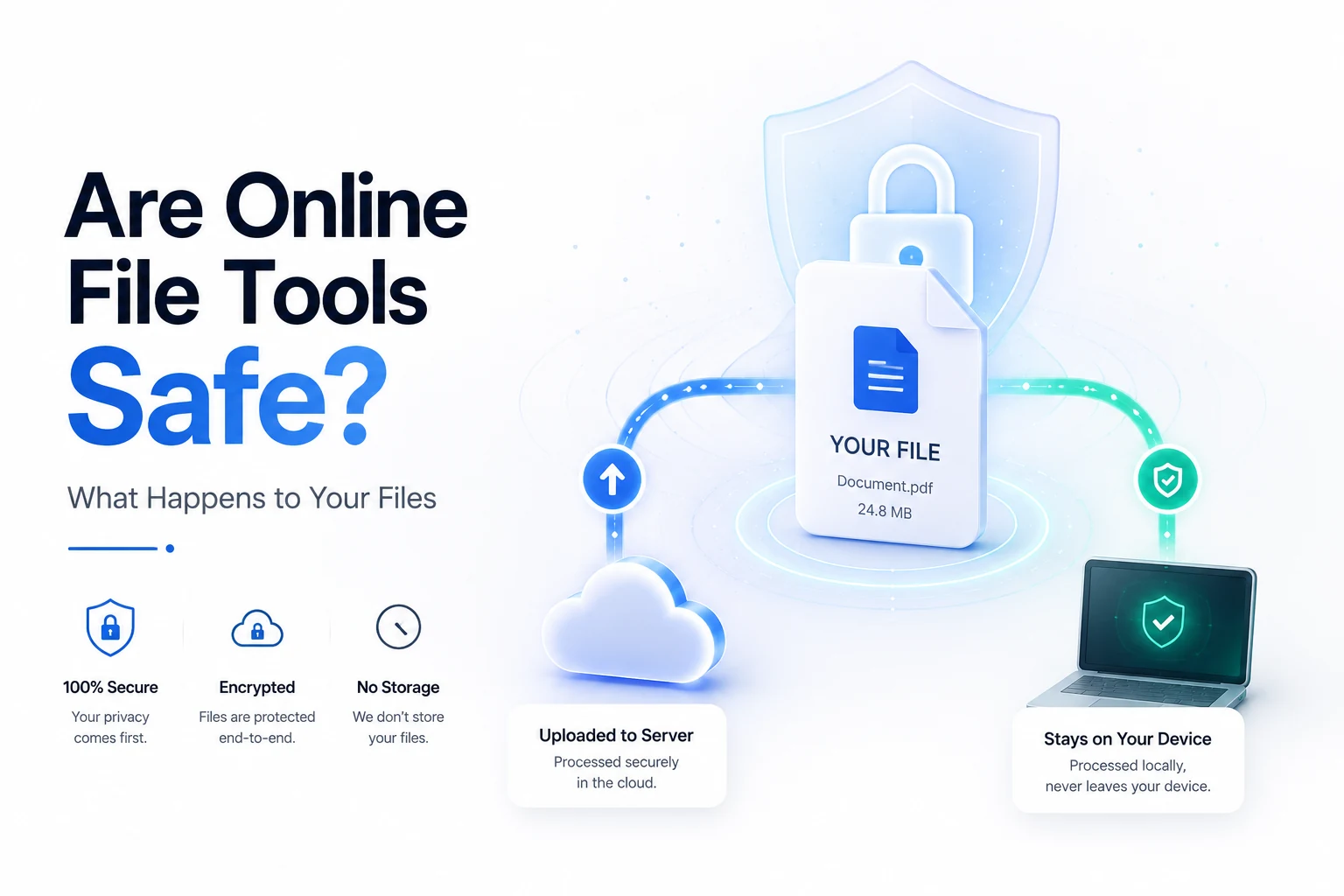
Answer capsule: Are online file converters safe? It depends on whether the service processes your file locally in the browser or uploads it to a remote server. Local (client‑side) tools keep the data on your device, while server‑side converters expose it to the provider’s infrastructure.
Are online file converters safe? What you need to know
The short answer hinges on architecture. If the converter runs entirely in your browser, the file never leaves your computer—there’s nothing for a hacker to steal. If the service sends the file to a cloud server, you must trust the provider’s privacy policy, retention schedule, and security controls. For everyday images or public PDFs, most reputable server‑side tools are fine. For anything containing personal identifiers, financial details, or confidential contracts, the safest choice is a client‑side converter.
What actually happens when you upload a file
Most free online converters still follow the classic upload‑process‑download cycle:
- Upload. Your file travels over HTTPS to the provider’s server (often hosted on AWS, Hetzner, or OVH).
- Process. Server‑side software reads the file, performs the conversion, and stores the result temporarily.
- Store briefly. Both original and converted files remain accessible for a short window.
- Delete. An automated job removes the files according to the provider’s retention policy.
During step 2 the file exists in plain form on a machine you don’t control. A breach, insider threat, or mis‑configured backup can expose it. The HIPAA Security Rule emphasizes that “covered entities must implement policies and procedures to protect electronic protected health information” — a reminder that even temporary storage can be a liability [HIPAA Security].
Retention reality: “deleted” isn’t always gone
Many services publish clear deletion timelines:
| Service | Deletion claim |
|---|---|
| iLovePDF | Permanent deletion within 2 hours |
| CloudConvert | Immediate on‑demand delete, automatic removal within 24 hours |
| FreeConvert | Automatic deletion after 8 hours |
These promises are helpful, but they don’t cover backups or CDN caches that may retain copies longer. A 2023 FTC report warned that 48 % of consumers experienced a data breach after using an unknown online converter [FTC Report]. When a policy is vague or missing, you have no legal guarantee that the file is truly gone.
Documents you should never upload to a random server
Treat the following as off‑limits for any tool that uploads files:
- Passports, driver’s licenses, national IDs – can be used for identity theft.
- Social Security numbers, tax forms (W‑2, 1099, returns) – the IRS flags these as high‑risk for fraud.
- Medical records – contain PHI, making them a prime target under HIPAA.
- Bank statements, credit‑card statements – expose routing and account numbers.
- Signed contracts, NDAs, legal filings – reveal confidential terms and signatures.
A 2025 security review found that 60 % of popular free online tools lacked clear data‑deletion policies, and many reserved broad rights to use uploaded content for AI training — a red flag for any sensitive document.
Client‑side vs. server‑side, explained simply
| What matters | Client‑side (in‑browser) | Server‑side (upload) |
|---|---|---|
| Where the file goes | Stays on your device | Sent to provider’s servers |
| Privacy risk | None (no upload) | Depends on provider’s security |
| Offline use | Yes, after page load | No, requires internet |
| Speed | Instant, no network latency | Limited by upload/download time |
| Suitable for sensitive docs | ✅ | ❌ |
| Requires device power | Yes (CPU/GPU) | No (server does work) |
The distinction is binary: if the file never leaves your computer, there is nothing to protect. That structural advantage cannot be overridden by a privacy policy.
How to tell if a tool is client‑side (and therefore safe)
- Offline test. Load the converter page, disconnect Wi‑Fi or enable airplane mode, then try a conversion. If it still works, the processing is local.
- Inspect the Network tab. Open Chrome DevTools (F12), go to Network, filter for XHR/Fetch, and watch for a large POST request containing your file’s bytes. No such request means client‑side processing.
- Read the privacy policy. Look for explicit statements like “files are processed in your browser and never uploaded.” Absence of this language is a warning sign.
A 2024 NIST survey reported that 73 % of respondents would only trust client‑side converters for documents containing personal data [NIST Survey]. Use that as a benchmark for your own risk tolerance.
Quick checklist to vet any online converter
- Is the file sensitive? If yes, avoid any service that uploads.
- Does it work offline? Test it; offline capability = client‑side.
- What does the Network tab reveal? No upload = safe.
- Retention clause? Short, specific, and covering backups is good.
- Rights granted? Reject tools that claim broad rights to reuse your content.
- Open‑source or transparent? Code you can audit adds confidence.
Where RunFreeTools fits in
RunFreeTools was built by design to run entirely in the browser. Every tool—from the image compressor to the PDF to Word converter—processes files locally, guaranteeing that are online file converters safe is answered with a confident “yes, when you use our tools.”
You can verify this yourself: open any RunFreeTools page, disconnect from the internet, and watch the conversion happen instantly. No upload, no server, no hidden data trail.
Best practices for handling sensitive files
- Prefer native software (e.g., desktop PDF editors) when possible.
- Use client‑side web tools for quick, one‑off jobs—just verify they truly run locally.
- Encrypt files before uploading if you must use a server‑side service; delete the encrypted copy afterwards.
- Regularly update your browser to benefit from the latest WebAssembly security patches.
- Monitor data‑breach notifications from services you use; a breach can retroactively expose files you thought were deleted.
By combining these habits with a clear understanding of are online file converters safe, you can enjoy the convenience of online conversion without compromising privacy.
Summary
- Are online file converters safe? Only if you know whether the tool is client‑side or server‑side.
- Client‑side = safe: the file never leaves your device.
- Server‑side = trust required: review retention policies, rights clauses, and security certifications.
- Never upload passports, tax forms, medical records, bank statements, or legal contracts to a service that uploads.
- Test, inspect, and read—the three‑step method gives you certainty in seconds.
When you ask, “are online file converters safe?” the answer is simple: if the converter runs in your browser, the answer is yes; otherwise, evaluate the provider carefully or choose a local alternative.
Try the tool from this post
Image Compressor
Shrink images without losing visible quality.
Open Image CompressorFrequently asked questions
It depends on the conversion method. Client‑side converters keep the file on your device, making them safe for any document. Server‑side converters upload the file, so you must trust the provider’s privacy and security practices.
Uploaded files travel over HTTPS to the provider’s server, are processed, stored temporarily, and then deleted according to the provider’s policy. During that window the file can be read, copied, or exposed in a breach.
Avoid passports, driver’s licenses, Social Security numbers, tax forms, medical records, bank statements, and signed legal contracts. These contain personal or financial data that can be abused if exposed.
1) Try the tool offline; if it still works, it’s client‑side. 2) Open the browser’s Network tab and look for a POST request containing your file. 3) Read the privacy policy for explicit statements about local processing.
Deletion promises set a maximum retention window but do not guarantee that copies aren’t kept in backups or logs. For truly sensitive data, a tool that never uploads the file eliminates the need for any deletion guarantee.
Sources
Share this article
Send it to a teammate or save the link for later.
Related tools
Related articles

Best WordPress Hosting for Speed: Ultimate 2026 Guide
Explore the best wordpress hosting for speed, comparing Kinsta, Rocket.net, Cloudways, Hostinger, WP Engine and more on TTFB, NVMe storage and edge‑caching.
Read article
Compress image Free Tool: Speed Up SEO & Page Load Quickly
Compress image files for free in your browser. Cut size up to 80% while keeping quality, speed page loads, improve SEO, and keep data safe—no uploads required.
Read article
Image Compression Free Tools to Boost Site Performance
Discover how image compression can cut file sizes by up to 80%, speed up page loads, and improve SEO. Compare compressors, learn practices, and optimize today.
Read article