SVG to PNG: The Free Guide for Conversions Step‑by‑Step
svg to png conversion is a routine yet essential task for anyone who works with digital graphics. Turning a scalable vector into a pixel‑perfect PNG can be done in seconds when you choose the right workflow, respect DPI settings, and keep privacy in mind. This guide walks you through browser‑based tools, desktop applications, and command‑line scripts, while highlighting security, quality, and speed considerations.
What is svg to png conversion and why does it matter?
Scalable Vector Graphics (SVG) store images as mathematical paths, allowing infinite scaling without loss of detail. PNG, on the other hand, is a raster format that records each pixel’s color and transparency. Converting svg to png becomes necessary when:
- The target platform only supports raster images (e.g., certain email clients or older browsers).
- You need a fixed‑size asset for UI mockups, social media, or print where exact dimensions matter.
- You want to embed the image in a PDF or Word document that does not handle SVG natively.
Because the two formats serve different purposes, a proper conversion retains the original’s visual fidelity while delivering a file that works everywhere.
Free online tools for svg to png
Online converters are the quickest way to transform files without installing software. Below are the most reliable, privacy‑first options that run 100% client‑side, meaning your files never leave your computer.
- CloudConvert – Supports batch uploads of up to 20 .svg files per session and offers fine‑tuned DPI settings. The service advertises 100% Browser‑Based conversion, keeping data local. [Source]
- FreeConvert.com – Provides a simple drag‑and‑drop interface with an option to preserve the original aspect ratio. It also shows a progress bar for large files. [Source]
- SVGtoPNG.com – A minimalist tool that instantly renders the PNG preview as soon as the SVG is dropped. No registration required. [Source]
How to use an online converter (example with CloudConvert)
- Click SELECT FILES to choose up to 20 .svg files, or drag them onto the drop zone.
- Choose PNG as the output format and set the desired resolution (e.g., 300 DPI for print).
- Press Convert; the browser processes the files locally and provides download links instantly.
These tools are ideal for occasional conversions, quick prototyping, or when you’re working on a public computer.
Desktop software options
When you need batch processing, advanced color management, or integration with design workflows, desktop applications give you more control.
Adobe Illustrator
- Open the SVG file.
- Go to File > Export > Export As….
- Choose PNG and select the resolution (e.g., 72 ppi for web, 300 ppi for print).
- Click Export.
Illustrator preserves transparency and lets you fine‑tune anti‑aliasing settings, ensuring the PNG matches the vector’s crisp edges.
Inkscape (free, open‑source)
Inkscape offers both a graphical UI and a command‑line interface.
GUI method:
- Open the SVG.
- Choose File > Export PNG Image….
- Set the export area (Page, Drawing, Selection) and DPI.
- Click Export.
Command‑line method (for developers):
inkscape input.svg --export-type=png --export-filename=output.png --export-dpi=300
Both Illustrator and Inkscape respect SVG metadata such as embedded color profiles, which helps maintain color accuracy across devices.
Command‑line conversion for developers
Automating svg to png conversions is common in CI pipelines, asset generation for games, or bulk image preparation. Two popular CLI tools are ImageMagick and rsvg-convert.
ImageMagick
magick convert -density 300 input.svg -background none -flatten output.png
-densitysets the DPI (higher values increase pixel count).-background nonepreserves transparency.
rsvg-convert (part of librsvg)
rsvg-convert -h 1024 -w 1024 input.svg -o output.png
Specify width (-w) or height (-h) to control the output size directly.
Both tools run locally, ensuring that confidential graphics never touch third‑party servers—a crucial factor for corporate branding assets.
Tips to preserve quality and avoid common issues
Even with the right tool, conversion pitfalls can degrade the final PNG. Follow these best practices:
- Optimize the SVG first. Remove unused layers, comments, and hidden elements. Tools like SVGO (a Node.js optimizer) can shrink file size without visual impact.
- Set an appropriate DPI. For web use, 72–150 DPI is sufficient; for print, aim for 300 DPI or higher.
- Maintain aspect ratio. Export using the “Page” or “Drawing” bounds in Illustrator/Inkscape to avoid unwanted whitespace.
- Check color profiles. If your SVG uses sRGB, ensure the PNG inherits the same profile to prevent color shifts.
- Test transparency. Some older browsers mishandle PNG‑24 transparency; if compatibility is a concern, export as PNG‑8 with a single transparent color.
Quick checklist
- ✅ Optimize SVG with SVGO or manual cleanup.
- ✅ Choose the right DPI for the target medium.
- ✅ Verify that the export area matches the intended canvas.
- ✅ Preserve the original color profile (sRGB recommended).
- ✅ Review the PNG in multiple browsers or viewers.
If you notice file‑size bloat after conversion, run the result through our Image Compressor tool to shrink it without losing quality. [/tools/image-compressor]
Security and privacy considerations
When handling proprietary graphics, data privacy is paramount. Browser‑based converters (like CloudConvert) claim 100% client‑side processing, meaning the file never leaves your device. Additionally, most services delete uploaded files after a few hours and use 256‑bit SSL encryption during the brief upload phase. If you cannot accept any remote processing, stick to offline tools such as Inkscape, Illustrator, or the CLI utilities mentioned above.
When to choose which method
| Scenario | Recommended Tool | Reason |
|---|---|---|
| One‑off conversion, no software install | CloudConvert (online) | Fast, no setup |
| Batch conversion of 50+ files | Inkscape CLI or ImageMagick | Scriptable, no size limits |
| Need precise color management for print | Adobe Illustrator | Professional export settings |
| Working on a corporate network with strict data policies | Local CLI tools (rsvg‑convert, ImageMagick) | No network traffic |
| Quick preview while designing | SVGtoPNG.com | Instant visual feedback |
Match the tool to your workflow, keep the DPI and color profile consistent, and you’ll end up with crisp, transparent PNGs ready for any platform. For a final polish, you can also run the output through our Image Converter to change formats or adjust compression levels. [/tools/image-converter]
Conclusion
Converting svg to png doesn’t have to be a guesswork exercise. Whether you opt for a free browser‑based converter, a full‑featured desktop app, or a command‑line script, the key is to respect the original vector’s dimensions, DPI, and color profile. Follow the optimization checklist, choose the appropriate tool for your volume, and you’ll produce high‑quality PNGs that retain transparency and color fidelity across all devices.
Frequently asked questions
Yes. Use a tool that supports alpha channels, such as CloudConvert, Inkscape, or Illustrator, and ensure you export with a transparent background setting.
Many services, like CloudConvert, let you select up to 20 SVG files per batch while keeping the conversion 100% browser‑based.
Absolutely. Command‑line utilities like ImageMagick or rsvg‑convert can be scripted to process dozens or hundreds of files in a single command.
Reputable browsers‑only converters delete uploads after a few hours and use SSL encryption during transfer. For maximum privacy, use offline tools.
For web, 72–150 DPI is adequate; for print, aim for 300 DPI or higher to ensure sharpness. Adjust the DPI setting in your chosen converter accordingly.
Sources
Share this article
Send it to a teammate or save the link for later.
More from RunFreeTools Team
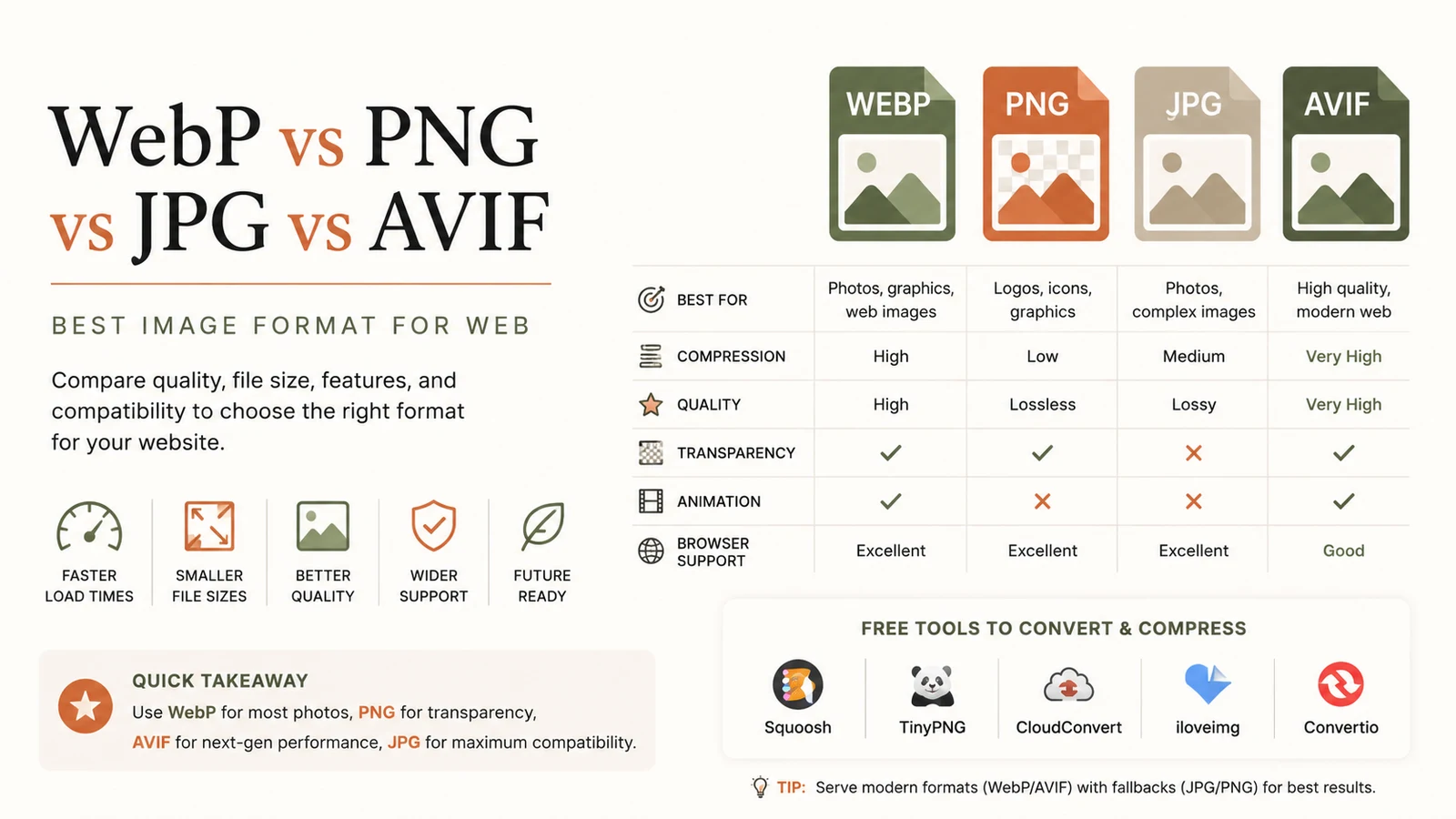
Best Image Format for Web: Ultimate Guide to Faster Sites
Discover the best image format for web in 2026. Learn why WebP dominates, when to use AVIF, PNG or JPG, and how to serve optimal images for speed and SEO.
Read article
Free Developer Tools: The Essential Productivity Boost
Discover top free developer tools to accelerate coding, debugging and optimization. Browser‑based utilities save time, cut costs, and boost productivity.
Read article
Resize Image Free: Complete Guide to Online Resizing
Learn how to resize image online for free with step‑by‑step instructions, best practices, and top tools that keep quality high while reducing file size.
Read article