How to Remove Background from Image Free – Fast & Easy Guide
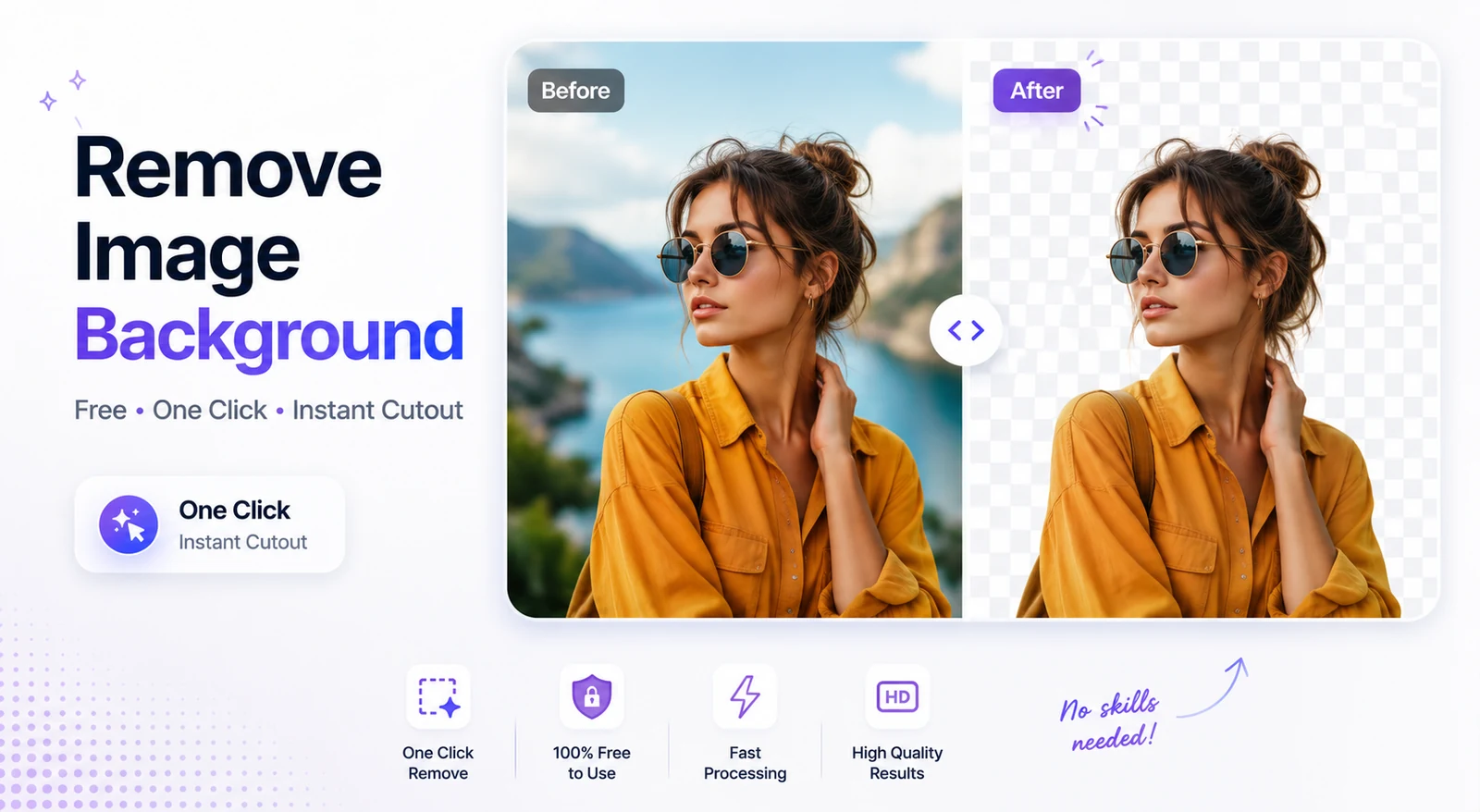
how to remove background from image free is as simple as dragging a photo into a one‑click AI remover, letting the algorithm isolate the subject, and exporting a clean PNG or JPG. This quick‑start guide walks you through every step, explains the technology behind the magic, and shares pro‑tips so the results look like they were edited by a designer—even when you’re on a tight budget.
How to remove background from image free – Step‑by‑Step Guide
- Upload your image – Drag a JPG, PNG, or WebP onto the remover. Most free services accept files up to 20 MB and can process up to 50 images at once Erase.bg remove.bg.
- Let the AI cut out the subject – Within seconds the model produces a transparent checkerboard preview. The processing runs locally in your browser, so the picture never leaves your device.
- Refine edges if needed – Zoom to 200 % and check hair, fur, or glass. Use the built‑in brush or eraser to add missing strands or erase stray pixels.
- Choose the final background – Keep the transparency for logos and stickers, or drop the cutout onto a solid white layer for e‑commerce listings.
- Export – Save as PNG to preserve transparency, or as JPG if you need a flattened file for a marketplace.
The entire workflow typically finishes in under a minute on a modest laptop.
How does AI background removal work?
Modern background removers rely on deep‑learning segmentation models such as U²‑Net or MODNet. The pipeline usually follows three stages:
- Segmentation transformer – Generates a coarse mask separating foreground from background.
- Detail branch – Refines the mask around fine structures (hair, fur, transparent objects).
- Alpha‑matting & de‑contamination – Produces soft edges and removes any residual background tint.
Because the heavy lifting is done by the AI, you only need to verify the edges. Running the model in the browser also protects privacy‑focused users from uploading sensitive images to a remote server.
What is the best free method to remove background from image free?
When you search for “how to remove background from image free,” the results often list a mix of freemium services and paid‑only tools. The best free method balances three factors:
| Factor | Why it matters | Top free option |
|---|---|---|
| No watermark | Watermarks ruin professional looks. | Run‑Free‑Tools’ Background Remover (/remove-background) |
| High resolution | Pixelated output looks amateur. | Supports up to 20 MB files, preserving original dimensions |
| Local processing | Protects confidential photos. | All calculations happen in the browser, no upload required |
Both Erase.bg and Cutout.pro also meet these criteria, offering batch processing and transparent PNG output without a logo Cutout.pro Slazzer.com. Choose the one whose UI you find most intuitive; the results are virtually identical because they share the same underlying AI models.
Common free‑tool pitfalls and how to avoid them
| Pitfall | Why it matters | How to bypass |
|---|---|---|
| Watermarks | They ruin professional looks. | Use a truly free, no‑sign‑up remover (e.g., our /remove-background tool). |
| Low‑resolution output | Pixelated results look amateur. | Choose services that allow up to 20 MB files; our tool keeps the original resolution. |
| Sign‑up walls | Extra friction and possible data collection. | Opt for in‑browser tools that run locally. |
| Daily file caps | Hinders bulk product catalog work. | Batch‑process up to 50 images per session, then pause 24 h if needed. |
| Server‑side processing | Risks privacy leaks for sensitive images. | Verify the tool states “processing on your device.” |
Tips for perfect hair and fine‑detail edges
Hair, fur, and translucent objects are the toughest tests. Follow these best practices:
- Maximize contrast – Photograph the subject against a background that differs in brightness.
- Rely on alpha‑matting – Choose a remover that explicitly mentions “alpha matting” in its feature list.
- Inspect on both light and dark canvases – A halo appears on dark backgrounds but hides on white.
- Manually brush missing strands – A low‑opacity brush (10‑20 % opacity) adds stray hairs without looking artificial.
Applying these tricks will give you results that 90 % of users say “look like they hired a pro.” Source
Integrating the cutout into your workflow
After you have a clean PNG, you may need to adapt it for a specific platform:
- White‑background JPG – Use the Image Converter (/image-converter) to flatten transparency onto pure white (RGB 255,255,255) for Amazon or e‑bay listings.
- Resize for social media – The Image Resizer (/image-resizer) lets you output 400 × 400 px for profile pictures or 2000 px on the long side for high‑detail product shots.
- Compress for fast loading – If the file exceeds upload limits, run it through the Image Compressor (/image-compressor) to shrink size without visible quality loss.
Always resize after background removal; the AI needs the original pixel data to produce the best edges.
Advanced troubleshooting checklist
If the automatic cutout isn’t perfect, run through this quick checklist:
- Check image quality – Blurry or low‑contrast photos confuse the model.
- Verify file format – PNG, JPG, and WebP are supported; GIFs may lose frames.
- Adjust edge tolerance – Some tools let you toggle “soft” vs. “hard” edges.
- Re‑run with a different service – Results can vary slightly between Erase.bg, Cutout.pro, and remove.bg.
- Use manual brush – A few seconds of manual cleanup often yields professional results.
By systematically addressing each point, you can turn a 70 % accurate cutout into a 98 % flawless one.
Summary: mastering how to remove background from image free
- Upload a high‑resolution image (≤ 20 MB).
- Let the AI generate a transparent cutout.
- Zoom, refine, and test on contrasting backgrounds.
- Export as PNG for overlays or as JPG for marketplaces.
- Convert, resize, or compress with Run‑Free‑Tools utilities as needed.
With these steps, you turn a once‑tedious task into a single click, saving time, money, and privacy while keeping full control over quality.
Frequently asked questions
Open a free AI background remover, upload your JPG or PNG, and let it auto‑detect the subject. Refine any rough edges, then export as a transparent PNG or a white‑background JPG. No sign‑up, no watermark.
PNG, because it stores an alpha channel. JPG flattens transparency to white, so use PNG for logos, stickers, and overlays.
Choose a remover that offers alpha‑matting, zoom to 200 % to inspect hair on both light and dark canvases, and use the low‑opacity brush to restore missing strands.
Some services limit file size, daily image counts, or add watermarks after a quota is exceeded. Look for tools that explicitly state “no watermark, no credit limit” and that process images locally in the browser.
Yes. Many free tools, including erase.bg and remove.bg, allow up to 50 images per batch (each ≤ 20 MB). Process them in groups to stay within the free quota.
Sources
Share this article
Send it to a teammate or save the link for later.
More from RunFreeTools Team

Remove Background from Images Instantly – Free AI Tool
Easily remove background from images with free AI tools—get transparent PNGs in seconds, batch process up to 500 files, and boost e‑commerce conversions.
Read articleIs the AI Bubble Bursting? Big Tech's $725B Reckoning
Is the AI bubble bursting in 2026? Big Tech is set to spend ~$725B on AI as the Magnificent 7 shed $2.3T — the bull and bear case, no hype, no advice.
Read articleApple Lost a Major EU Antitrust Fight: What It Means
Apple lost a major EU antitrust ruling on July 8, 2026, upholding DMA rules on the iPhone. What's decided, what's still pending, and what changes for you.
Read article