Markdown Previewer Guide: Write Markdown, See HTML Live
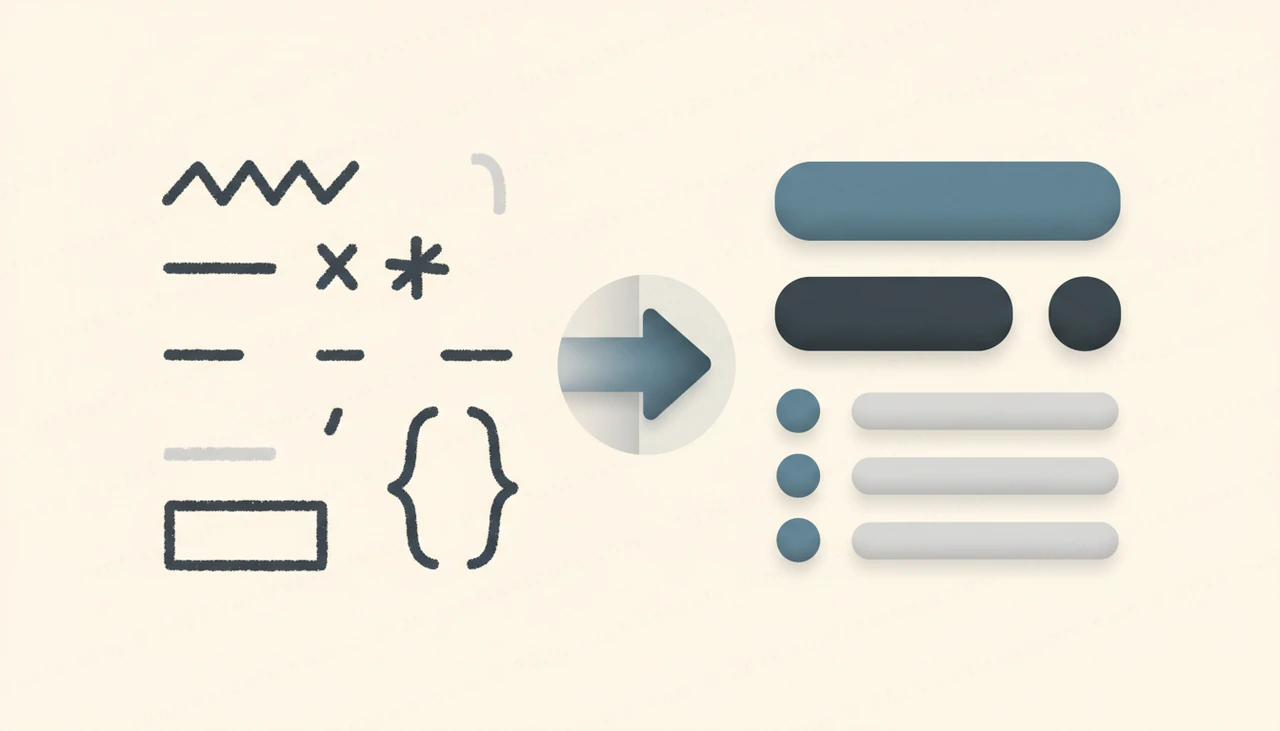
Markdown solved a simple but persistent problem: how do you write formatted text without the formatting getting in the way of writing? Its answer was to use plain characters that read naturally even before they are rendered, and that idea now powers a huge share of the documentation on the internet.
What Markdown Is and Why It Caught On
Markdown is a lightweight markup language. Instead of wrapping text in verbose tags, you signal formatting with intuitive characters. A line beginning with a hash becomes a heading, surrounding a word with asterisks makes it bold or italic, and starting lines with a dash creates a bulleted list. The raw text stays perfectly readable, which is the whole point.
That readability is why Markdown spread so far. It is the default for project README files, the backbone of countless documentation sites, the formatting layer in chat applications and forums, and the format of choice for many note-taking apps. You write once in a format that is pleasant to read as plain text, and it renders into clean HTML wherever it is needed.
The Core Syntax You Will Use Daily
Most of Markdown's power comes from a small set of conventions. The essentials include the following.
- Headings, created by starting a line with one or more hash characters, with more hashes meaning a smaller heading.
- Emphasis, with single markers around text for italic and double markers for bold.
- Lists, both bulleted using dashes or asterisks and numbered using digits followed by a period.
- Links, written by putting the visible text in square brackets followed by the address in parentheses.
- Block quotes, made by starting a line with a greater-than sign.
Learning just these covers the vast majority of everyday writing. A live preview makes them easy to internalize because you see the effect the instant you type.
How to Use the Previewer Step by Step
Writing with the Markdown Previewer is a smooth, split-screen experience.
- Open the tool, which shows an editor on one side and a live preview on the other.
- Type or paste your Markdown into the editor.
- Watch the formatted HTML render instantly in the preview pane as you write.
- Copy the rendered HTML when you are finished, ready to paste wherever you need it.
Because the preview updates in real time, you get immediate feedback on whether your list nested correctly or your heading came out at the right level.
Why a Live Preview Helps
Writing Markdown blind, without seeing the result, leads to small surprises: a list that did not nest, emphasis that swallowed the wrong words, or a link that broke because of a stray bracket. A live preview removes that guesswork. You see exactly how the document will look as you type, so you can fix issues immediately rather than discovering them after publishing.
This tight feedback loop also makes the previewer a great place to learn Markdown. Experiment with a feature, watch what it produces, and the syntax sticks far faster than reading a reference would allow. The Markdown Previewer is as useful for practice as it is for real work.
Common Uses for the Previewer
The tool fits naturally into many writing tasks.
- Drafting a project README and confirming it will render cleanly before committing.
- Writing documentation and checking the structure of headings and lists.
- Composing a forum or issue comment in Markdown before posting.
- Converting a Markdown note into HTML to paste into an email or content management system.
- Learning or teaching Markdown syntax with instant visual feedback.
Markdown Flavors and Extensions
The original Markdown specification covered the basics, but real-world use demanded more, so several flavors emerged. Extensions add features like tables, fenced sections, task list checkboxes, and automatic linking of bare web addresses. A widely adopted common standard reconciles many of these so behavior is predictable across platforms. For day-to-day writing the differences rarely matter, since headings, lists, links, and emphasis behave the same everywhere. When you rely on an extension, it is worth confirming the destination supports it.
Privacy and Local Processing
Markdown is often where first drafts live: rough notes, internal documentation, unpublished READMEs, and private thoughts. Running that through a remote converter would mean handing your drafts to someone else. The Markdown Previewer converts everything in your browser, so the text you write never crosses the network. You can draft sensitive documentation and personal notes knowing none of it is uploaded.
Tips for Better Markdown
A few habits make Markdown documents cleaner:
- Leave a blank line between paragraphs and before lists so they render reliably.
- Keep heading levels in order, moving from larger to smaller without skipping, for a clear outline.
- Preview before publishing anywhere that matters, to catch formatting surprises early.
Wrapping Up
Markdown lets you write formatted text that stays readable as plain characters and renders beautifully as HTML, which is why it is everywhere. Whenever you write it, the Markdown Previewer shows the result live in your browser with nothing uploaded. Explore the other free developer tools for more useful utilities.
Try the tool from this guide
Markdown Previewer
Write Markdown, preview the HTML live.
Open Markdown PreviewerFrequently asked questions
What is Markdown used for?
Markdown is a lightweight way to write formatted text using plain characters. It powers README files, documentation sites, forum posts, chat apps, and note-taking tools because it stays readable as raw text yet converts cleanly to HTML.
Is all Markdown the same?
Mostly, but there are flavors. The core syntax for headings, lists, links, and emphasis is universal, while extensions like tables and task lists vary slightly between implementations. A common standard covers the features most people use daily.
Can I get the rendered HTML out of the previewer?
Yes. After writing your Markdown you can copy the generated HTML, which is handy for pasting into a content management system, an email, or any place that accepts HTML directly.
Does my text get sent anywhere?
No. The Markdown is converted to HTML entirely in your browser. The notes or documentation you write never leave your device, so even private drafts stay on your machine.
Share this article
Send it to a teammate or save the link for later.
