How to Convert PDF to JPG or PNG Free (No Upload)
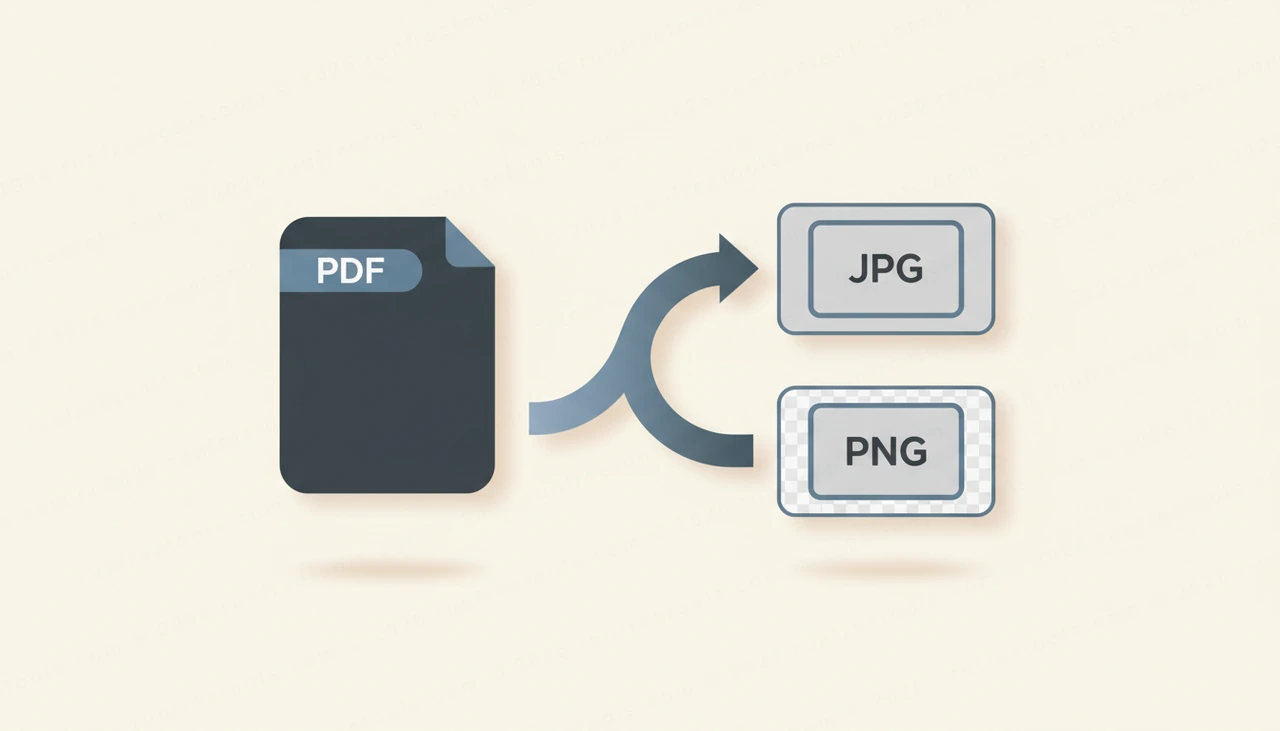
Sometimes a PDF will not cooperate. You want to drop a page into a slide, post it on social media, or preview it where PDFs do not display, and an image is simply easier to work with. Converting a PDF to JPG or PNG solves that, and you can do it free, in your browser, without uploading anything.
This guide shows how to convert PDF to image files, how to choose the right format and resolution, and why local conversion protects your documents.
Why Convert a PDF to an Image
Images go everywhere PDFs sometimes cannot. They embed cleanly into presentations and documents, display as thumbnails, and upload to platforms that reject PDF files outright.
Common reasons to convert PDF to image formats include:
- Adding a page to a slide deck or design without reformatting
- Posting a document preview on social media or a website
- Creating thumbnails of a report or brochure
- Sharing a single page where the recipient cannot open PDFs
- Pulling a chart or diagram out of a document as a picture
In each case, a crisp JPG or PNG is the most flexible format you can hand off.
How to Convert PDF to Image Step by Step
The PDF to Image tool turns pages into pictures in just a few clicks:
- Open the PDF to Image tool in your browser.
- Drag your PDF onto the page, or click to browse and select it.
- Choose your output format, JPG or PNG.
- Pick a resolution. Higher resolution means sharper images and larger files.
- Convert. The tool renders each page into its own image.
- Download the images individually, or grab them all in a single zip.
No software, no sign-up and no upload bar to watch.
JPG or PNG, and Which Resolution
Picking the right settings makes the difference between a usable image and a blurry one. The choice comes down to what is on the page and where it is going.
Choose JPG when pages are mostly photos or color and you want smaller files for email or the web. Choose PNG when the page has fine text, thin lines, logos or screenshots, because PNG keeps edges crisp without compression artifacts.
For resolution, a standard setting is fine for on-screen use and previews. Step up to a higher resolution when you plan to zoom in, print, or reuse a detailed chart. If you are unsure, a higher resolution is the safer default since you can always scale an image down but cannot add detail back.
Your Documents Stay On Your Device
Converting a document often means it contains something you would rather keep private, a statement, a contract, an ID, an internal report. Uploading that to a remote converter hands a copy to a server you do not control.
This tool avoids that entirely. The conversion runs in your browser, so when you convert PDF to image files here, the PDF never leaves your device. Nothing is uploaded, nothing is stored, and no copy lingers after you close the tab. For confidential pages, that local processing is the safest way to convert PDF to image formats, which is exactly why a browser-based tool beats a cloud service for sensitive work.
Tips for Better Image Output
A few small choices improve the result:
- Use PNG for any page where text must stay readable
- Raise the resolution before converting if you will print the images
- Convert only the pages you need by trimming the PDF first
- Keep file names ordered, such as page-01.png, so the sequence is clear
Thinking about the destination before you export saves you from converting twice.
Beyond Converting to Images
Turning pages into pictures is one of several PDF jobs. If you need the opposite, building a PDF out of images, or you want to pull editable text rather than a picture, those are different tasks with their own dedicated helpers. You will find them grouped under PDF tools, and the complete set of utilities is on all tools.
Choosing the right one keeps things simple: convert to image when you need a picture, and reach for a text or builder tool when you need something editable.
Conclusion
Getting a clean image out of a PDF should be quick, free and private. With the PDF to Image tool you can convert any document to JPG or PNG at the resolution you choose, export every page, and download in seconds without uploading a thing. Open the PDF to Image tool, pick your format, and turn your pages into images while the original stays safely on your own device.
Frequently asked questions
How do I convert a PDF to JPG or PNG?
Open the PDF to Image tool, add your PDF, choose JPG or PNG and a resolution, then convert. Each page becomes its own image that you can download separately or as a zip.
Can I convert every page of a multi-page PDF?
Yes. The tool renders each page of the document into its own image, so a ten-page PDF gives you ten images. You can grab them one by one or download them all together in a zip.
Are my PDFs uploaded to a server?
No. The PDF to Image tool runs entirely in your browser, so your file never leaves your device. Nothing is uploaded or stored, which keeps private documents safe.
Should I choose JPG or PNG?
Use JPG for photo-heavy pages and smaller files, and PNG when you need sharp text, lines or a higher-quality export. Both are produced at the resolution you select.
Share this article
Send it to a teammate or save the link for later.
