How to Convert Images to PDF Free Online (No Upload)
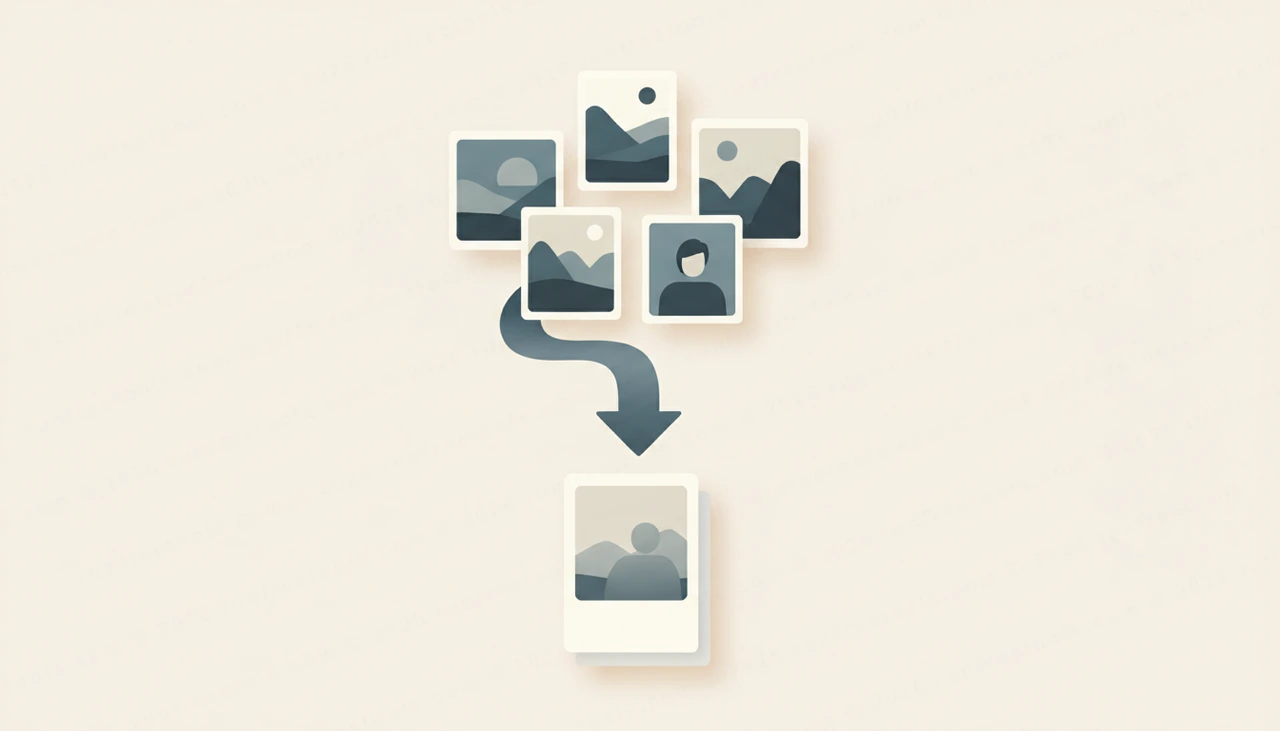
A pile of phone photos is the modern version of a stack of paper, and it is just as awkward to send. Receipts, whiteboard shots, signed forms or scanned pages all travel far better as one clean PDF than as a dozen loose images. The good news is you can convert images to PDF free, in your browser, without uploading a single file.
This guide covers how to convert images to PDF, how to get the page order and size right, and why local conversion keeps your pictures private.
Why Convert Images to PDF
A single PDF is easier to send, print and archive than a folder of separate image files. It opens the same way on every device, keeps pages in a fixed order, and looks far more professional.
People convert images to PDF to:
- Combine photographed receipts into one expense document
- Turn scanned or photographed forms into a single file to submit
- Save whiteboard or notebook photos as a tidy, ordered record
- Bundle product shots or screenshots into one shareable document
- Create a printable PDF from a set of design exports
Whatever the source, the outcome is one neat file instead of many.
How to Convert Images to PDF Step by Step
The Image to PDF tool makes it a quick, drag-and-drop job:
- Open the Image to PDF tool in your browser.
- Drag your images onto the page, or click to browse and select them. Add as many as you need.
- Drag the images into the order you want them to appear. Each one becomes a page.
- Choose your page size and orientation, such as A4 portrait or landscape.
- Export. The tool combines every image into a single PDF.
- Download your finished document and rename it if you like.
No app to install, no account to create and no upload to wait on.
Get the Order and Page Size Right
Two settings shape how professional the result looks: order and page size. Both are worth a quick check before you export.
Arrange the images so they read in the sequence a recipient expects, top to bottom. For page size, match the destination. A4 or Letter suits documents you will print or submit, while a size closer to the image dimensions works well for photo-style output. If your images are mixed orientations, decide whether portrait or landscape suits the majority, since that keeps the document consistent. A few seconds here avoids re-exporting later.
Your Photos Stay On Your Device
Images often carry more private information than people realize, a signature, an address on a receipt, a face, account details on a statement. Uploading those to a remote converter means handing copies to a server you do not control.
This tool sidesteps that completely. The conversion happens in your browser, so when you convert images to PDF here, your files never leave your device. Nothing is uploaded, nothing is stored, and no copy remains once you close the tab. For personal photos and sensitive scans, that on-device approach is the safest way to convert images to PDF, and it is exactly why a browser-based tool is preferable to a cloud service.
Tips for a Clean PDF
A few habits make the finished document look polished:
- Crop or straighten photos before converting so pages look tidy
- Use a consistent orientation across all images
- Name files in order, such as 01.jpg and 02.jpg, before you start
- Pick A4 or Letter when the PDF will be printed
Small adjustments up front mean less fiddling once the PDF is built.
When to Convert Versus Other PDF Tasks
Building a PDF from images is the right move when your source material is pictures. If you instead have an existing PDF you want to break apart, turn into images, or pull text from, those are different jobs handled by their own dedicated tools. You will find them grouped under PDF tools, and the full set of utilities lives on all tools.
Picking the matching tool keeps your workflow efficient: convert images to PDF to assemble a document, and reach for a splitter or extractor when you need to take one apart.
Conclusion
Turning a scatter of images into one clean document should be fast, free and private. With the Image to PDF tool you can combine any number of JPG, PNG or WebP files into a single ordered PDF, set the page size, and download in seconds without uploading a thing. Open the Image to PDF tool, arrange your images, and create a tidy PDF while your photos stay safely on your own device.
Frequently asked questions
How do I convert images to a PDF?
Open the Image to PDF tool, add your JPG or PNG files, drag them into the order you want, set the page size and export. All your images are combined into one tidy PDF.
Can I combine several photos into one PDF?
Yes. Add as many images as you like and they become separate pages in a single PDF, in the order you arrange them. It is the easiest way to turn a batch of photos into one document.
Are my images uploaded to a server?
No. The Image to PDF tool runs entirely in your browser, so your photos never leave your device. Nothing is uploaded or stored, which keeps personal pictures and scans private.
What image formats are supported?
You can convert common formats including JPG, PNG and WebP. Mix them freely in one document, and each image becomes its own page in the finished PDF.
Share this article
Send it to a teammate or save the link for later.
