YouTube to MP3 Free Converter Guide – Up to 320kbps
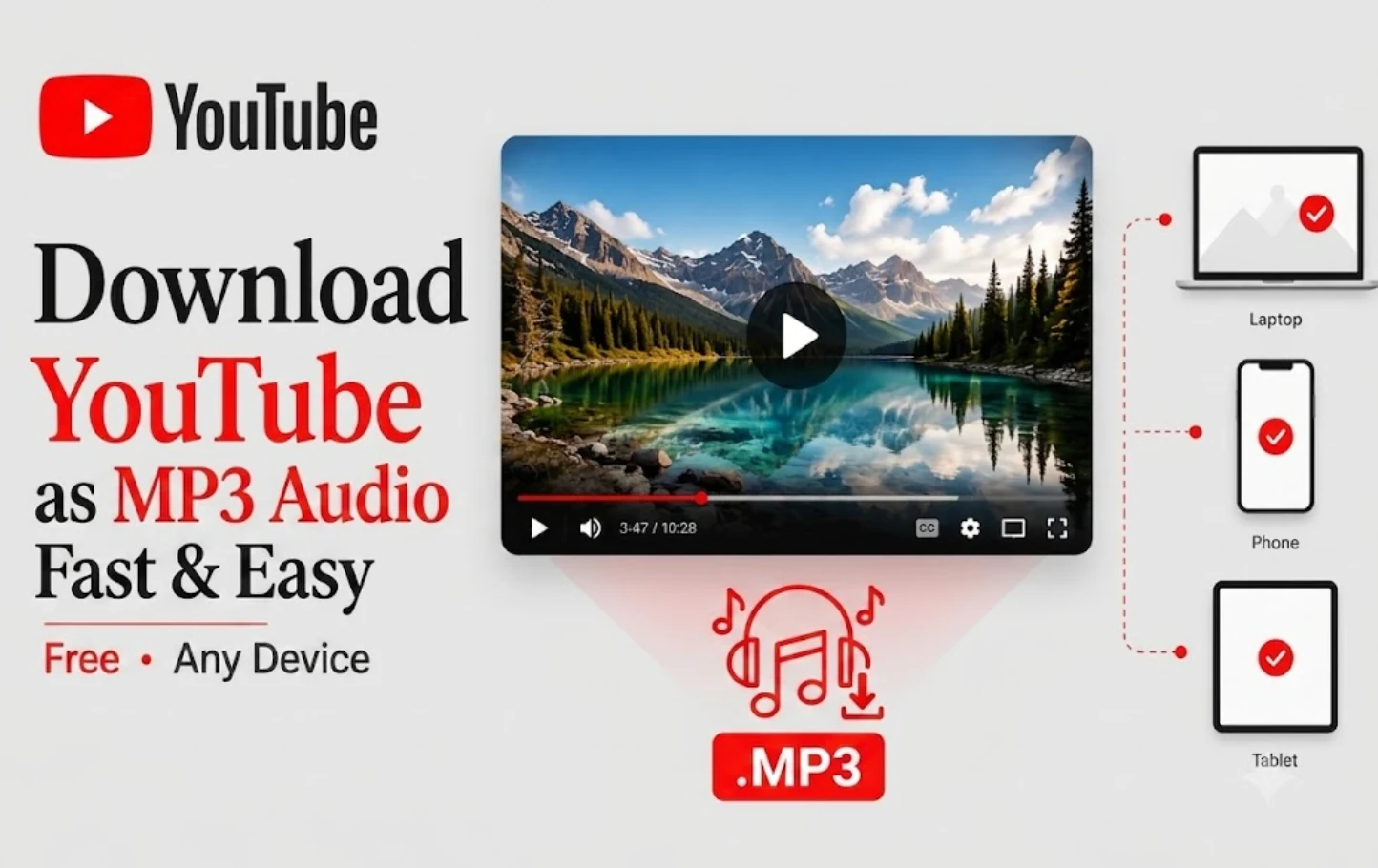
youtube to mp3 conversion is a quick two‑step process: copy the video’s URL, paste it into a browser‑based converter, select your desired bitrate, and download the audio file. No software installation is required, and the whole workflow works on iPhone, Android, PC, and Mac.
TL;DR — The fastest way to go from YouTube to MP3 is a browser‑based converter: copy the video link, paste it into a free online tool, choose MP3 mode, and download. It works on any device, delivers up to 320 kbps, and stays legal when you respect copyright.
The fastest way to convert YouTube to MP3 (step by step)
If you only want one method, use a browser‑based youtube to mp3 converter. There’s no app to install, no account, and it behaves the same whether you’re on a phone or a laptop. Here’s the whole flow:
- Copy the YouTube link. On the video, tap or click Share, then Copy link.
- Open a free online converter. Paste the URL into the input box.
- Select MP3 / audio mode and choose your bitrate (up to 320 kbps).
- Click Convert, then Download. Most clips are ready in well under a minute, and the MP3 saves straight to your device.
That’s the entire process to extract mp3 from youtube. No watermarks, no sign‑up, no software. Because it runs in the browser, the same steps work to download youtube audio on any operating system.
How to copy a YouTube link on any device
Every conversion starts with the right URL, and a clean link is the single most common thing people get wrong. Grab it like this:
- YouTube app (iPhone/Android): Tap Share under the video → Copy link.
- Desktop browser: Click Share beneath the player → Copy, or copy the full address from the address bar.
- YouTube Music: Tap the ⋮ (three‑dot) menu on the track → Share → Copy link.
Quick tip: avoid copying a link that includes &list= (playlist parameters) – trim it back to the plain watch?v= part. Also, the video must be public; private or members‑only videos can’t be reached by a browser tool.
youtube to mp3 on iPhone, Android, PC, and Mac
The beauty of a web converter is that the steps barely change across devices. Here’s what to watch for on each platform.
iPhone and iPad
Safari may block pop‑ups from sketchy sites, which is why a clean tool matters. After copying the link, open the converter in Safari, paste, choose MP3, and tap Download. The file lands in Files → Downloads (or your designated folder). From there you can move it into the Music app or any player.
Android
Android is the most flexible. Copy the link, open the converter in Chrome, pick MP3/320 kbps, and download — the MP3 saves to your Downloads folder and appears instantly in apps like VLC or Poweramp. No file‑manager gymnastics required.
Windows PC
On a desktop you get the smoothest experience: larger paste targets, faster downloads, and easy access to the file afterward. Paste the URL, convert, and the MP3 drops into your Downloads folder, ready to drag into iTunes, Windows Media Player, or a DAW.
Mac
Identical to PC. Use Safari or Chrome, paste the link, choose your bitrate, and the file saves to Downloads. Double‑click to play in the Music app, or drag it into GarageBand for editing.
If you also need audio from other platforms, the same approach works with our Instagram Reel audio downloader and the full set of downloaders on the downloaders hub.
Bitrate and quality: what 128 vs 320 kbps actually means
Bitrate is how much audio data is packed into each second of sound — more bits, more detail, bigger file. When you convert youtube to mp3, you’ll usually choose between these:
| Bitrate | Sound quality | File size (3‑min track) | Best for |
|---|---|---|---|
| 128 kbps | Acceptable, some detail lost | ~2.8 MB | Podcasts, lectures, audiobooks |
| 192 kbps | “Transparent” to most ears | ~4.2 MB | Casual music listening |
| 256 kbps | Rich, detailed, near‑original | ~5.6 MB | High‑fidelity music on good headphones |
| 320 kbps | Highest standard MP3 quality | ~7 MB | Archiving, audiophile listening, editing |
Around 192 kbps is the “transparency threshold” — most listeners can’t hear compression artifacts in blind tests. The jump from 192 to 320 kbps mainly costs storage; only trained ears on high‑end gear reliably tell them apart.
Source limitation: YouTube’s audio streams are typically delivered at 128–192 kbps AAC. Exporting that at 320 kbps inflates file size but cannot add detail that wasn’t in the source. So 320 kbps is great for preserving everything the source offers, but don’t expect it to magically upgrade a low‑quality original. For spoken‑word content like interviews or lectures, 128 kbps is genuinely fine and keeps files small.
Great use cases for a youtube to mp3 converter
Pulling audio off YouTube is genuinely useful when you’re working with the right content:
- Podcasts and talk shows that are published on YouTube but you’d rather listen to offline in a podcast app.
- Lectures, tutorials, and conference talks you want on your phone for review — audio‑only is lighter and easier to revisit.
- Your own uploads. If you’re a creator, grabbing the MP3 of your own video is the cleanest way to repurpose it into a podcast feed or a clip.
- Public‑domain and Creative Commons tracks for background music in your projects.
- Language practice and audio notes, where you just need the sound, not the picture.
If your goal is to read or search what was said rather than just listen, skip the audio file entirely and run the video through our AI Speech to Text tool /tools/ai-speech-to-text — handy for lectures, interviews, and meeting recordings.
Can I convert youtube to mp3 for free?
Yes. All of the browser‑based services listed below let you convert videos without paying, installing software, or creating an account. Two popular options are:
- YTMP3 – Free YouTube to MP3 Converter – offers unlimited conversions and supports up to 1 hour 30 minutes of audio per file. [Source]
- CNVMP3 – Ad‑free YouTube to MP3 – provides a clean interface and respects privacy, also limited to 180 minutes per video. [Source]
Both tools enforce the same length caps: MP3 downloads are limited to 1 hour 30 minutes, while videos up to 180 minutes can be processed before truncation. These limits keep the service fast and avoid excessive server load.
Is it legal to convert youtube to mp3?
This is the part most guides hand‑wave, so here’s the straight version. It depends entirely on what you’re converting and what you do with it.
- Most music and professionally produced content on YouTube is protected by copyright. Reproducing it — which is what making an MP3 does — is one of the exclusive rights of the copyright holder under U.S. law (17 U.S.C. §106).
- Downloading also runs against YouTube’s Terms of Service, which prohibit pulling content down outside their official features.
- The DMCA’s anti‑circumvention rules (17 U.S.C. §1201) can apply on top of that. “Personal use” is not a reliable legal shield — courts have generally not accepted personal‑library copying as fair use.
Where it’s clearly fine:
- Your own uploads – you own the rights.
- Creative Commons‑licensed videos that explicitly permit copying (follow the license, and credit the creator).
- Public‑domain recordings – where copyright has expired or never applied.
- Royalty‑free / rights‑cleared material, including YouTube’s own Audio Library for creators.
What to avoid: ripping copyrighted commercial music to redistribute, share, or use in monetized content. That’s where convenience turns into infringement.
YouTube Premium offers official offline playback, but those files stay locked inside the app — you can’t export them as portable MP3s. That limitation is why a converter has a legitimate role for content you’re entitled to use.
Troubleshooting common problems
- “Invalid URL” or nothing happens. You probably copied a playlist or Shorts link with extra parameters. Trim it to the basic
youtube.com/watch?v=...form and paste again. - The download won’t start on iPhone. Safari sometimes needs a second tap, and it may ask where to save — point it at Files → Downloads.
- Audio sounds low quality even at 320 kbps. Remember the source cap: if the original YouTube audio is low‑bitrate, no export setting can add detail that wasn’t there.
- Video unavailable. It may be private, age‑restricted, region‑locked, or members‑only. Browser tools can only reach public videos.
- File saved but won’t play. Make sure your player supports MP3 (virtually all do) and that the download finished completely — a half‑saved file won’t open.
If a specific video consistently fails, try a different public video to confirm the tool is working, then re‑copy the original link cleanly.
Bottom line
Going from youtube to mp3 is genuinely a two‑minute job: copy the link, paste it into a browser converter, pick MP3 at your preferred bitrate, and download. Choose 128 kbps for talk and podcasts, 192–320 kbps for music — knowing that 320 kbps preserves the source rather than improving it. And keep it ethical: convert content you own, that’s Creative Commons, or that’s in the public domain, and don’t redistribute other people’s copyrighted work.
Ready to pull clean audio? Open a free online converter, switch to MP3 mode, and grab your first track in seconds — no signup, no install, up to 320 kbps. Need to turn the audio into text or translate lyrics? Try our AI Translator tool /tools/ai-translator after you’ve downloaded the MP3.
Frequently asked questions
Yes, any public video that isn’t age‑restricted, private, or region‑locked can be converted using a free browser‑based tool. The only limits are length restrictions (up to 1 hour 30 minutes for MP3).
For spoken‑word content 128 kbps is usually sufficient. For music most listeners find 192 kbps “transparent,” while 320 kbps is best for archiving or high‑fidelity listening.
Absolutely. You own the rights to your uploads, so converting them to MP3 for personal use or redistribution is fully permitted.
Ensure you copy the plain video link (`youtube.com/watch?v=...`) without playlist parameters (`&list=`) or Shorts shortcuts. Trim any extra query strings before pasting into the converter.
Most free online converters handle one URL at a time. For bulk operations you’d need a desktop application, but remember the same legal and length restrictions apply.
Sources
Share this article
Send it to a teammate or save the link for later.
Related articles
Is the AI Bubble Bursting? Big Tech's $725B Reckoning
Is the AI bubble bursting in 2026? Big Tech is set to spend ~$725B on AI as the Magnificent 7 shed $2.3T — the bull and bear case, no hype, no advice.
Read articleApple Lost a Major EU Antitrust Fight: What It Means
Apple lost a major EU antitrust ruling on July 8, 2026, upholding DMA rules on the iPhone. What's decided, what's still pending, and what changes for you.
Read articleBest AI Browser 2026: Comet vs Dia vs Chrome (Atlas Dies)
The best AI browser in 2026? Comet is free and cross-platform, Chrome adds Gemini, and ChatGPT Atlas shuts down Aug 9 — plus the safety risks.
Read article