PDF to Word Instant Guide: Convert Free & Secure Today
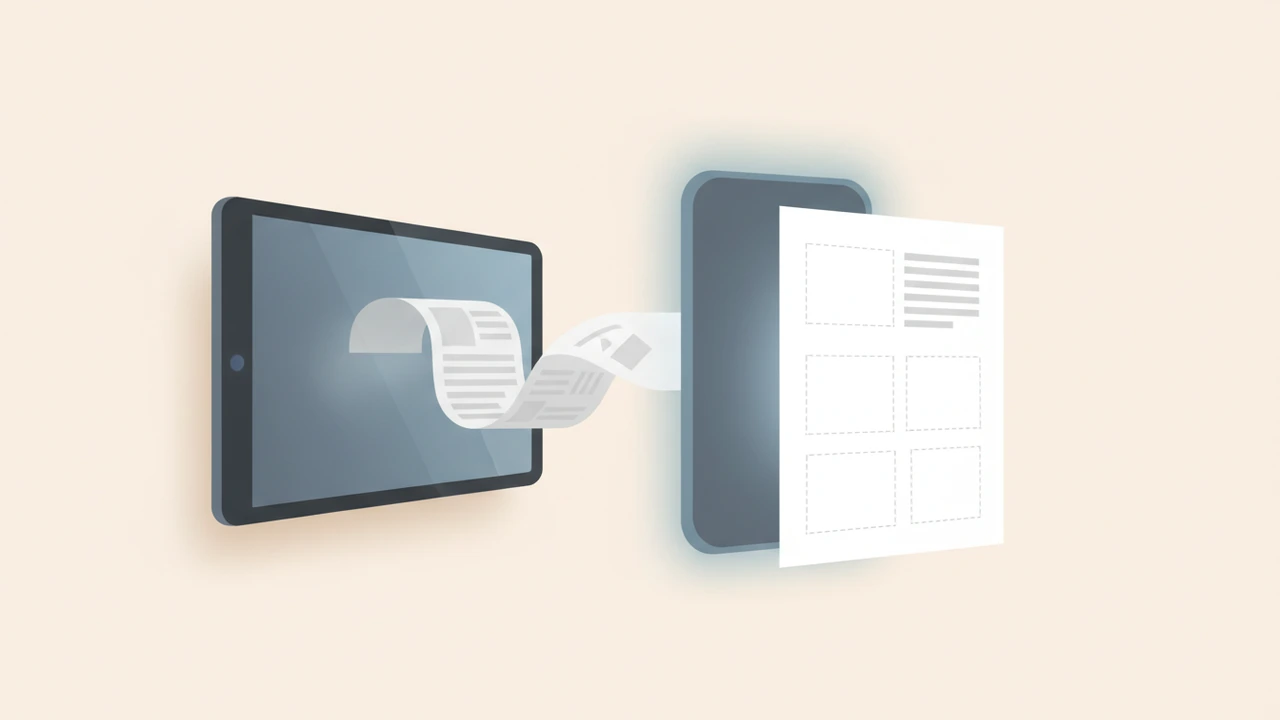
Answer: pdf to word conversion can be done instantly for free using Microsoft Word’s built‑in importer, a privacy‑first browser tool, or an OCR‑enabled online service for scanned files. Open the PDF, let the tool process it, then download an editable .docx.
How do I convert a PDF to Word for free?
Below are three reliable pathways, each tailored to a specific file type and security need.
1. Use Microsoft Word’s built‑in converter (offline)
Microsoft Word (2013 +) opens PDFs directly and saves them as Word documents — all processing stays on your computer.
- Open Word → File → Open.
- Select the PDF and click Open. Word shows a notice: “Word will convert your PDF to an editable Word document.” Click OK.
- Review the converted file for minor layout shifts.
- Save as File → Save As → Word Document (*.docx).
Why it works: No internet connection is required, so no data leaves your device. Formatting such as headings, bullet lists, and embedded images is largely preserved.
Pro tip: Pin the Open command to the Quick Access Toolbar for one‑click conversion of future PDFs.
Source: Microsoft’s official support community explains the steps and limitations Microsoft Answers.
2. Free online converters (browser‑only)
When Word isn’t available, a trusted online service can handle the job in seconds. Choose a tool that runs locally or guarantees short‑term storage.
- Visit a reputable converter such as Foxit’s PDF‑to‑Word page Foxit.
- Click Upload and select your PDF (max 100 MB).
- Optional: enable Preserve layout or Include images.
- Press Convert; once processing finishes, download the .docx file.
Security checklist for online tools
- 256‑bit SSL encryption protects data in transit.
- Reputable services delete uploaded files within one hour.
- Keep file size under 100 MB to stay within free tier limits.
Internal tool: Prefer a fully client‑side experience? Try our PDF to Word converter at /tools/pdf-to-word. It runs in the browser, never uploads your file, and respects privacy by default.
3. OCR conversion for scanned PDFs
Scanned PDFs are images; they need Optical Character Recognition (OCR) to become editable text.
- Choose an OCR‑enabled converter (Foxit, Nitro, or iLovePDF).
- Upload the scanned PDF.
- Tick Enable OCR (often labeled “Recognize Text”).
- Select the document language to improve accuracy.
- Convert and download the Word file.
Accuracy note: High‑contrast scans achieve > 95 % character recognition, while low‑resolution images may need manual proofreading.
Source: Nitro’s product page lists OCR capabilities and file‑size limits Nitro.
Formatting tips to keep the original look
Even the best converters can misplace tables or fonts. Follow these practices for a near‑perfect result.
- Install missing fonts before conversion; Word will map them correctly.
- Validate tables: after conversion, use Layout → Convert Text to Table to rebuild any broken structures.
- Check images: if placeholders appear, re‑insert them from the original PDF via Insert → Pictures.
- Preserve hyperlinks: most converters keep real hyperlink objects; if they turn into plain text, recreate them using Word’s Insert → Link feature.
Common issues and quick fixes
| Issue | Likely cause | Fix |
|---|---|---|
| Missing text after OCR | Low‑resolution scan or wrong language selection | Re‑scan at ≥ 300 dpi, choose correct language, or try a different OCR engine (e.g., Nitro vs. Foxit). |
| Garbled tables | Converter couldn’t detect table boundaries | Copy the raw text into Word, then use Layout → Convert Text to Table and define column widths manually. |
| Images appear as broken links | PDF used external image references | Extract images with a PDF to Image tool, then re‑insert them. |
| Large file (> 100 MB) refuses to upload | Free tier size limit | Split the PDF with our Split PDF tool (/tools/split-pdf), convert each part, then recombine using Merge PDF. |
| Font substitution warnings | Font not installed locally | Install the missing font or replace it with a similar system font after conversion. |
Quick‑fix checklist
- Retry conversion with a different service.
- Adjust PDF settings (increase DPI for OCR, reduce file size).
- Manually correct formatting using Word’s built‑in styles and layout tools.
Privacy‑first workflow with RunFreeTools
For users handling sensitive documents, keep everything client‑side:
- Drag the PDF onto the PDF to Word tool (/tools/pdf-to-word).
- The converter runs entirely in the browser using WebAssembly; no data leaves your machine.
- Download the resulting .docx instantly.
If you need to split a huge report before conversion, use our Split PDF utility (/tools/split-pdf). Both tools respect the same privacy guarantees—files are processed locally and discarded after the session.
When to choose each method
| Scenario | Best method |
|---|---|
| You have Microsoft Word installed | Method 1 – offline, no upload |
| You’re on a mobile device without Word | Method 2 – trusted online converter |
| Document is a scanned image | Method 3 – OCR‑enabled service |
| Document contains confidential data | Method 1 or RunFreeTools – stay offline |
Edge cases and advanced tricks
- Batch conversion: Create a simple bookmarklet that opens
/tools/pdf-to-word, auto‑loads the latest PDF from your Downloads folder, and clicks “Convert”. Saves minutes for weekly reports. - Preserve track changes: After conversion, enable Review → Track Changes in Word to keep a history of edits made to the newly editable document.
- Convert to other formats: Once you have a .docx, you can export to .odt, .rtf, or back to PDF with full editability retained.
- Language‑specific OCR: For multilingual contracts, select both source and target languages in the OCR settings; accuracy can rise from 85 % to over 95 % when the correct language is chosen.
By mastering these free techniques, you can turn any PDF—whether native or scanned—into a fully editable Word document without spending a dime. Choose the method that matches your file size, security requirements, and workflow, and you’ll enjoy fast, reliable conversions every time.
Frequently asked questions
Yes. Open the file in Microsoft Word (enter the password when prompted) or use an online converter that accepts password entry, then save the output as .docx.
Most modern converters preserve real hyperlink objects; if a tool strips them, you’ll need to recreate the links manually in Word.
Choose services that use **256‑bit SSL encryption** and delete files after one hour. For highly confidential PDFs, stay offline with Word or RunFreeTools’ local converter.
Install any missing fonts, use Word’s “Keep Source Formatting” option, and rebuild tables with the “Convert Text to Table” feature as needed.
The built‑in converter handles files up to **100 MB**; larger PDFs should be split first with the **Split PDF** tool.
Sources
Share this article
Send it to a teammate or save the link for later.
Related tools
Related articles

PDF Conversion Made Simple: Ultimate Fast, Secure & Free
Discover fast, secure PDF conversion online for free. Follow our step‑by‑step guide to turn PDFs into Word, Excel, images, or text in seconds—no download needed.
Read articleIs the AI Bubble Bursting? Big Tech's $725B Reckoning
Is the AI bubble bursting in 2026? Big Tech is set to spend ~$725B on AI as the Magnificent 7 shed $2.3T — the bull and bear case, no hype, no advice.
Read articleApple Lost a Major EU Antitrust Fight: What It Means
Apple lost a major EU antitrust ruling on July 8, 2026, upholding DMA rules on the iPhone. What's decided, what's still pending, and what changes for you.
Read article