Convert HEIC to JPG Free: Definitive Step‑by‑Step Guide
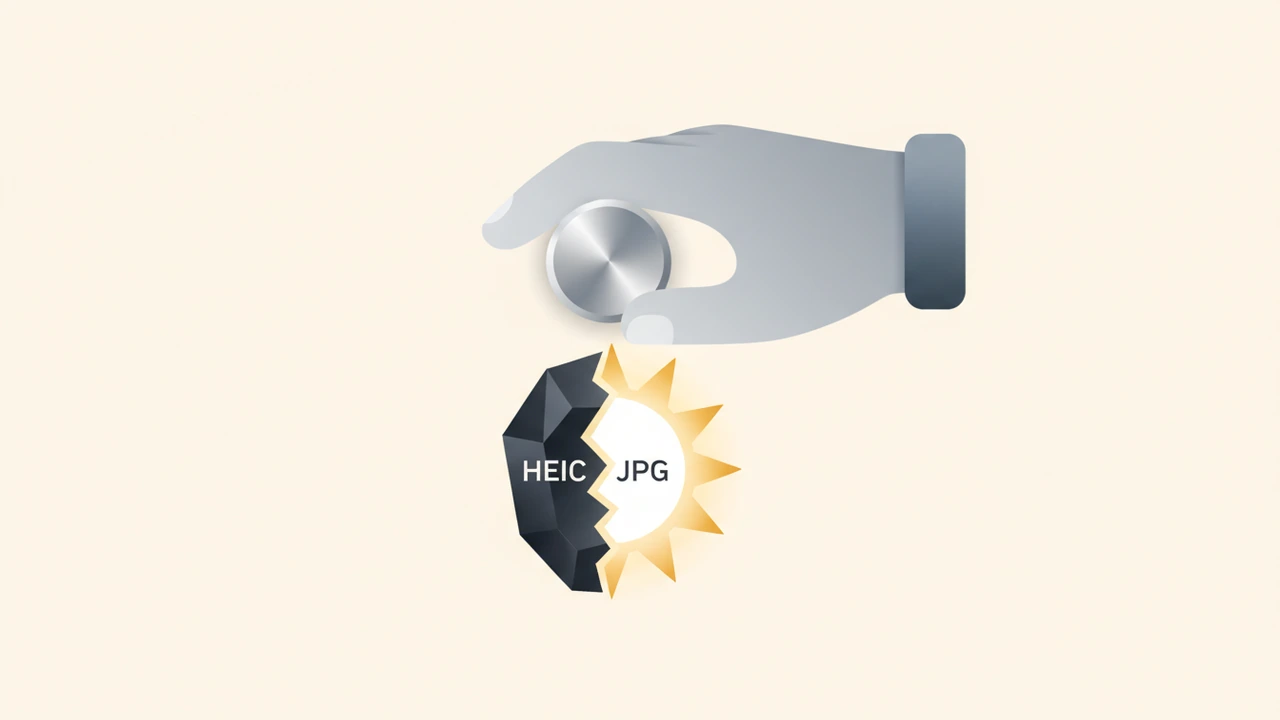
You can convert HEIC to JPG for free in seconds using built‑in OS tools, privacy‑first web converters, or lightweight mobile apps, all without uploading your photos to third‑party servers. All methods preserve EXIF data and let you batch‑process images on Windows, macOS, or any browser.
How do I convert HEIC to JPG for free?
This section answers the exact question many users type into search boxes: How do I convert HEIC to JPG for free? Below are three privacy‑first paths—desktop, web, and mobile—each with step‑by‑step instructions, batch options, and tips for maintaining image quality.
1. Windows 10/11 – Built‑in support, no extra software
- Open the Microsoft Store and install HEIF Image Extensions (≈ 5 MB). This adds native decoding for
.heicfiles. - Open the HEIC file in the Photos app, right‑click, and choose Save as → JPG.
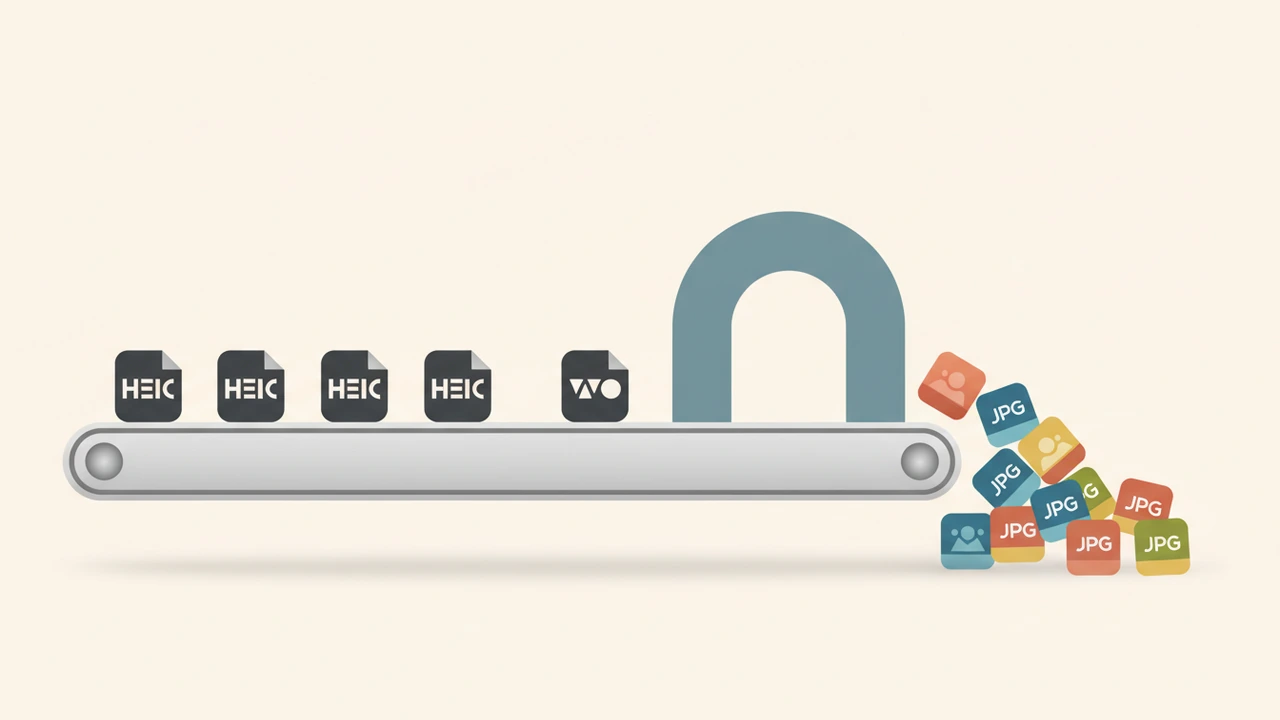
- For batch conversion, download the free TunessBro HEIC Converter (drag‑and‑drop interface). It processes dozens of files in one go and writes JPEGs to a folder you choose.
Why it works: The OS does the heavy lifting, so the conversion stays on your device—no upload, no privacy risk. The extension is digitally signed by Microsoft, ensuring a trusted on‑device pipeline.
Stat: HEIC files are roughly 50 % smaller than comparable JPEGs, which is why many Apple devices default to this format.¹
2. macOS – Preview & Photos do the job
macOS ships with two native ways to convert HEIC to JPG:
| App | Steps | Ideal for |
|---|---|---|
| Preview | 1. Select one or more images in Finder → Open with Preview.<br>2. Choose File → Export.<br>3. Set Format: JPEG, adjust quality (95 % recommended), and click Save. | Quick single‑file conversion or small batches. |
| Photos | 1. Open Photos, select the photos.<br>2. File → Export → Export [Number] Photos.<br>3. Choose JPEG, set quality, and export. | When your library already lives in Photos and you need originals exported. |
Both keep EXIF metadata intact and never leave your Mac. For power users, IrfanView with the HEIF plugin offers ultra‑fast batch conversion, but the built‑in tools are sufficient for most needs.
3. Free online conversion – HEIC.online
If you prefer a browser‑only solution, HEIC.online provides a fast, no‑sign‑up converter that runs entirely in the cloud:
- Upload files up to 1 GB per image.
- Drag‑and‑drop multiple files; the service creates a ZIP of JPGs.
- Files are automatically removed after one hour, and the download link expires after the same period; the server purges everything within 24 hours—a strong privacy guarantee (Fact F1).
Because the conversion runs on the server, you get instant results on any device, even a Chromebook.
Stat: HEIC.online deletes uploaded files after 1 hour and fully purges them within 24 hours, minimizing data exposure.²
4. Desktop apps for power users
| Tool | Platform | Key features |
|---|---|---|
| Adobe Express | Web / Windows / macOS | Free online converter, batch support, automatic EXIF preservation. See Adobe’s guide for details. |
| IrfanView + HEIF plugin | Windows | Free, ultra‑fast, supports drag‑drop batch conversion of hundreds of files. |
| HeicConverter (CLI) | Cross‑platform | Open‑source, scriptable, ideal for automation pipelines. Example repo: HeicConverter on GitHub. |
These apps are optional for professionals who need precise output settings or integration into larger photo‑editing workflows.
5. Mobile solutions – Convert on the go
| OS | App / Method | How it works |
|---|---|---|
| Android | Free HEIC to JPG Converter app (Play Store) | Select photos, tap Convert, choose output folder. |
| iOS | Shortcuts app – import a community‑made “HEIC to JPG” shortcut | Runs entirely on‑device, no internet needed. |
Mobile conversion is handy when you want to share a photo directly from your phone without first syncing to a computer.
Best Practices & Tips for a flawless conversion
- Set JPEG quality to 95 % – you retain near‑lossless detail while keeping file size modest.
- Keep the original HEIC files until you verify the JPGs open correctly on all target devices.
- Compress after conversion if you need smaller files for web upload. Our free Image Compressor shrinks JPGs without visible quality loss.
- Batch rename using a file‑renamer tool if you need consistent naming (e.g.,
IMG_2024_01_01_01.jpg). - Check EXIF preservation: open a converted JPG in any metadata viewer; the original camera model and GPS coordinates should still be present.
- Automate large‑scale jobs with the CLI tool:
for f in *.heic; do heic-convert "$f" "${f%.*}.jpg" -q 95; done(runs locally, zero data leaves your machine).
Frequently Asked Technical Questions
How does Windows handle HEIC files without third‑party software?
Microsoft added native HEIC support through the HEIF Image Extensions package. Once installed, the OS registers the .heic MIME type, allowing the Photos app and File Explorer to preview and export files — see the official discussion on the Microsoft Community Hub (C3).
Is my privacy safe when using an online converter?
Reputable services like HEIC.online delete uploaded files after one hour, and the download link expires after the same period. The server also purges all data within 24 hours (Fact F1). No account creation or personal data is required, making it one of the most privacy‑friendly web tools available.
Can I preserve animation in HEIC (Live Photos) when converting?
Standard JPEG does not support animation, so converting a Live Photo will produce a static frame. If you need the motion, keep the original HEIC or extract the video component using a dedicated tool before conversion.
What if I need to convert thousands of images automatically?
Use the open‑source HeicConverter CLI tool. A simple script like for f in *.heic; do heic-convert "$f" "${f%.*}.jpg" -q 95; done will walk through a folder, convert each file at 95 % quality, and preserve timestamps. This method runs locally, ensuring zero data leaves your machine.
How do I convert HEIC to JPG on iOS without losing quality?
The Shortcuts app includes a community‑made “HEIC to JPG” shortcut that runs entirely on‑device. It lets you select multiple photos, set the JPEG quality, and save the results to a chosen album. Apple’s own discussion board confirms the shortcut preserves EXIF metadata — see Apple Discussions.
Quick Reference Cheat Sheet
- Windows batch: Install HEIF Extensions → use TunessBro HEIC Converter.
- macOS batch: Preview → Export selected files as JPEG.
- Web: HEIC.online – up to 1 GB per file, auto‑delete after 1 hour.
- Power users: Adobe Express, IrfanView + HEIF plugin, or HeicConverter CLI.
- Mobile: Android app or iOS Shortcuts.
Pick the method that matches your workflow, follow the best‑practice tips, and you’ll be able to convert HEIC to JPG quickly, securely, and without spending a dime.
Try the tool from this post
Image Converter
Convert between PNG, JPG, WebP and AVIF.
Open Image ConverterFrequently asked questions
Yes. Set JPEG quality to 95 % or higher; the visual loss is negligible while keeping file sizes manageable.
Most reputable services, including HEIC.online, preserve EXIF metadata by default. Verify after download if you need GPS info.
HEIC.online allows files up to **1 GB** each; larger batches can be split into multiple uploads.
Once you confirm the JPGs open correctly, you can delete the HEICs from your device or move them to an external backup.
On Windows or macOS, using the built‑in OS export (right‑click → Save as JPG or Preview → Export) is instant and keeps everything local.
Sources
Share this article
Send it to a teammate or save the link for later.
Related tools
Related articles

PNG to JPG: The Fast Ultimate Guide for Free Conversion
Convert png to jpg instantly in your browser with a free, privacy‑first tool.
Read article
SVG to PNG: The Free Guide for Conversions Step‑by‑Step
Learn how to convert svg to png quickly, keep transparency, and preserve quality.
Read article
HEIC to PDF: Fast Converter for Easy Document Creation
Convert heic to pdf online for free with our fast, privacy‑first tool. No registration—just upload, adjust settings, and download a high‑quality PDF instantly.
Read article