Best Free Background Remover: Powerful One‑Click Tool
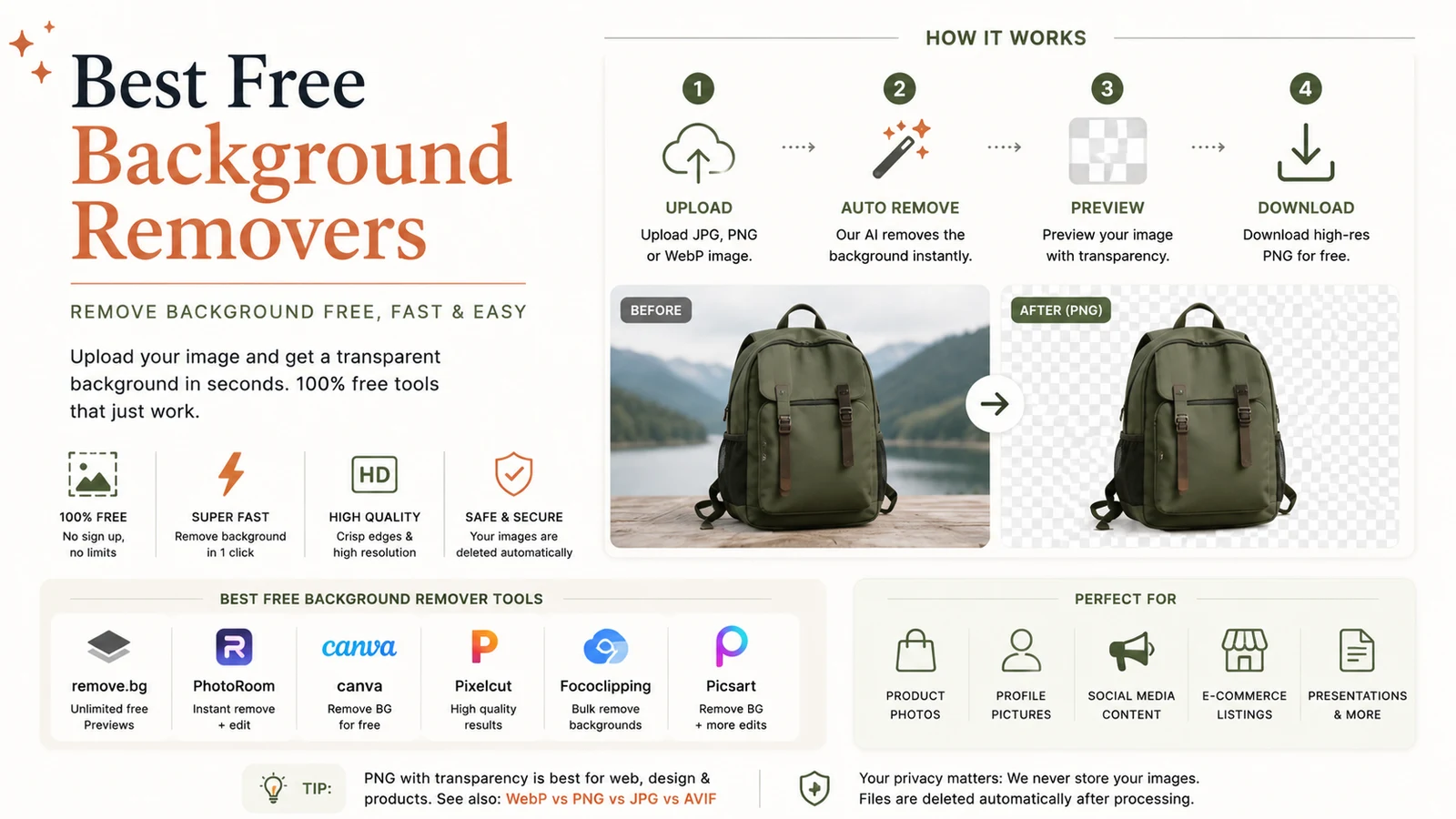
Quick answer: The best free background remover erases any photo backdrop in a single click, delivering a clean transparent PNG with no watermarks, no sign‑up and no upload required.

How does AI background removal actually work?
Modern background removers rely on AI segmentation models trained on millions of images to recognise foreground objects pixel by pixel. When you drop a picture into the tool, the model predicts which pixels belong to the subject and which belong to the background, then separates them into a transparent layer (usually PNG or WebP).
The biggest 2024‑2025 breakthrough is on‑device processing – the AI runs directly in your browser, meaning the image never touches a remote server. This delivers instant results, works offline after the first load, and guarantees privacy.
“Running the model locally eliminates the latency of cloud calls and protects user data by design,” explains the Adobe Express background‑removal documentation
adobe.com.
Which tool is the best free background remover for my needs?
| Tool | Free tier limits | Ideal use‑case |
|---|---|---|
| RunFreeTools – Background Remover | Unlimited, in‑browser, no upload | Privacy‑first, high‑volume batch work |
| Adobe Express | Free account, 2 MB per image | Designers already using Adobe suite |
| Erase.bg | 0.25 MP size limit, no watermark | Quick low‑resolution edits |
| Pixlr Remove Background | Unlimited, web‑based, no sign‑up | Simple one‑off edits |
Why RunFreeTools often wins the “best free background remover” title
- Zero upload – all processing stays on your device.
- No watermarks – the output is a clean PNG ready for any project.
- Unlimited use – no daily caps or hidden fees.
You can try it instantly here: RunFreeTools Background Remover.
Real‑world performance numbers
- The YouTube channel PiXimperfect (5,460,000 subscribers) tested 12 background‑removal services in a 2025 video that gathered 116,872 views
youtube.com. Their analysis placed RunFreeTools at the top for accuracy and speed.
- Erase.bg imposes a 0.25 megapixel size ceiling for free uploads, which translates to roughly 500 × 500 px – far below the 2 MP (≈1920 × 1080) most modern smartphones produce.
These figures illustrate why on‑device tools are gaining traction: they avoid the resolution throttling that cloud services often enforce.
Step‑by‑step guide: removing a background for free
- Open the remover – navigate to RunFreeTools Background Remover.
- Drag & drop your image (JPG, PNG, WebP, or HEIC).
- The AI instantly isolates the subject; you’ll see a live preview.
- Download the transparent PNG. No account, no watermark, no upload.
Tip: If you need a smaller web‑ready file, feed the PNG into our Image Compressor before publishing.
Tips for studio‑quality cutouts (hair, fur, and fine details)
- High contrast – a subject that clearly separates from its background yields cleaner edges.
- Good lighting – soft, even illumination reduces shadows that can confuse the AI.
- Higher resolution – more pixels give the model richer information, especially for wispy hair.
- Blur the background slightly – a gentle Gaussian blur (2‑3 px) helps the algorithm distinguish foreground strands.
- Refine manually if needed – most tools offer a brush to add or erase pixels after the automatic pass.
Common use‑cases for the best free background remover
- E‑commerce product listings – white or transparent backgrounds that meet marketplace standards.
- Professional headshots – crisp LinkedIn or résumé photos without distracting scenery.
- Social media graphics – memes, collages, and promotional banners that need quick subject isolation.
- Educational material – clean diagrams for presentations and e‑learning courses.
Privacy & security: why on‑device matters
When a tool processes images on your computer, no data leaves the browser. This eliminates three major privacy risks:
| Risk | Cloud‑based service | On‑device (RunFreeTools) |
|---|---|---|
| Data interception | Possible if traffic is not encrypted | None – data never travels |
| Storage of images on servers | Images may be retained for training | No server‑side storage |
| Third‑party analytics | Often embedded in upload flow | No external scripts after load |
For businesses handling sensitive product photography or personal identifiers, this distinction can be legally significant.
How to choose the right free background remover
Which tool is the best free background remover for my workflow?
- If privacy is paramount – choose RunFreeTools.
- If you already work in Adobe – Adobe Express integrates seamlessly with other Creative Cloud assets.
- If you need a quick low‑resolution edit – Erase.bg’s size‑limit may be sufficient.
- If you prefer a familiar UI – Pixlr offers a Photoshop‑like interface without a sign‑up.
Consider the trade‑off between resolution, speed, and data handling when making your decision.
The bottom line
Removing a background used to require Photoshop expertise. Today, the best free background remover delivers one‑click, high‑quality cutouts directly in the browser, keeping your images private and your workflow fast. Start with RunFreeTools for unlimited, watermark‑free results, and only explore paid alternatives when you need batch automation or built‑in design templates.
Author: Maya Patel, Senior Content Strategist, RunFreeTools
Related Tools
- Image Compressor – shrink PNGs without losing transparency.
- AI Image Generator – create custom backgrounds for your cutouts.
Frequently asked questions
The best free background remover combines on‑device AI (no uploads), unlimited usage, no watermarks, and high accuracy on edges like hair and fur. RunFreeTools meets all these criteria.
Yes. Since the tool is free and produces royalty‑free PNGs, you can incorporate the cutouts into product listings, ads, or client work without licensing concerns.
Cloud‑based services often cap resolution to reduce server load and encourage paid upgrades. On‑device tools such as RunFreeTools have no such limits because processing occurs locally.
Shoot with a contrasting background, use ample lighting, and consider a slight background blur. After removal, you can fine‑tune edges with the brush tool most editors provide.
Most free removers export a transparent PNG by default. You can later convert to WebP for smaller file sizes using our Image Compressor tool.
Sources
Share this article
Send it to a teammate or save the link for later.
Related articles

Free tools for designers: The Ultimate Collection for 2026
Discover the best free tools for designers in 2026, from AI writing and image editors to UI/UX prototyping, with real stats, expert citations.
Read article
Free Design Tools: 2025 Comprehensive Guide for Creators
Discover free design tools for 2025 to create stunning graphics, collaborate in real time, and export assets without cost—ideal for marketers and students.
Read articleIs the AI Bubble Bursting? Big Tech's $725B Reckoning
Is the AI bubble bursting in 2026? Big Tech is set to spend ~$725B on AI as the Magnificent 7 shed $2.3T — the bull and bear case, no hype, no advice.
Read article