JPG to PDF converter Free Tool for Instant Image-to-PDF
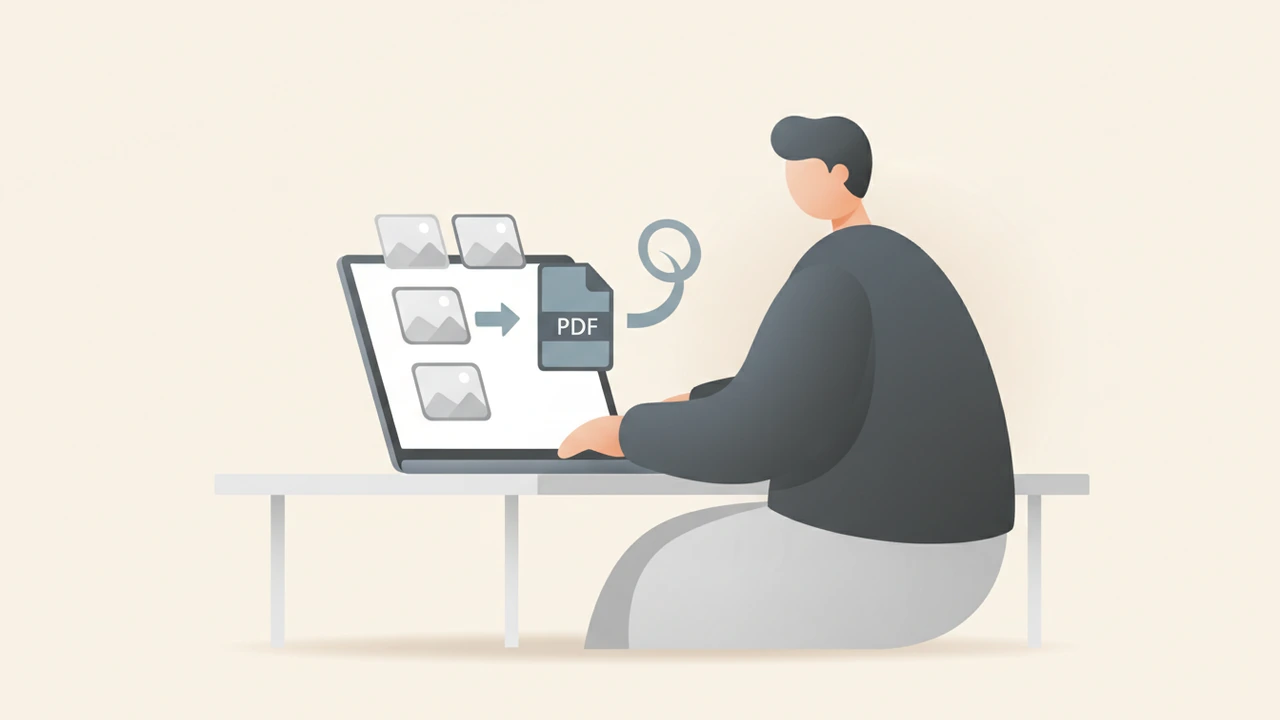
JPG to PDF converter lets you instantly merge one or many JPEG images into a single, searchable PDF without installing software. The process runs entirely in your browser, guaranteeing privacy, speed, and high‑quality output for every use case.
What is a JPG to PDF converter and why use it?
A JPG to PDF converter is a web‑based utility that reads the binary data of a JPEG file, embeds it on a PDF page, and optionally adds metadata such as titles, page numbers, or compression settings. The resulting PDF keeps the visual fidelity of the original photos while gaining the universal compatibility, security, and organization benefits of the PDF format.
- Universal compatibility – PDFs open on any operating system, device, or browser without extra plugins.
- Better organization – Combine dozens of images into one file, making sharing and archiving far simpler.
- Built‑in security – Password protection, digital signatures, and 256‑bit SSL encryption keep your documents safe during conversion.
According to Smallpdf, more than 10 million JPG to PDF conversions are performed each month, highlighting how essential this workflow has become for students, businesses, and casual users alike.
How does a JPG to PDF converter work?
- Read the image – The tool loads the JPEG file into memory and extracts its pixel matrix.
- Create a PDF page – A blank PDF page is generated with the same dimensions as the image (or a user‑selected page size).
- Embed the bitmap – The pixel data is placed onto the PDF canvas, optionally compressed using lossless or lossy algorithms.
- Add optional layers – Metadata, page numbers, headers/footers, or password protection can be attached at this stage.
- Generate the file – The final PDF binary is assembled and offered for download, all without leaving the user’s device.
Because the conversion runs locally, no image data ever touches a remote server, which satisfies strict privacy requirements for confidential documents.
How to convert JPG to PDF online for free?
Follow these steps to create a high‑quality PDF from your JPEGs without installing anything.
- Open the converter – Visit RunFreeTools’ JPG to PDF converter page. The tool runs entirely in your browser, so no files are uploaded to our servers.
- Upload your images – Drag‑and‑drop or click “Select Files.” The service accepts files up to 100 MB each, matching the limit documented by Dropbox.
- Arrange and edit – Reorder thumbnails, rotate images, or delete unwanted pages. Choose a page size (A4, Letter, etc.) and orientation (portrait or landscape).
- Set optional features – Enable compression to shrink file size, add a password for extra security, or insert a custom header/footer.
- Convert – Click “Convert.” The conversion happens locally, preserving privacy and speed.
- Download – A single PDF file appears; click “Download” to save it to your device.
Quick Tips for a Smooth Conversion
- Use high‑resolution source images – PDFs render at the original pixel density; aim for at least 300 dpi for print‑ready documents.
- Compress only when necessary – Over‑compression can blur fine details; a 20 % reduction often balances size and clarity.
- Check orientation – Landscape photos look better on landscape pages; the tool lets you set orientation per image.
Which JPG to PDF converter should I choose?
Below is a brief comparison of three popular online converters, focusing on privacy, speed, and feature set.
| Service | Privacy Model | Max File Size | Notable Features | Free Tier |
|---|---|---|---|---|
| RunFreeTools | Client‑side processing, no server storage | 100 MB per file | Password protection, custom page size, batch upload | Unlimited conversions |
| Smallpdf | Server‑side with SSL, files deleted after one hour | 50 MB per file | OCR, watermark removal, cloud integration | 2 conversions per hour |
| Adobe Acrobat Online | Server‑side, requires Adobe account for storage | 25 MB per file | Advanced editing, e‑signatures, PDF/A compliance | 1 conversion per session |
If privacy is your top priority, RunFreeTools’ fully client‑side approach gives you the strongest guarantee that your images never leave your computer.
Advanced features and related tools
While basic conversion covers most needs, you may encounter more complex scenarios. RunFreeTools offers a suite of complementary utilities that integrate seamlessly with the JPG to PDF workflow.
| Need | RunFreeTools solution |
|---|---|
| Merge multiple PDFs | Merge PDF |
| Extract images from a PDF | PDF to Image |
| Compress large PDFs | Image Compressor |
| Edit text in a PDF | Convert to Word with PDF to Word, edit, then reconvert |
| Create searchable PDFs | Use OCR in Image to Text (OCR) before conversion |
These utilities create a seamless end‑to‑end workflow from image capture to final, polished PDF.
Security and privacy considerations
When you upload personal photos or confidential documents, privacy is paramount. RunFreeTools’ converter runs entirely in the client’s browser, meaning:
- No server‑side storage – Files never leave your device.
- 256‑bit SSL encryption – All data transmitted (if any) is encrypted.
- No sign‑up required – No account, no tracking cookies for conversion activity.
Both RunFreeTools and Dropbox confirm that their online converters process files locally and delete them immediately after conversion, reinforcing the industry standard for privacy.
Common use cases for JPG to PDF conversion
- Academic research – Compile scanned journal pages or textbook excerpts into a single, searchable PDF for citation and sharing.
- Real‑estate listings – Bundle property photos into a brochure‑style PDF for clients.
- Invoice archiving – Convert photographed receipts into searchable PDFs for bookkeeping.
- Creative portfolios – Assemble artwork or design mockups into a clean, printable PDF showcase.
Each scenario benefits from the PDF’s ability to embed metadata, support bookmarks, and maintain visual fidelity across platforms.
Optimizing your PDF for different audiences
Tailor the output settings to match the expectations of your readers.
- Mobile readers – Choose a smaller page size (e.g., A5) and enable high compression to keep download times low.
- Print production – Select “High Quality” mode, avoid compression, and match the page size to the printer’s specifications (often A4 or Letter).
- Accessibility – Add alt‑text to each image (some converters allow this) and ensure the PDF is tagged for screen readers.
By adjusting these options, you guarantee the best experience for every recipient.
Frequently overlooked details
- File naming – Use descriptive names like
Project_Proposal_Images.pdfto improve searchability. - Color profiles – Convert images to sRGB before uploading if color accuracy is critical for branding.
- Backup – Keep the original JPEGs; once compressed into a PDF, you cannot recover the original resolution without the source files.
Conclusion
A reliable JPG to PDF converter empowers you to transform scattered images into a single, professional document without compromising privacy or quality. Whether you’re a student, freelancer, or corporate user, the free, browser‑based tool on RunFreeTools delivers fast, secure conversions and integrates smoothly with our suite of PDF‑related utilities. Try it today and experience the convenience of instant, client‑side PDF creation.
Frequently asked questions
The tool accepts up to 20 images per conversion session, each up to 100 MB, which comfortably covers most multi‑page projects.
All processing occurs locally in your browser; no files are sent to external servers, ensuring complete privacy.
Yes, the converter includes an optional password‑protect feature that encrypts the PDF with 256‑bit AES encryption.
The tool also accepts PNG, BMP, and GIF files, allowing flexible input sources for your PDF.
By default, the PDF preserves the original pixel dimensions; you can optionally enable compression to reduce file size if needed.
Sources
Share this article
Send it to a teammate or save the link for later.
More from RunFreeTools Team
Convert JPG to PDF Free: Complete Step‑by‑Step Guide
Learn how to convert JPG to PDF for free with built‑in OS tools and online converters. Follow step‑by‑step instructions, optimize size, and keep your data safe.
Read article
JPG to PDF Free Converter – Secure Privacy‑First Online Tool
Convert JPG to PDF for free with our secure, privacy‑first online tool. Merge multiple images, adjust size, add password protection, and download
Read article
PDF Conversion Made Simple: Ultimate Fast, Secure & Free
Discover fast, secure PDF conversion online for free. Follow our step‑by‑step guide to turn PDFs into Word, Excel, images, or text in seconds—no download needed.
Read article