Best How to Download Instagram Reel Audio (MP3 Guide)
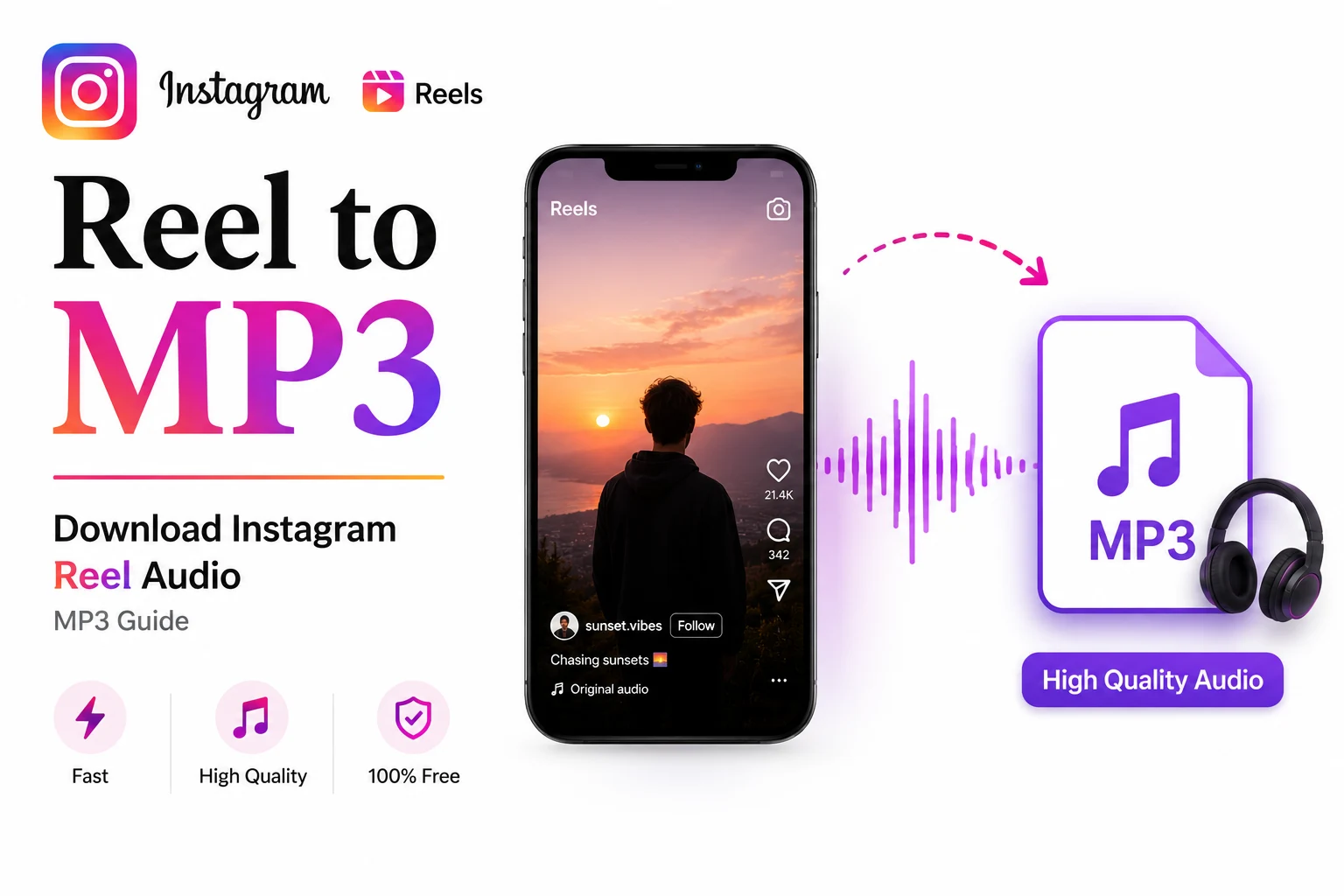
TL;DR — To download Instagram Reel audio, copy the Reel's link in the app (share icon → Copy link), paste it into a browser-based audio extractor, and save the sound as an MP3. The fastest way is our free Instagram Reel Audio Downloader — it pulls the music, song, or voiceover out of any public Reel and gives you an MP3 at up to 320 kbps, with no app to install and no watermark. Instagram's own Save audio button only bookmarks the sound inside the app; it does not put a file on your device.
How to download Instagram Reel audio (the fastest way)
If you just want the sound out of a Reel and onto your phone or computer as a real file, skip the screen recorders and rename tricks. A browser-based extractor does it in three steps and works on every device.
- Open the Reel in the Instagram app or on instagram.com and tap the share icon (the paper-plane). Choose Copy link. The Reel's URL is now on your clipboard.
- Go to the Instagram Reel Audio Downloader and paste the link into the box.
- Click Download audio. The tool separates the audio track from the video and hands you an MP3 — usually in well under a minute.
That's the whole process. There's nothing to sign up for, no software to install, and the file lands in your normal Downloads or Files location like any other download. Because the audio is pulled directly from the source rather than re-recorded through a microphone, you don't lose quality the way you would screen-recording with the speaker on.
If you also want the video — not just the sound — use our Instagram Reel Downloader instead, and to pull audio off a YouTube clip, the YouTube downloader does the same job for that platform.
How to copy the Reel link in Instagram (2026)
Every method of downloading Reel audio starts with one thing: the correct link. Getting it from the Reel itself matters, because copying a profile URL or a shortened share link can send a downloader to the wrong place.
On the Instagram app (iPhone or Android):
- Open the Reel so it's playing full-screen.
- Tap the share icon (paper-plane) on the right-hand side, or the three-dot (⋯) menu at the top.
- Tap Copy link. You'll see a confirmation that the link was copied.
On a computer (instagram.com):
- Open the Reel in your browser.
- Click the paper-plane / share icon below or beside the video.
- Click Copy link, then paste it wherever you need with Ctrl + V (Windows) or Cmd + V (Mac).
One quick check: make sure you copied the link from the Reel, not from the creator's profile grid. A correct Reel link contains /reel/ or /reels/ in the URL. If you grabbed a profile link by mistake, the downloader won't know which clip you mean.
Device-specific steps: iPhone, Android, and PC
The browser tool works the same everywhere, but the small details — where the file lands, how you open it — differ a little by device.
iPhone (iOS)
- In Instagram, copy the Reel link (share icon → Copy link).
- Open Safari (or any browser) and go to the Instagram Reel Audio Downloader.
- Paste the link, tap Download audio, then choose Download when iOS asks. The MP3 saves into the Files app, usually under Downloads.
iPhone also has a native trick if you've already saved the video to your Photos: the Shortcuts app can run an "Encode Media → Audio Only" action to split the sound off. It's handy, but it outputs an .m4a, takes more taps, and only works on a video you've already downloaded — so for a clean MP3 in one go, the browser tool is simpler.
Android
- Copy the Reel link in Instagram.
- Open Chrome and visit the audio downloader.
- Paste, tap Download audio, and the MP3 drops into your Downloads folder, ready to play in any music app or set as a ringtone.
Avoid the old "rename the .mp4 to .mp3" tip you'll still see floating around. Renaming the file extension does not convert anything — you just get a video file with the wrong name that most players choke on. A real extractor re-encodes the audio properly.
PC and Mac
- Copy the Reel link from instagram.com (or paste one a friend sent you).
- Open the Instagram Reel Audio Downloader in any browser.
- Paste, click Download audio, and save the MP3 — perfect for dropping straight into a video editor, DAW, or podcast project.
MP3 quality: what "up to 320 kbps" actually means
Audio quality is measured in kbps (kilobits per second) — the higher the number, the more detail is preserved. Our tool exports at up to 320 kbps, which is the top of the standard MP3 range and effectively transparent for the kind of audio Reels carry (music snippets, voiceovers, trending sounds).
| Bitrate | Quality | Typical use | File size (per minute, approx.) |
|---|---|---|---|
| 320 kbps | Highest | Music, archiving, reuse in edits | ~2.4 MB |
| 256 kbps | Very good | General listening | ~1.9 MB |
| 128 kbps | Acceptable | Voice, casual playback | ~1 MB |
| 64 kbps | Low | Spoken word only | ~0.5 MB |
One honest caveat: a download can only be as good as the source. Instagram compresses Reel audio on its side, so an extractor preserves whatever quality the Reel already has — it can't add detail that was never there. The benefit of pulling the file directly (versus screen-recording) is that you don't add a second layer of loss on top.
Using the audio in your own Reels (rights and disclosure)
A huge reason people grab Reel audio is to use a trending sound in their own content. Two things to keep straight:
- For your own Instagram Reels, you usually don't need to download anything. Tap the audio name at the bottom of a Reel, then Use audio (or save it first — see the next section). Instagram's in-app library is licensed for creators, so reusing a sound within Instagram is the cleanest path.
- A downloaded MP3 is for use outside Instagram — in a video editor, a slideshow, a podcast intro. That's where rights matter most. If the audio is a commercial song or another creator's original sound, using it in published or monetized content can run into copyright. For brand or sponsored posts, you should also follow disclosure rules (clearly label paid partnerships) and get permission for any audio you didn't create or license.
In short: borrow trending sounds inside Instagram with its built-in tools; reserve downloaded MP3s for personal use or audio you actually have the rights to.
Identifying a song vs. downloading the audio file
These are two different goals, and people often confuse them.
- "What's this song?" — You want the name and artist so you can stream it on Spotify or Apple Music. Tap the audio title at the bottom-left of the Reel; if the creator tagged it, you'll see the track and can open its page. If it's untagged, play the Reel out loud and use Shazam (iOS users can add it to Control Center), SoundHound, or even Google by typing a line of the lyrics.
- "I want the actual sound as a file." — You want an MP3 you can keep and play offline. That's what an extractor like our audio downloader is for.
Use Shazam/Spotify when you only need the song's identity; use the downloader when you need the audio file itself.
Saving audio in Instagram vs. downloading an MP3
This is the single most common point of confusion, so here it is plainly:
| Save audio (in Instagram) | Download MP3 (extractor) | |
|---|---|---|
| Where it goes | Your Saved → Audio collection, inside the app | A real file on your phone or computer |
| Can you play it offline / in other apps? | No — it stays in Instagram | Yes — any player, editor, or device |
| Best for | Reusing a sound in your own Reels | Keeping, editing, or using the audio elsewhere |
| How | Tap the audio name → Save (bookmark icon) | Copy the Reel link → paste into the tool → download |
To save audio in-app: tap the audio name at the bottom of the Reel, then the bookmark/save icon in the top-right. Find it later under your profile menu → Saved → Audio. It's a bookmark, not a file — it disappears if the original audio is removed, and you can't move it off Instagram. When you need a portable file, download the MP3.
Troubleshooting common problems
Nothing downloads / "link not found." You probably copied a profile or shortened link. Reopen the Reel, use the share icon → Copy link, and confirm the URL contains /reel/. Re-paste a fresh link.
The Reel is private or has been removed. Audio extractors can only reach public Reels. If the account is private or the post was deleted, there's no public source to pull from — nothing can fetch it, by design.
The downloaded audio is silent or "audio unavailable." Some Reels have their audio muted at the source (often after a copyright claim on a licensed track), or the original used a protected commercial song. If there's no usable audio stream on the Reel itself, an extractor has nothing to save. Reels with original audio almost always work.
It worked yesterday but not today. Instagram changes its back end often. Clear the box, paste a fresh link, and try again — a browser tool like ours is updated to keep pace, so a retry usually clears it. You can see all our current extractors on the downloaders hub.
Is it legal? Download responsibly
Downloading a Reel's audio for personal use — keeping a sound you like, referencing a voiceover, learning from a clip — is generally fine. The line is redistribution and commercial use: reposting someone's audio as your own, or using a copyrighted song in monetized content without a license, can infringe copyright and breaks Instagram's terms.
A simple rule of thumb:
- Public Reels + personal use: generally OK.
- Someone else's original sound or a commercial track, used publicly or commercially: get permission or a proper license.
- Private content: don't try to pull it — both as a matter of the tools' design and basic respect for the creator.
Credit creators when you can, and treat audio you didn't make as someone else's work, because it is.
The bottom line
Instagram still won't hand you a standalone audio file, so the reliable way to download Instagram Reel audio in 2026 is to copy the Reel link and run it through a browser-based extractor. It takes three steps, works on iPhone, Android, and desktop, and gives you a clean MP3 at up to 320 kbps with no app, no watermark, and no sign-up.
Ready to grab a sound? Paste your Reel link into the free Instagram Reel Audio Downloader and save it as an MP3 in seconds.
Frequently asked questions
Open the Reel, tap the share icon and choose Copy link, then paste that link into a browser-based extractor like RunFreeTools' Instagram Reel Audio Downloader and click Download audio. It saves the sound as an MP3 — no app needed.
Yes. Instagram itself won't give you a file, but a free online extractor pulls the audio track out of a public Reel and exports it as a standard MP3 at up to 320 kbps that plays on any device.
Instagram's Save audio button only bookmarks a sound inside the app so you can reuse it in your own Reels — it isn't a file. Downloading an MP3 gives you an actual audio file you can keep, play offline, or use in other apps.
Copy the Reel link in Instagram, open your browser, go to the audio downloader, paste the link, and tap Download audio. On iPhone the MP3 saves to the Files app; on Android it lands in your Downloads folder.
Some Reels use a licensed or protected commercial track that's muted at the source, so there's no usable audio stream to extract. Reels with original audio almost always download with sound. Private or removed Reels can't be downloaded at all.
Downloading audio from a public Reel for personal use is generally fine. Redistributing it or using a copyrighted song in monetized content without permission can infringe copyright, so get a license or the creator's consent for commercial use.
Share this article
Send it to a teammate or save the link for later.
More from RunFreeTools Team
Is the AI Bubble Bursting? Big Tech's $725B Reckoning
Is the AI bubble bursting in 2026? Big Tech is set to spend ~$725B on AI as the Magnificent 7 shed $2.3T — the bull and bear case, no hype, no advice.
Read articleApple Lost a Major EU Antitrust Fight: What It Means
Apple lost a major EU antitrust ruling on July 8, 2026, upholding DMA rules on the iPhone. What's decided, what's still pending, and what changes for you.
Read articleBest AI Browser 2026: Comet vs Dia vs Chrome (Atlas Dies)
The best AI browser in 2026? Comet is free and cross-platform, Chrome adds Gemini, and ChatGPT Atlas shuts down Aug 9 — plus the safety risks.
Read article