How to Convert HEIC to JPG: The Ultimate Step-by-Step Guide
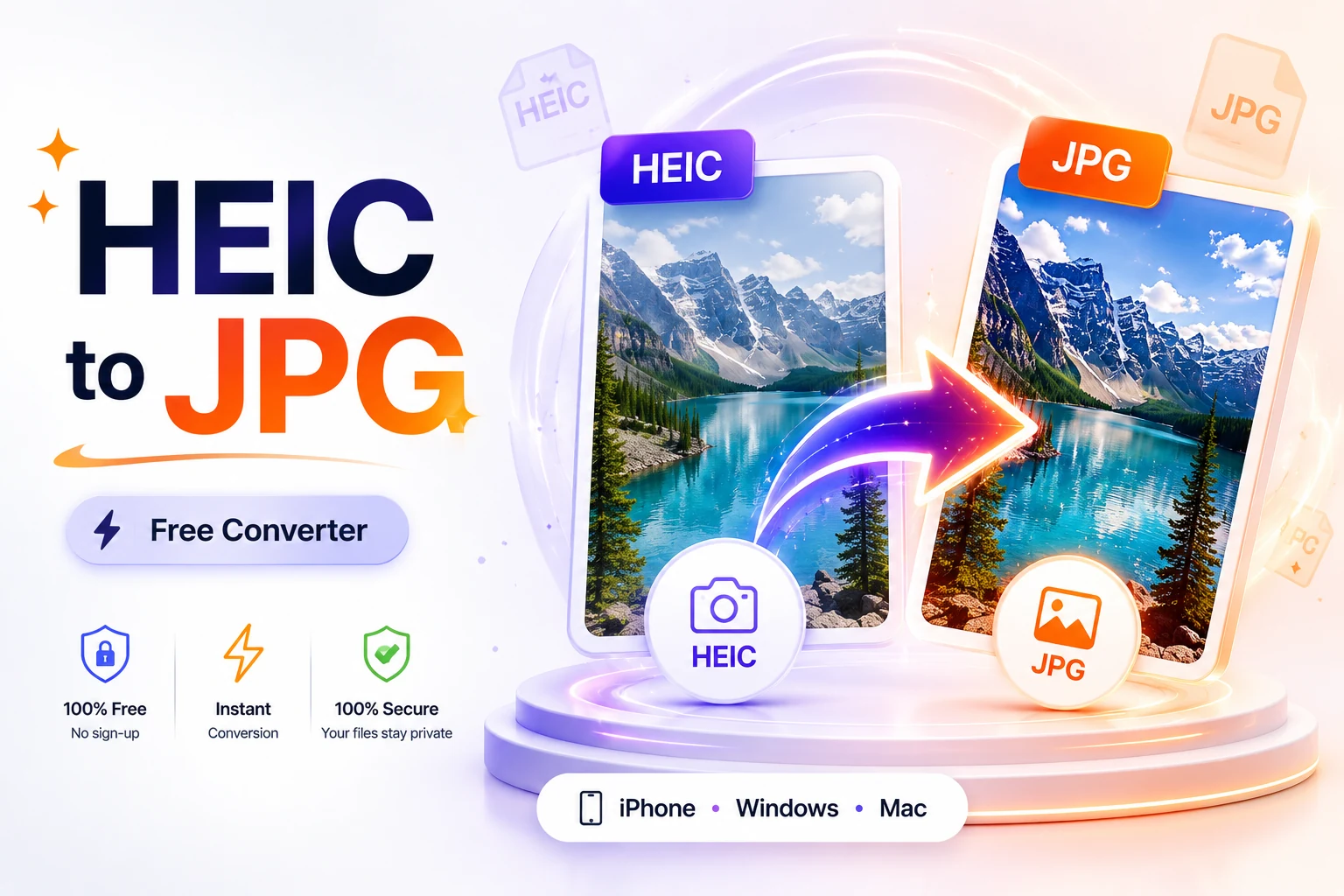
Answer capsule: How to convert HEIC to JPG is a common question for anyone who shoots photos on an iPhone but needs a universally compatible file. The fastest free solution is a privacy‑first in‑browser converter that runs locally, but native tools on iPhone, Windows 11, and macOS also do the job without losing visible quality.
What is HEIC and why does it matter?
HEIC (High Efficiency Image Container) is Apple’s default photo format since iOS 11. It stores images using HEVC compression, delivering roughly 50 % smaller files than JPEG while preserving the same visual detail. The trade‑off is compatibility: many Windows applications, web forms, and Android devices still expect JPEG. That’s why users search for how to convert heic to jpg.
How to convert HEIC to JPG on iPhone
iOS offers several built‑in ways to get a JPEG without installing third‑party apps.
Files app shortcut
- Open Photos, select the HEIC image, tap Share → Save to Files.
- iOS writes the copy as a JPEG, ready to attach or upload.
AirDrop to a Mac
- Select the photo, tap Share → AirDrop, and choose your Mac.
- macOS receives the image as a JPEG automatically.
Email to yourself
- Attach the HEIC to a new email and send it to your own address.
- When you download the attachment on iPhone, it arrives as a JPEG.
In‑browser conversion – the most versatile option
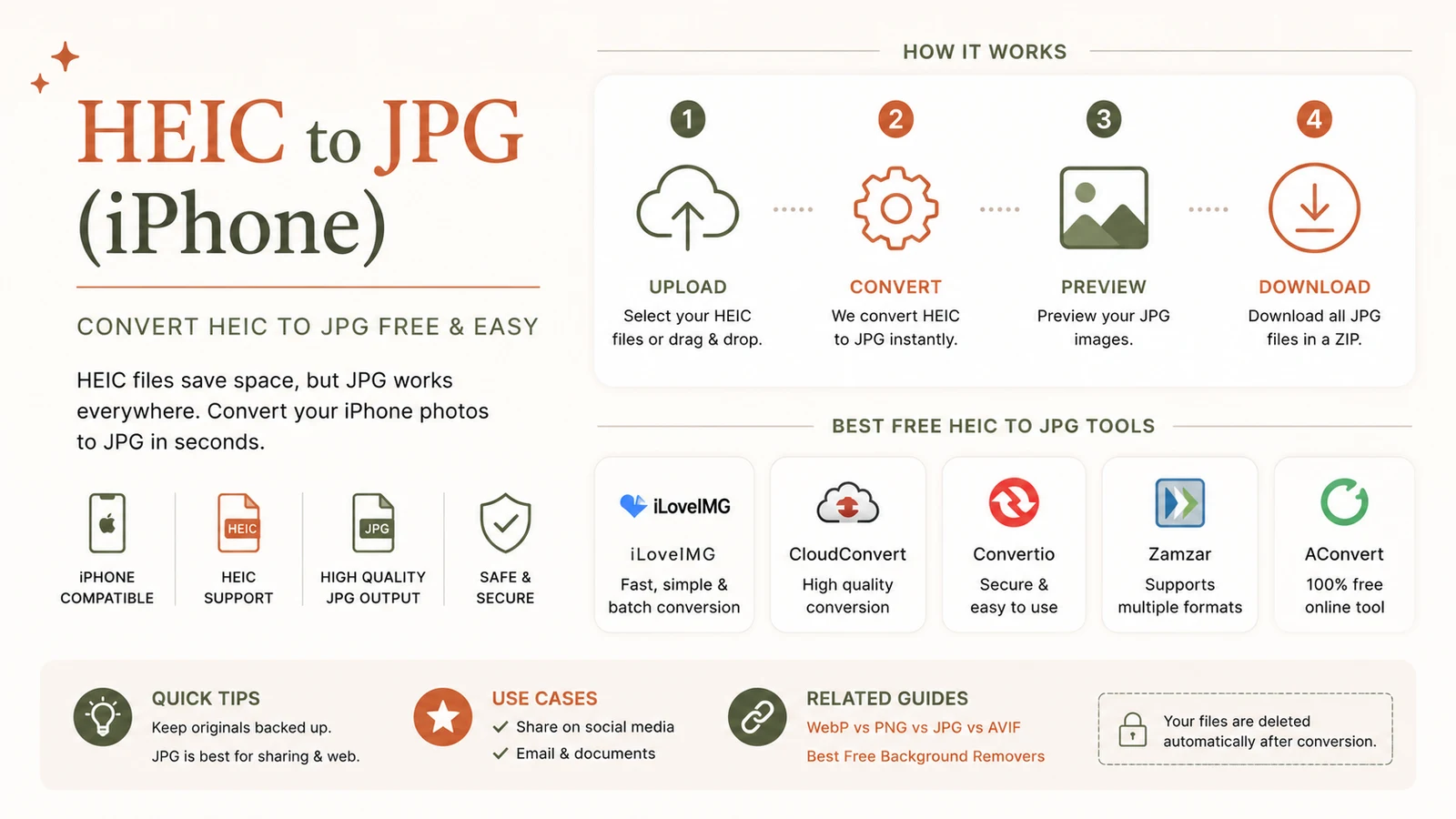
- Open Safari and go to our free HEIC to JPG converter.
- Tap Add Files, select the photo, and the conversion runs locally.
- Download the resulting JPEG; nothing ever leaves your device.
These methods cover single‑photo needs; for batches, the browser tool accepts multiple files at once.
How to convert HEIC to JPG on Windows 11?
Windows 11 can read HEIC only after installing Microsoft’s codec, but you can still convert without it.
1. Install the HEIF codec (if you want native preview)
- Open the Microsoft Store and install HEIF Image Extensions and HEVC Video Extensions.
- This enables thumbnail previews but isn’t required for conversion.
2. Convert with the Photos app
- Double‑click the HEIC file to open it in Photos.
- Click the three‑dot menu ► Save as.
- Choose JPEG as the format and save.
3. Convert with Paint (native support as of 2024)
- Right‑click the file ► Open with → Paint.
- Select File ► Save as ► JPEG picture.
4. Skip the codec entirely – use the browser tool
If you can’t install Store apps on a work PC, open the same in‑browser converter used on iPhone. It decodes HEIC with WebAssembly, so no Windows codec is needed. The process is identical: drag files, wait a few seconds, download JPEGs.
External reference: Microsoft’s official guide on HEIF support explains the codec requirements and how they work ¹.
How to convert HEIC to JPG on Mac
macOS has built‑in support for both viewing and converting HEIC files.
Single image with Preview
- Double‑click the HEIC file → opens in Preview.
- Choose File ► Export.
- Set Format to JPEG, adjust the quality slider (keep it high), and click Save.
Bulk export with Preview
- Select all HEIC files in Finder, right‑click ► Open With → Preview.
- In Preview’s sidebar, press ⌘A to select all, then File ► Export Selected Images.
- Choose JPEG and a destination folder; Preview writes every file in one step.
Quick drag‑to‑Desktop
Dragging images from the Photos app directly onto the desktop automatically creates JPEG copies, saving you a few clicks.
Bulk conversion tips (any platform)
When you need to process dozens or hundreds of photos:
- In‑browser converter – drop an entire folder; the tool converts each file locally and offers a ZIP download.
- Mac Preview – open a folder’s worth of images and export them all at once (see above).
- Windows batch script – if you can install the codec, PowerShell can loop through files using
ConvertTo-Jpeg.
After conversion, consider running the results through our free Image Compressor to shrink file size for email or web upload.
Does converting HEIC to JPG lose quality?
Both HEIC and JPEG are lossy, meaning each format discards some data during compression. Converting how to convert heic to jpg therefore re‑encodes the image a second time. At a JPEG quality setting of 92 % or higher, the visual difference is indistinguishable to the human eye. The main side effect is a larger file: a 2 MB HEIC typically becomes a 4–5 MB JPEG.
External reference: Apple’s support article on HEIC explains the compression efficiency and visual impact ².
If you need a truly lossless archive, export to PNG or TIFF instead of JPEG. For everyday sharing, a high‑quality JPEG is perfectly fine.
How to stop your iPhone from creating HEIC files
If you rarely need JPEGs, keep using HEIC for storage efficiency. When you know a batch will be shared, switch the camera to “Most Compatible”:
- Open Settings ► Camera ► Formats.
- Select Most Compatible.
Your iPhone will now capture new photos as JPEG. Existing HEIC images remain unchanged, so you’ll still need to convert them when required.
Which method should you use?
- One or two photos on iPhone: Files app or AirDrop.
- Mac users: Preview’s Export (or drag‑to‑Desktop).
- Windows 11 with admin rights: Photos or Paint after installing the codec.
- Locked‑down PCs, mixed devices, or bulk jobs: The in‑browser HEIC to JPG converter—no install, no upload, full privacy.
By following these steps, you’ll master how to convert heic to jpg on any device, keep image quality high, and stay in control of your data.
Frequently asked questions
Open the free in‑browser converter at /heic-to-jpg, drag your HEIC files onto the page, and download the JPEGs. The conversion runs locally, so nothing is uploaded.
Yes. Use the same browser‑based converter that works on any OS. It bypasses the need for HEIF Image Extensions entirely.
At a JPEG quality of 92 % or higher, the loss is imperceptible. The main change is a larger file size, not a noticeable drop in detail.
Go to **Settings ► Camera ► Formats** and choose **Most Compatible**. New photos will be saved as JPEG; existing HEIC files must be converted separately.
Use the browser tool to drop a whole folder, then download a ZIP of JPEGs, or on Mac use Preview’s “Export Selected Images” feature for a one‑click batch conversion.
Sources
Share this article
Send it to a teammate or save the link for later.
More from RunFreeTools Team
Free heic to jpg Converter – Private, Secure Browser Tool
Convert heic to jpg free in your browser with a privacy‑first tool. No uploads, no accounts, and no watermarks—just instant JPGs for iPhone photos.
Read article
Free Online File Converter: The Fast Way to Transform Files
Use a free online file converter to change PDFs, images, audio, or video in your browser. Secure SSL encryption and automatic file deletion keep data private.
Read articleiPhone HEIC Won't Open on Windows? Fix + Convert
iPhone HEIC photos won't open on Windows? Here's why, plus how to convert HEIC to JPG on Windows in your browser, install HEIF extensions, or shoot JPEG.
Read article