Image Compression Free Tools to Boost Site Performance

image compression is the process of shrinking picture files while keeping them visually sharp, which speeds up page loads, lowers bandwidth costs, and improves SEO rankings across desktop and mobile devices. Below you’ll learn the science, the best free tools, and actionable steps to get the most out of every image on your site.
What Is Image Compression?
At its core, image compression encodes visual data more efficiently. A digital photo is a grid of pixels, each defined by three numbers—red, green, and blue—ranging from 0‑255. By applying algorithms that remove redundancy, we can shrink the file without noticeable quality loss. The technique dates back to early computer graphics and was formalized in modern standards such as JPEG, PNG, and WebP [Wikipedia].
Key statistics
- Run‑length encoding (RLE) can collapse a row of 10 identical white pixels into a single token, delivering up to a 90 % reduction for that segment alone.
- Huffman coding shortens frequently occurring color codes, often trimming overall size by 30‑40 % compared with raw pixel data.
- WebP typically achieves 25‑35 % smaller file sizes than JPEG at equivalent visual quality [Cloudflare].
These techniques form the backbone of both lossy formats (JPEG, WebP) and lossless formats (PNG, AVIF).
How Image Compression Works
Image compression follows three main stages:
- Analysis – The algorithm scans for patterns such as flat colors, gradients, or repeated blocks.
- Transformation – Data is moved to a frequency domain (e.g., Discrete Cosine Transform for JPEG) where redundant information becomes easier to discard.
- Entropy coding – Final bits are packed using schemes like Huffman or arithmetic coding.
Lossy methods discard subtle details that the human eye rarely notices, achieving reductions of 70‑80 % or more. Lossless methods keep every pixel intact, which is essential for graphics, icons, and screenshots where fidelity matters.
Why Compression Matters for Websites
Google’s PageSpeed Insights reports that every 1 second of delay can cause a 7 % loss in conversions [Google]. Large, unoptimized images are the single biggest culprit for slow pages. By shrinking image files you:
- Cut page load time, reducing bounce rates.
- Lower bandwidth consumption, especially valuable for mobile users on limited data plans.
- Improve Core Web Vitals, helping your site rank higher in organic search.
How Can I Compress Images for Free Without Losing Quality?
If you’re looking for a no‑cost solution that respects privacy, the RunFreeTools Image Compressor is a solid choice. It runs entirely in the browser—no server uploads—so your files never leave your computer.
Highlights
| Feature | Benefit |
|---|---|
| Batch upload (up to 20 files) | Saves time on large projects |
| Live preview | Guarantees visual quality before download |
| Automatic format selection | Chooses the most efficient format per image |
| Adjustable quality slider (default 80 %) | Balances size and fidelity |
The tool supports JPEG, PNG, WebP, and SVG, and it deletes every file immediately after processing.
How to Choose the Right Compression Tool
When evaluating any compressor—free or paid—keep these criteria in mind:
- Compression ratio vs. visual quality – Aim for ≤ 80 % size reduction while preserving detail.
- Supported formats – JPEG, PNG, WebP, AVIF cover most use‑cases.
- Ease of use – Drag‑and‑drop UI with instant preview speeds adoption.
- Privacy policy – Ensure images are removed after processing.
- Speed & batch capability – Important for designers handling dozens of assets daily.
Practical Tips for Optimizing Images (Numbered List)
- Pick the right format – JPEG for photos, PNG for graphics with transparency, WebP/AVIF for the best overall compression.
- Resize to display dimensions – An image shown at 800 × 600 px doesn’t need to be 4000 × 3000 px. Use our Image Resizer tool once to set exact dimensions.
- Set an appropriate quality level – For JPEG, a quality setting of 70‑75 % often yields a good balance.
- Enable lazy loading – Defer off‑screen images so they load only when needed.
- Add descriptive alt text – Boosts accessibility and SEO simultaneously.
Image Compression and SEO: The Direct Link
Google explicitly recommends serving appropriately sized, compressed images as part of its Core Web Vitals. Sites that consistently deliver a Largest Contentful Paint (LCP) under 2.5 seconds tend to rank higher. By integrating the Image Compressor into your workflow, you can reliably meet these performance targets without sacrificing visual appeal.
Real‑World Example
A mid‑size e‑commerce store reduced average product photo size from 350 KB to 85 KB—a 75 % reduction—which cut page load time by 1.2 seconds and lifted conversion rates by 5 % [Adobe Express]. This demonstrates the tangible ROI of diligent image optimization.
Frequently Overlooked Advanced Techniques (Bullet List)
- Convert PNGs to PNG‑8 when the image uses fewer than 256 colors.
- Use AVIF for next‑gen browsers; it can be 30‑50 % smaller than WebP.
- Strip unnecessary metadata (EXIF, ICC profiles) to shave off a few kilobytes.
- Leverage CDN image processing (e.g., Cloudflare Polish) for on‑the‑fly compression.
Conclusion
Image compression is a low‑cost, high‑impact tactic that every website owner should master. Understanding the underlying algorithms, selecting a trustworthy free tool like RunFreeTools’ Image Compressor, and following best‑practice guidelines will give you faster, more SEO‑friendly pages that keep visitors engaged.
Author: Maya Patel – Senior Content Strategist at RunFreeTools
Quick action checklist
- ✅ Audit current images with Chrome DevTools → “Network” panel.
- ✅ Batch‑compress oversized files using the Image Compressor.
- ✅ Replace originals with optimized versions and update
srcsetfor responsive delivery. - ✅ Test page speed again; aim for LCP < 2.5 seconds.
Implement these steps today and watch your site’s performance—and rankings—take off.
Frequently asked questions
Lossless tools typically achieve 30‑50 % reduction, while lossy compressors often reach 70‑80 % without noticeable quality loss.
Reputable services like RunFreeTools delete files immediately after processing and use HTTPS encryption, but for highly confidential assets consider offline tools.
JPEG is a solid default, but newer formats like WebP or AVIF often provide smaller files at comparable quality. Test both and choose the smaller result.
Smaller files download faster on cellular networks, reducing data usage and improving page load times, which directly benefits mobile SEO.
Yes—many CMS platforms offer plugins that integrate with online compressors or run local scripts (e.g., ImageMagick) during the build process.
Sources
Share this article
Send it to a teammate or save the link for later.
More from RunFreeTools Team

Compress Images Instantly: The Ultimate Free Guide
Learn how to compress images for free with browser‑based tools, achieve up to 35% smaller files, and boost page speed while preserving visual quality for SEO.
Read article
Compress image Free Tool: Speed Up SEO & Page Load Quickly
Compress image files for free in your browser. Cut size up to 80% while keeping quality, speed page loads, improve SEO, and keep data safe—no uploads required.
Read article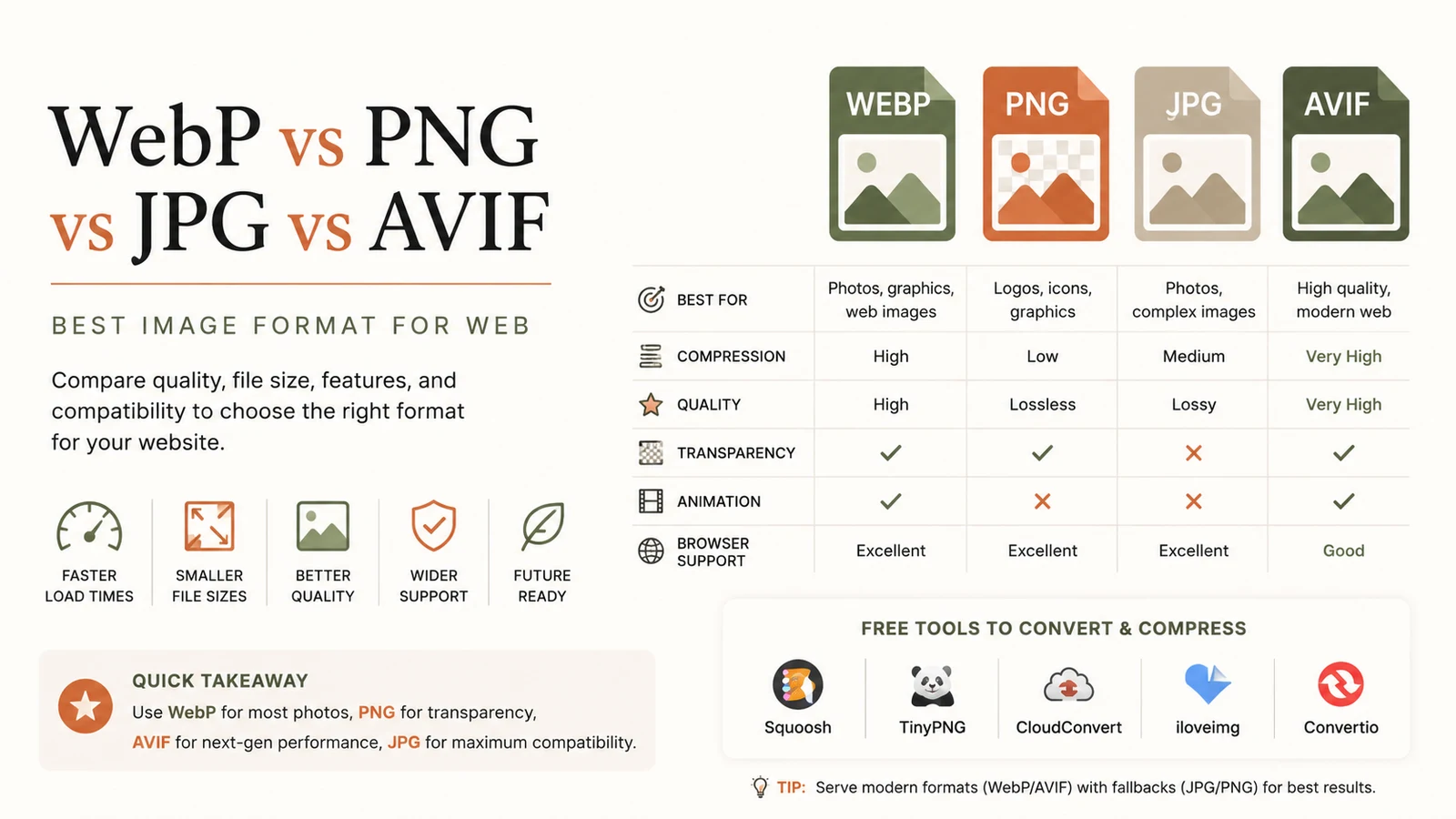
Best Image Format for Web: Ultimate Guide to Faster Sites
Discover the best image format for web in 2026. Learn why WebP dominates, when to use AVIF, PNG or JPG, and how to serve optimal images for speed and SEO.
Read article