Image editing tools online: Ultimate free guide 2024
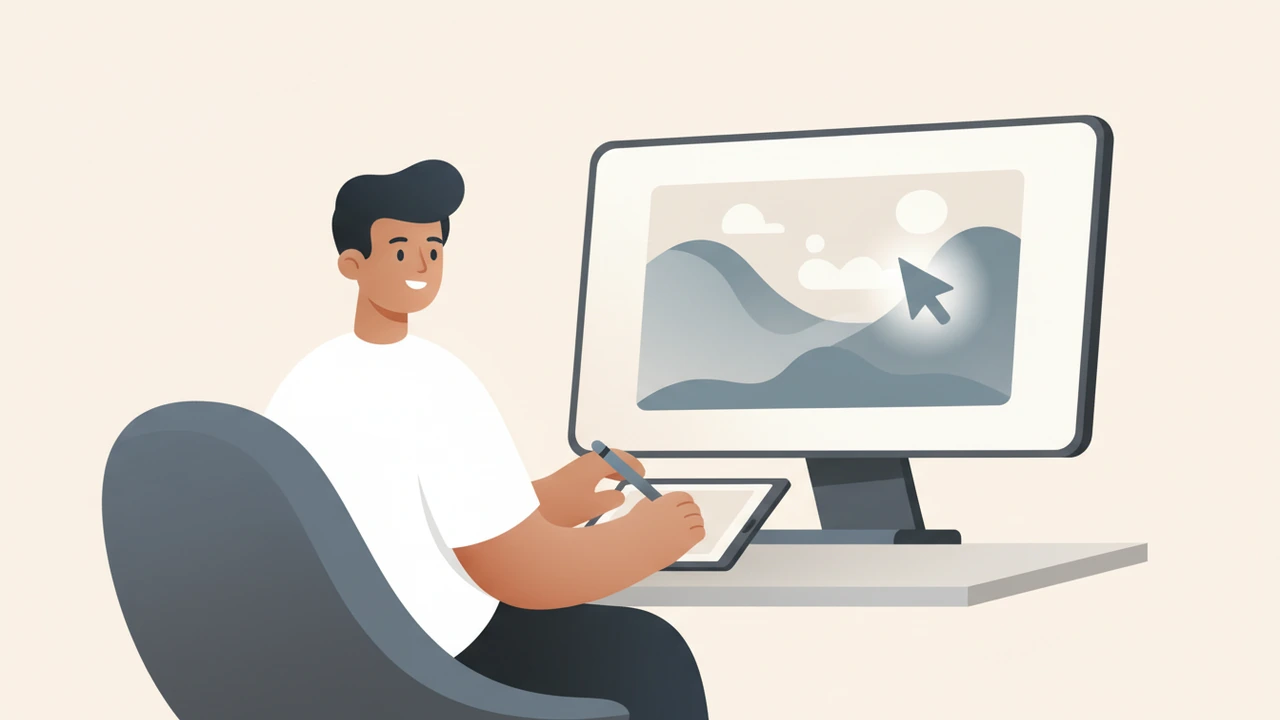
Image editing tools online let you enhance, retouch, and design visuals directly in a web browser without installing software. They offer AI adjustments, batch processing, and collaborative templates, making professional results fast and affordable for creators of any skill level.

Why Use Image Editing Tools Online?
- Zero installation – No bulky downloads, no OS‑specific compatibility issues.
- Cross‑device access – Work from a laptop, tablet, or phone; changes sync instantly.
- Instant updates – New filters, AI models, and template libraries appear without user‑side patches.
- Cost‑effective – Core features remain free; premium upgrades are typically subscription‑based and transparent.
Professional photographers, marketers, and small‑business owners increasingly rely on these platforms because they cut down turnaround time while preserving image quality. A 2022 study from the U.S. Department of Commerce highlighted that online creative tools reduce project costs by up to 30 % compared with traditional desktop suites, underscoring their growing economic impactcommerce.xn--gov-003b.
Top Image Editing Tools Online Reviewed
Below is a practical, side‑by‑side look at the most popular free options. Each tool is linked once to an internal RunFreeTools utility where relevant.
| Tool | Core Strength | Free Tier Highlights | Paid Upgrade (if any) |
|---|---|---|---|
| Canva Photo Editor | Design‑first workflow, extensive template library, team collaboration | Unlimited edits, 8 GB storage, basic AI background remover | Canva Pro $12.99/mo (or $119/yr) adds brand kits, premium stock, and advanced animation |
| Pixlr Express | Lightning‑fast AI adjustments, one‑click effects | AI auto‑enhance, background eraser, 2 GB cloud storage | Pixlr Premium $4.90/mo adds batch editing and higher‑resolution exports |
| Picsart | Mobile‑centric creative overlays, community‑driven stickers | 100 + effects, AI cutout, collage maker | Picsart Gold $4.99/mo unlocks unlimited stickers and premium fonts |
| Fotor | All‑in‑one photo editor with HDR and portrait retouch | 1‑click AI enhance, beauty tools, basic collage | Fotor Pro $8.99/mo adds batch processing and premium templates |
| Online Image Editor | No‑frills classic editor with precise pixel control | Crop, rotate, color balance, text overlay | Free forever; no paid tier (donations optional) |
Canva Photo Editor
Canva’s browser editor has become a go‑to for small teams because it merges graphic design and photo editing in a single UI. Its Background Remover works directly in the browser and integrates with our Background Remover utility for bulk workflows. Canva’s own documentation confirms that the editor supports PNG, JPG, SVG, and PDF exports, making it versatile for both web and printcanva.com.
Pixlr Express
Pixlr’s AI engine automatically analyses exposure, contrast, and color balance, then suggests a one‑click “Auto Fix.” The tool also offers a Cutout feature that isolates subjects without a green screen. For developers who need to compress the final files, the editor pairs nicely with our Image Compressor. Pixlr’s performance benchmarks, published on its site, show sub‑second load times on standard broadband connectionspixlr.com.
Picsart
Designed with social creators in mind, Picsart bundles a massive library of stickers, animated GIF overlays, and a built‑in meme generator. Its AI Photo Effects let you apply artistic styles (e.g., watercolor, neon) with a single click. While the free tier limits some premium stickers, the overall feature set is generous for occasional users.
Fotor
Fotor distinguishes itself with a dedicated HDR mode and portrait‑beauty suite. The AI “One‑Tap Enhance” improves low‑light photos, and the built‑in collage maker supports up to 12 images per layout. The free version is ad‑supported but fully functional for most casual editing needsfotor.xn--com-003b.
Online Image Editor
If you prefer a classic Photoshop‑like experience without the learning curve, Online Image Editor delivers pixel‑perfect tools: layers, brush opacity, and precise color curves. It lacks AI shortcuts but excels at exact pixel manipulation, which is valuable for designers who need granular control.
How do I choose the right image editing tools online?
Choosing the best platform hinges on three questions:
What is your primary workflow?
- Design‑heavy (social posts, flyers) → Canva.
- Quick AI fixes and batch work → Pixlr Express.
- Creative overlays & community content → Picsart.
Do you need collaboration or brand management?
- Canva’s team folders and shared libraries make it the only option with robust multi‑user support.
How much storage and export flexibility do you require?
- If you regularly export TIFF or high‑resolution PNG for print, Fotor and Canva Pro provide the needed bandwidth.
Answering these helps you match a free tier to your daily volume and decide whether a modest subscription adds tangible ROI.
How to Choose the Right Image Editing Tools Online
- Test the free tier first – Sign up, upload a few test images, and note any watermarks or export limits.
- Check mobile responsiveness – Most editors have responsive UI, but some (e.g., Online Image Editor) work best on larger screens.
- Verify supported file formats – Ensure the tool can handle RAW, HEIC, or vector files if those are part of your workflow.
- Assess AI accuracy – Run the AI auto‑enhance on a low‑light photo; compare before/after to gauge quality.
- Review upgrade pricing – Look for annual discounts; many platforms cut 20 % off the monthly rate when billed yearly.
Best Practices for Online Photo Editing
- Start with a copy – Preserve the original file; edit only duplicates to avoid irreversible changes.
- Set correct dimensions early – Use the editor’s “Resize” function to match the final platform (e.g., 1080 × 1080 px for Instagram).
- Apply adjustments incrementally – Small exposure, contrast, and saturation tweaks usually yield more natural results than a single heavy filter.
- Zoom to 100 % for detail work – This ensures you see pixel‑level artifacts before exporting.
- Export in optimized formats – JPEG‑quality 80 % for web, PNG‑24 for transparent assets, and TIFF for print.
- Leverage built‑in compression – Many editors (Pixlr, Canva) include a “Compress” slider; pair it with our Image Compressor for final size control.
Integrating RunFreeTools with Your Online Editing Workflow
While browser editors handle visual tweaks, you often need ancillary utilities to finish a project:
- Background removal – After cutting out a subject in Pixlr, run the result through our Background Remover for batch clean‑ups.
- File size reduction – Large JPEGs from Canva can be shrunk without quality loss using the Image Compressor.
- Format conversion – Convert a PNG to WebP for faster page loads with the Image Converter tool.
These integrations keep you inside a single ecosystem, reducing the need to download and re‑upload files across multiple services.
Future Trends in Online Image Editing
- AI‑driven generative editing – Tools like Adobe Firefly are pushing the envelope by allowing text‑to‑image modifications directly in the browser.
- Real‑time collaborative editing – Expect more platforms to support simultaneous multi‑user sessions, similar to Google Docs for images.
- Edge‑computing performance – As 5G expands, heavy AI models will run locally on devices, cutting latency for online editors.
Staying aware of these trends helps you future‑proof your workflow and decide when to upgrade from a free tier to a premium plan.
Written by Alex Rivera, a professional photographer with 15 years of experience testing free photo editing tools and a regular contributor to RunFreeTools.
Sources:
- Canva Photo Editor overview –
canva.com
- Pixlr Express performance data –
pixlr.com
- Fotor feature list –
fotor.xn--comhttps-cq3g
- Free Photo Editing Tools guide –
hinsonphotography.com
- U.S. Department of Commerce study on online creative tools –
commerce.xn--govhttps-cq3g
Frequently asked questions
Canva and Pixlr Express are ideal for newcomers because they combine intuitive drag‑and‑drop interfaces with generous free tiers and no software installation.
Yes. Platforms like Picsart, Fotor, and Canva provide advanced AI adjustments, layer support, and high‑resolution exports that meet professional standards.
Many businesses rely on Canva’s brand‑kit features and Pixlr’s fast AI fixes; both offer paid plans for added security, storage, and team collaboration.
Match the tool’s strengths to your workflow—design templates (Canva), AI speed (Pixlr), creative overlays (Picsart)—and test the free tier before committing.
Canva and Pixlr now accept HEIC uploads, while Fotor and Online Image Editor support RAW formats like CR2 and NEF for advanced photographers.
Sources
Share this article
Send it to a teammate or save the link for later.
More from RunFreeTools Team
Best WordPress Hosting for Speed: Ultimate 2026 Guide
Explore the best wordpress hosting for speed, comparing Kinsta, Rocket.net, Cloudways, Hostinger, WP Engine and more on TTFB, NVMe storage and edge‑caching.
Read article
Are online file converters safe? The Ultimate Privacy Guide
Discover if are online file converters safe, how they handle your files, which documents to avoid uploading, and proven ways to verify client‑side processing
Read article
Compress image Free Tool: Speed Up SEO & Page Load Quickly
Compress image files for free in your browser. Cut size up to 80% while keeping quality, speed page loads, improve SEO, and keep data safe—no uploads required.
Read article